
How to Connect the HubSpot Integration
Measure supports a deep integration with HubSpot to support your sales workflows, with bidirectional syncs for customers to contacts and contracts to deals.
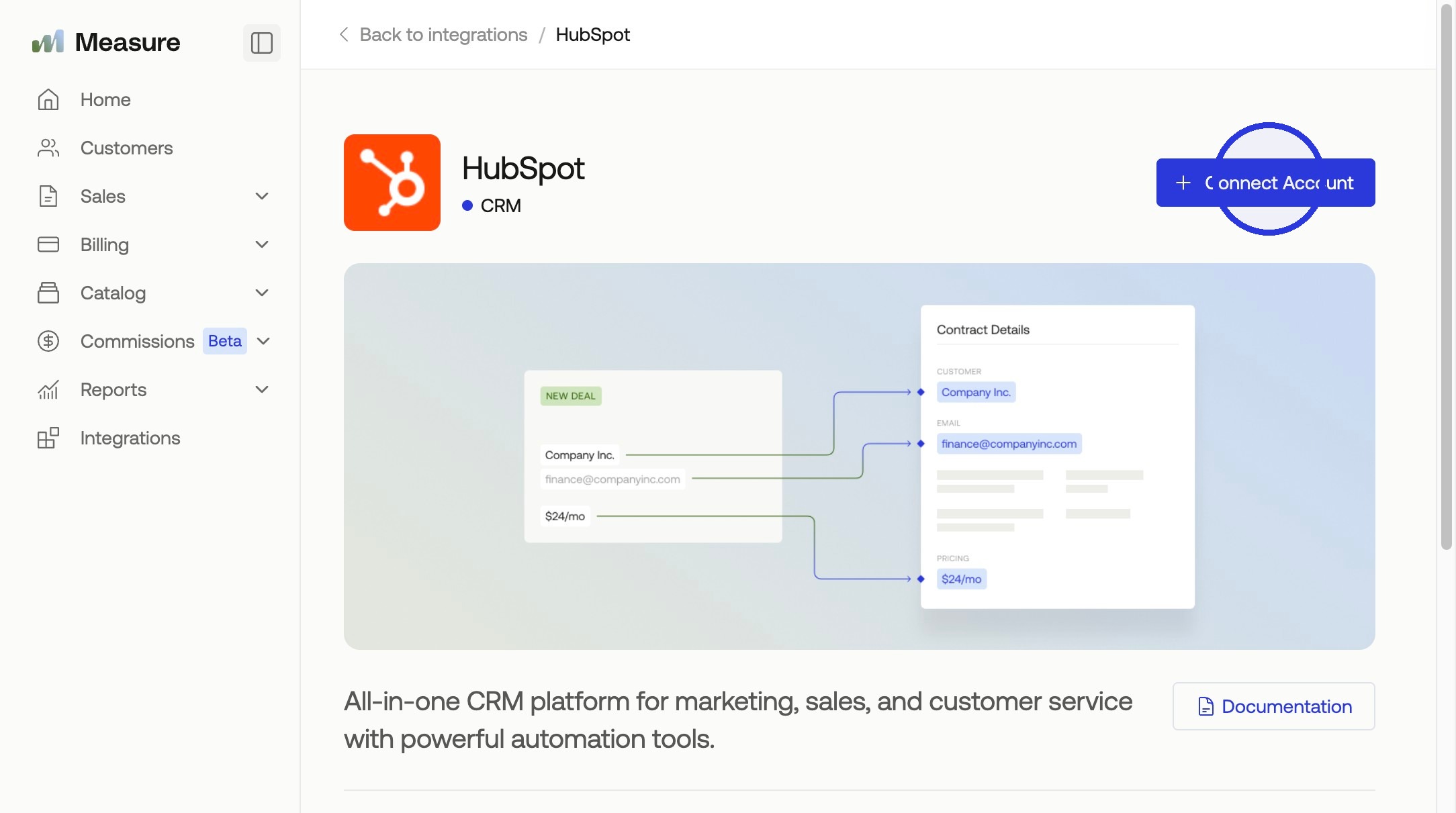
1. Under Integrations > Search "HubSpot" > Select > Click "+ Connect Account"
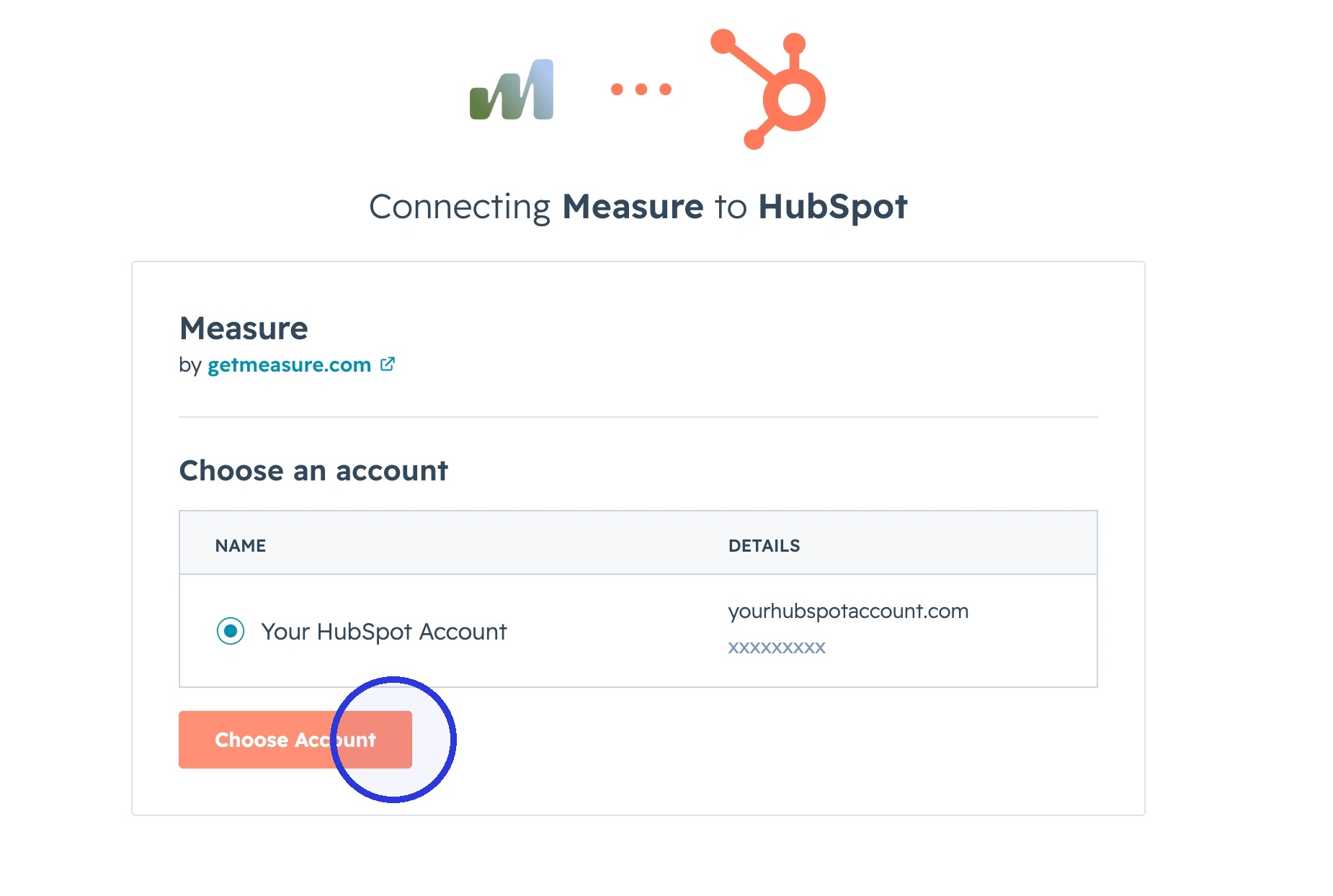
2. Select your HubSpot Account
Fill in your HubSpot credentials and select the correct account to connect. You will need to read the rules and permissions and accept the terms to continue authorizing.
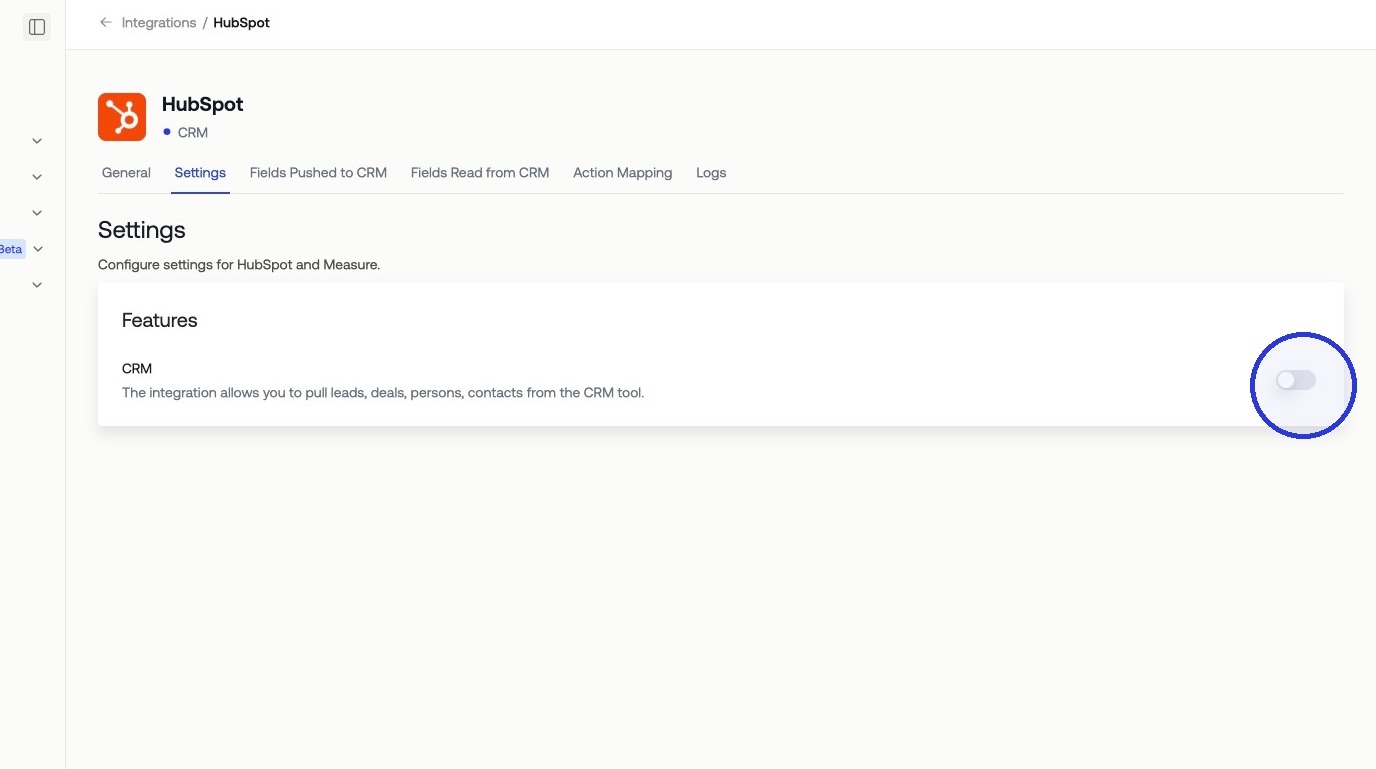
3. Configure HubSpot Integration Settings
Settings > Toggle On
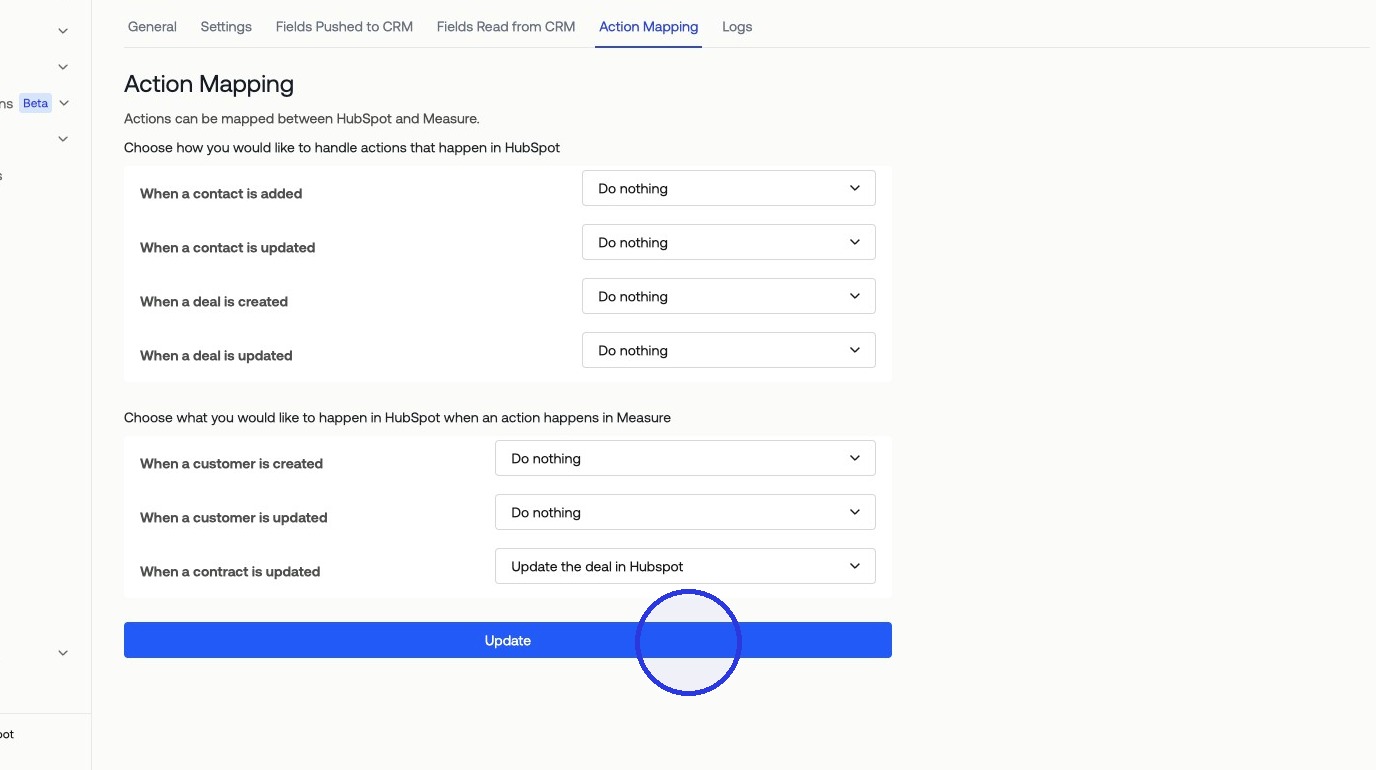
4. Set up Action Mapping and Field Mapping
Measure allows for Action Mapping and Field Mapping with HubSpot for a highly customized integration. The Action Mapping determines what happens in HubSpot when actions happen in Measure and vice versa. You can configure either Measure or HubSpot to be the source of truth on the customer or contract information.
Under Action Mapping, we recommend "Updating the deal in HubSpot when a contract is updated in Measure". Be sure to hit Update to save your changes.
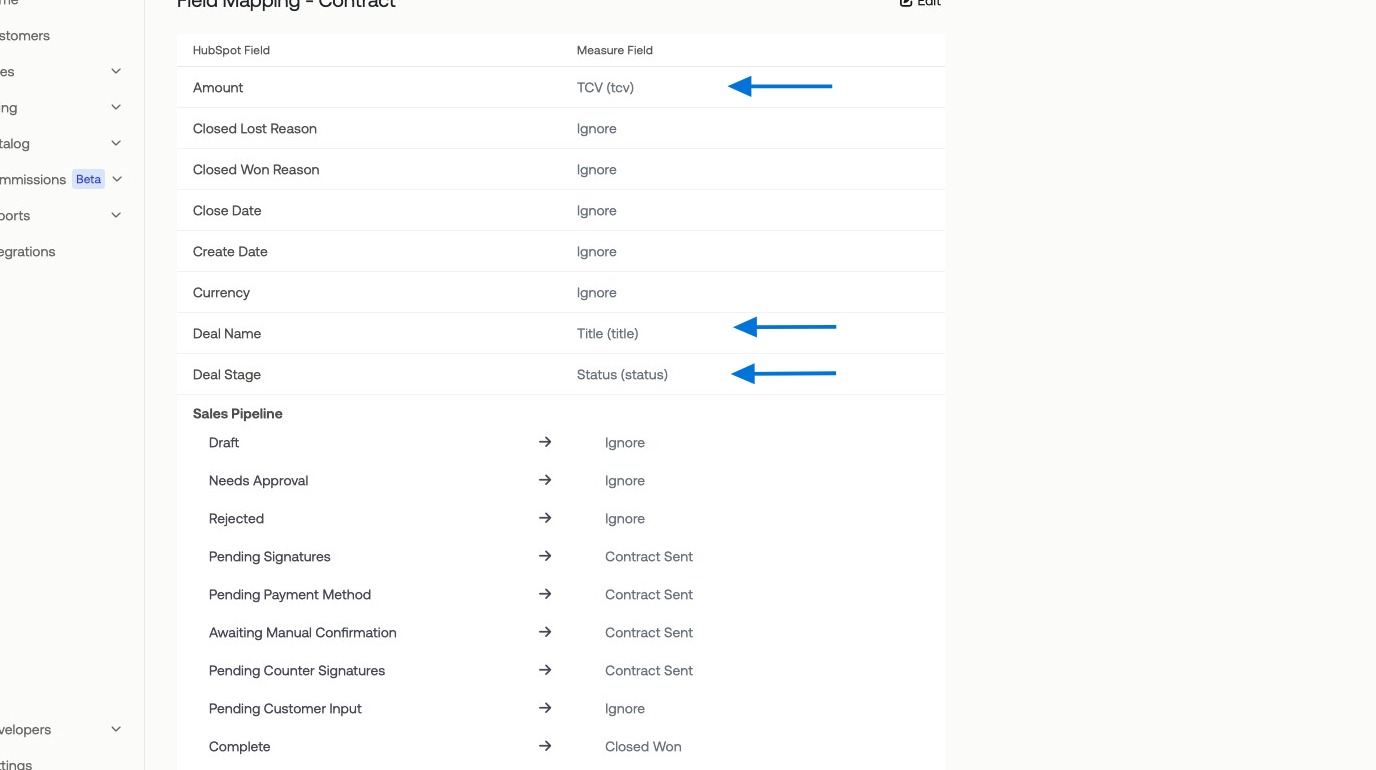
Similarly, you can configure which fields are mapped on customers and contracts in Measure and HubSpot. These are the ones we recommend under Field Mapping for Contracts. In our example, we will be pushing Contract Information from Measure to HubSpot by clicking Fields Pushed to the CRM > Contract.
Amount → TCV: (Total Contract Value)
Deal Name → Title: (Contract Title: Customer Name - Your Company Name Contract)
Deal Stage → Status: This will allow you to map the different stages of your sales pipeline to specific contract-related actions in Measure.
Remember to click Save to save your changes. You are now mapping Contracts from Measure into HubSpot as deals. To learn more about action mapping for customers and syncing deals back to Measure in our full HubSpot Integration Overview and Setup article.