
Attio Integration Overview and Configuration
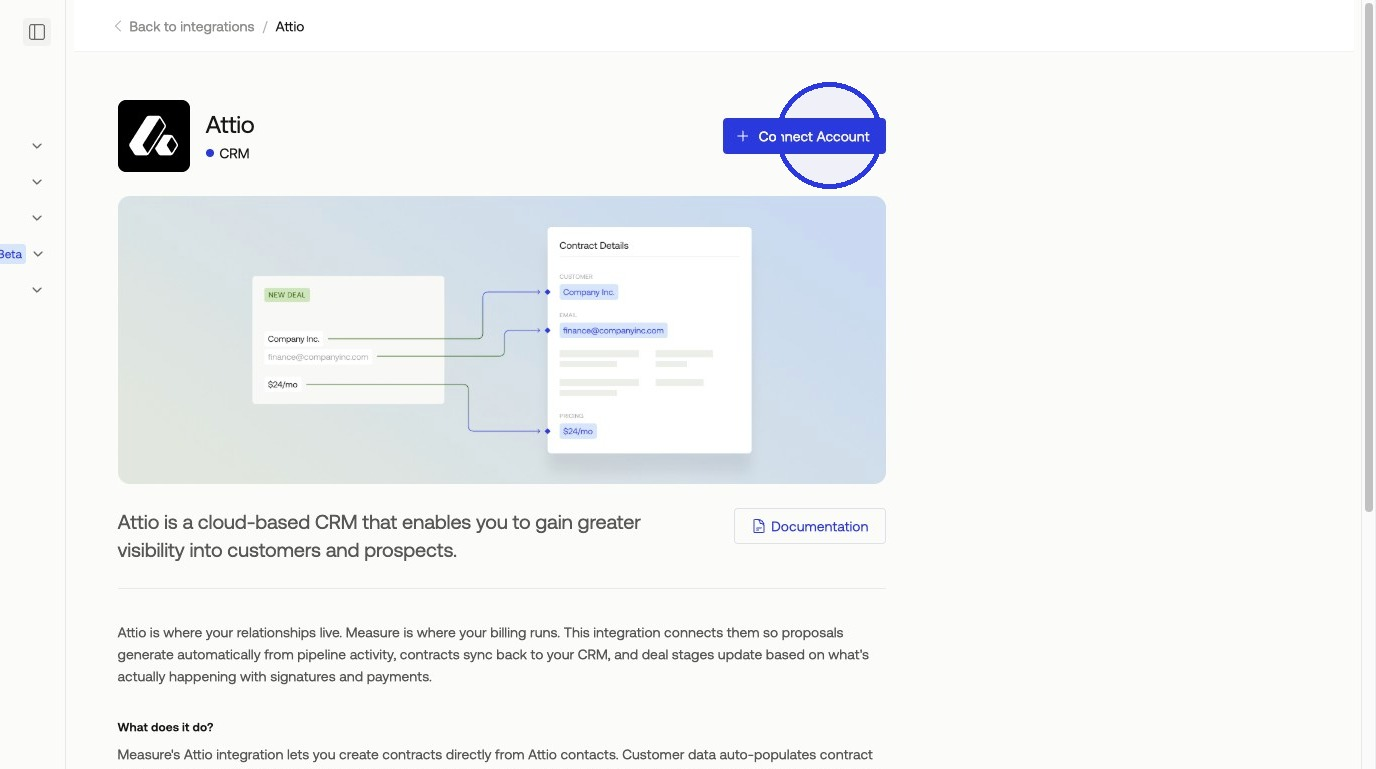
Before configuring field mappings, you'll need to connect your Attio account. Click "Install" to add the integration to your workspace, then click "Connect Account" and authorize the connection with your API token. View the full installation walk-through here.
Field Mapping
Field mapping connects Measure objects to their Attio counterparts. Getting this right is the foundation of a reliable sync.
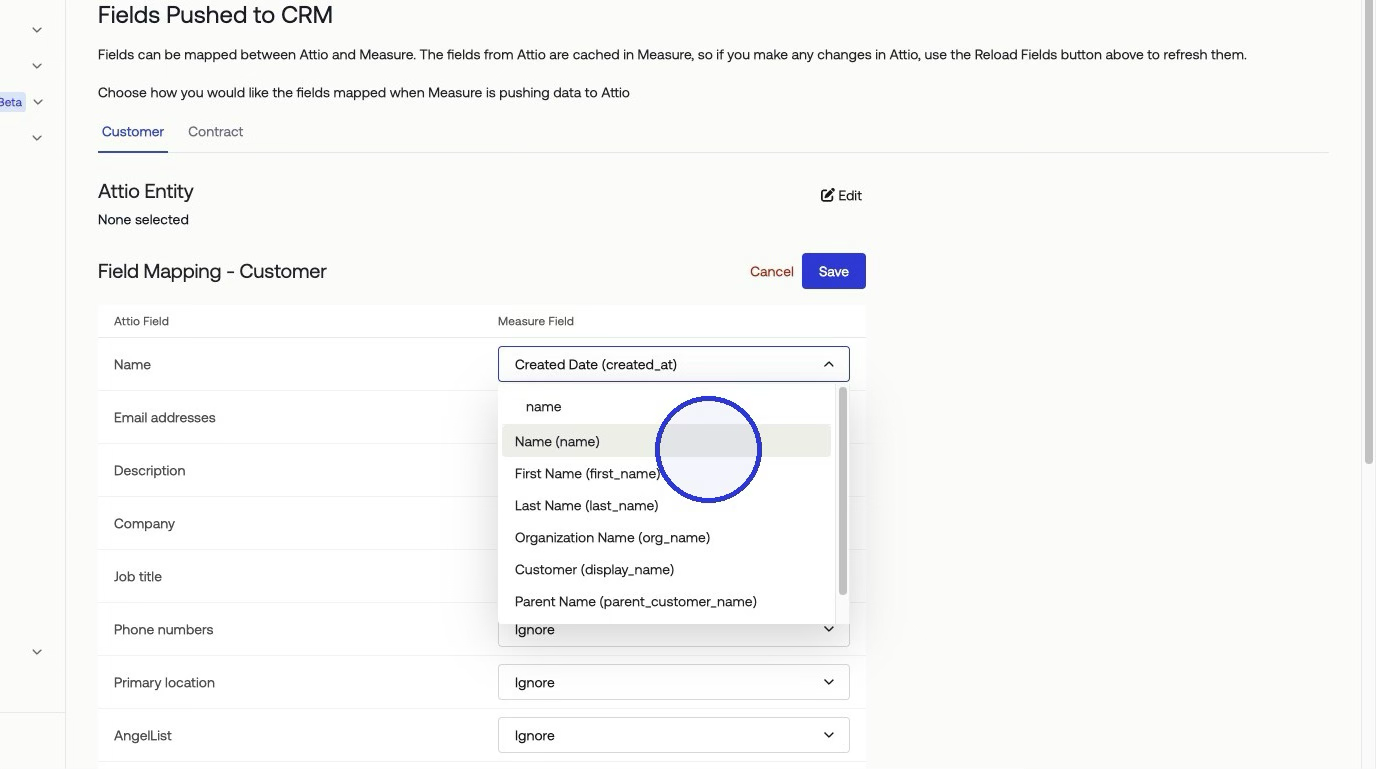
Customer → Attio People
Map Measure Customer fields to Attio Person fields. A few things to know:
A single Measure field can map to multiple Attio fields.
For example, the Measure
namefield can populate bothfirst nameandlast namein Attio.Common mappings include
name,email, and any custom customer attributes you've configured in Measure.
Contract → Attio Deals
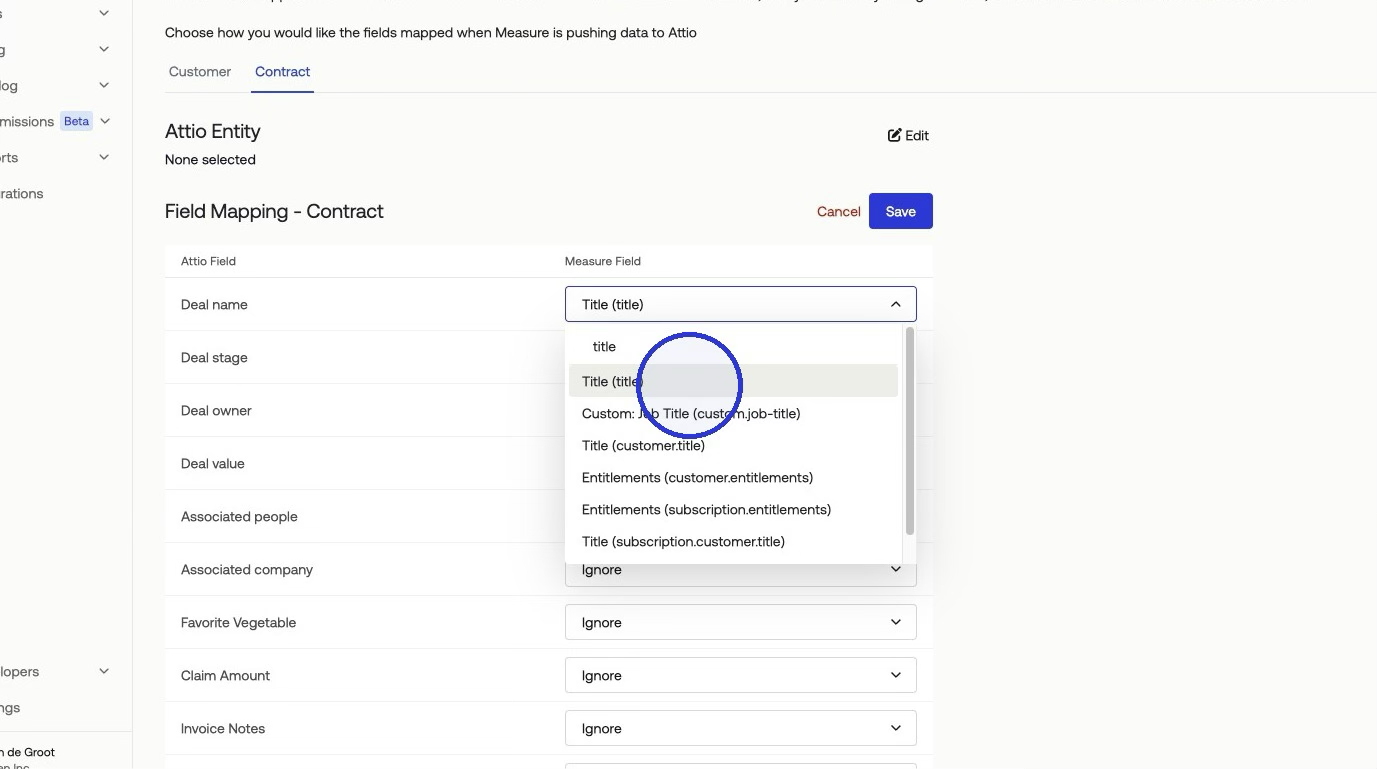
Map Measure Contract fields to Attio Deal fields.
Required Deal Fields: these three must always be mapped or the sync will fail:
Name: Typically mapped from the contract name or title.Stage: Mapped via a sub-dropdown (see Status → Stage mapping below).Owner: Mapped from the contract's owner email.
Status → Stage Mapping
Contracts have statuses in Measure; Deals have stages in Attio. You map between them explicitly using a sub-dropdown. Example:
Measure Contract Status:
Draft→ Attio Deal Stage:LeadMeasure Contract Status:
Active→ Attio Deal Stage:In ProgressMeasure Contract Status:
Closed→ Attio Deal Stage:Won
Tip: Map every Measure contract status to an Attio stage. Unmapped statuses can cause sync failures or incomplete deal records.
Sync Logic
The integration is bidirectional, data flows both from Measure into Attio and from Attio back into Measure.
Measure → Attio
Trigger: Customer created or updated
Action in Attio: Creates or updates an Attio PersonTrigger: Contract created or updated
Action in Attio: Creates or updates an Attio Deal
Attio → Measure
Trigger: Person created or updated
Action in Measure: Creates or updates a Measure CustomerTrigger: Deal created
Action in Measure: Creates a Measure Customer from the deal's linked Person (if not already in Measure)Trigger: Deal updated
Action in Measure: Updates the associated Measure Customer
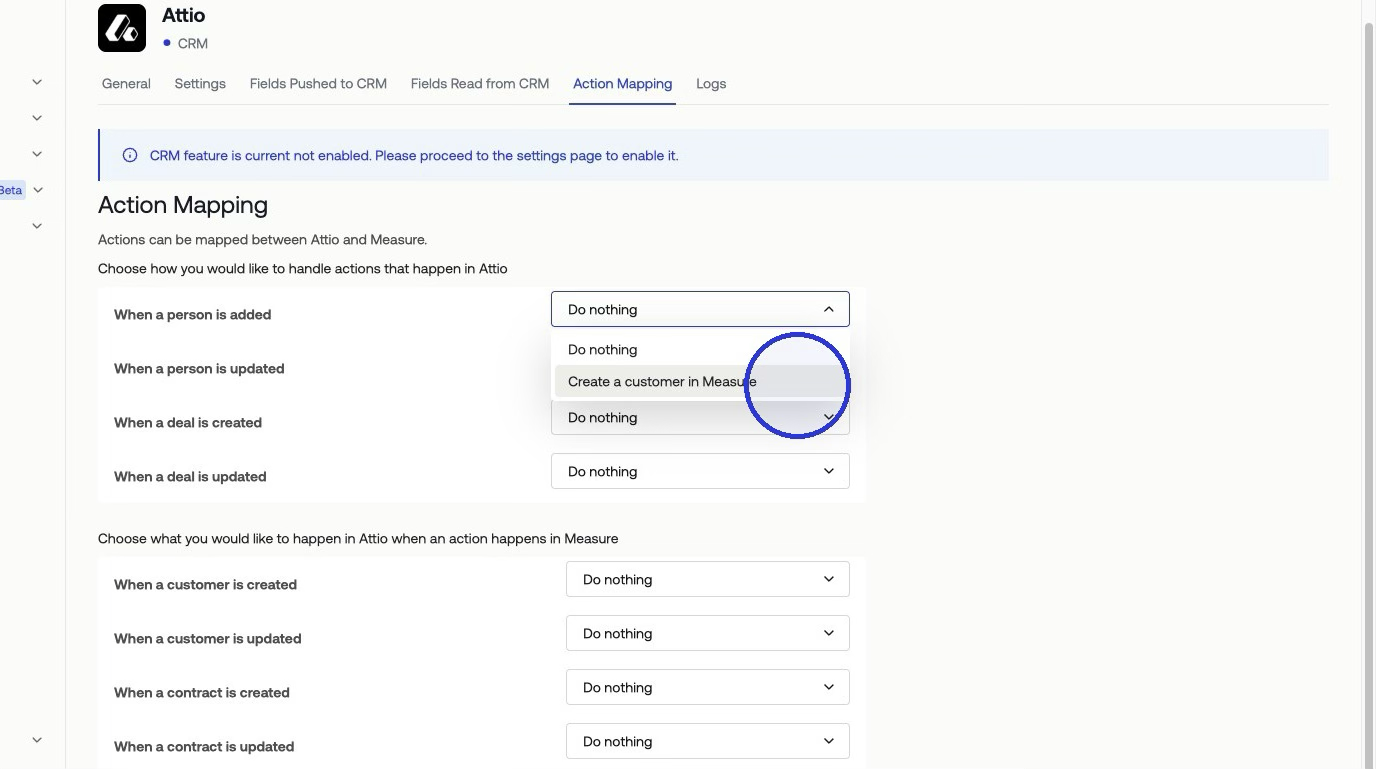
Note: The "Deal updated → Update Customer" action has limited practical value. Attio deal updates don't directly modify person attributes, so little customer data will change as a result of this trigger.
Default Deal Owner Fallback
Why It Exists
Every Attio Deal requires an Owner. If a contract's owner email in Measure doesn't match any member in your Attio workspace, the sync will fail.
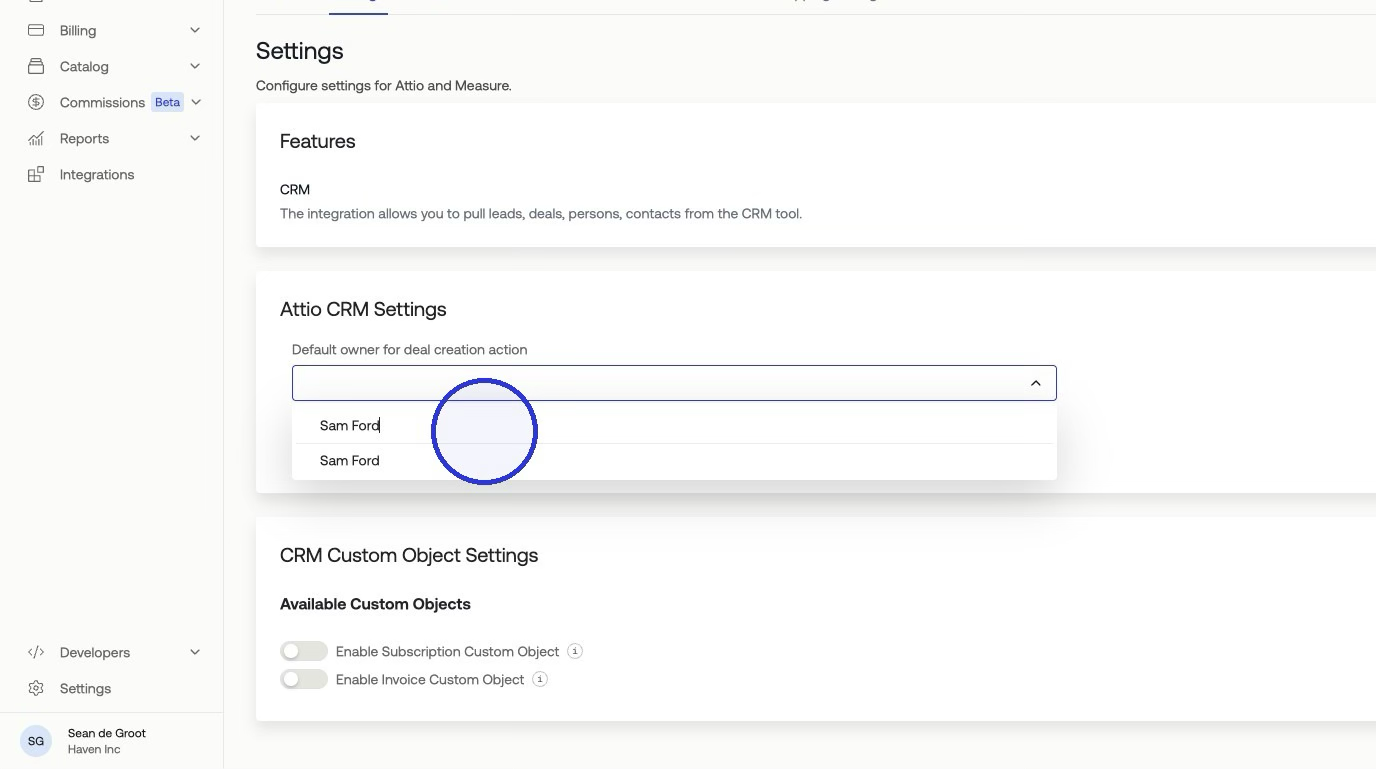
The Default Deal Owner setting in Measure prevents this by providing a fallback, if the mapped owner is invalid or missing, Attio assigns the deal to the default owner instead.
How to Configure It
Go to Measure Settings → Attio Integration.
Locate the Default Deal Owner dropdown.
Select a valid Attio workspace member to act as the fallback owner.
Troubleshooting
Sync Failing for a Contract
Check the Integration Logs first. Each entry shows whether a push or pull succeeded or failed, along with error details that point to the specific field causing the problem.
Missing or invalid Owner is the most common cause of a contract sync failure. The log will surface this directly.
Ensure the contract's owner email exists as a member in the Attio workspace, or configure a valid Default Deal Owner as a fallback.
Deal Stage Not Populating
The Measure contract status wasn't mapped to an Attio deal stage in the sub-dropdown.
Revisit the Contract → Deal field mapping and confirm every contract status has a corresponding Attio stage assigned.
Wrong Data in an Attio Field
A Measure field was mapped to an incompatible Attio field type, for example, a text field mapped to Deal Value.
Re-map using a compatible field type. Use number-type Measure fields for numeric Attio fields like
Deal Value.
Attio Person Not Created from a Deal
The sync only creates a Measure customer from a deal if the deal has a linked Attio Person and that person doesn't already exist in Measure.
Confirm the Attio deal has an associated Person record before expecting a customer to be created.
Using Integration Logs
Logs are your first stop for any sync issue. For every data push or pull attempt, the log records:
Whether the sync succeeded or failed.
The object involved (customer, contract, person, deal).
Error details when a failure occurs.
Always check the log error message before adjusting configuration, it will typically point directly to the field or mapping that needs attention.