
How to Change a Subscription
Edited
Update a subscription with new pricing, set a scheduled start date, reset the billing anchor, and choose how proration is applied.
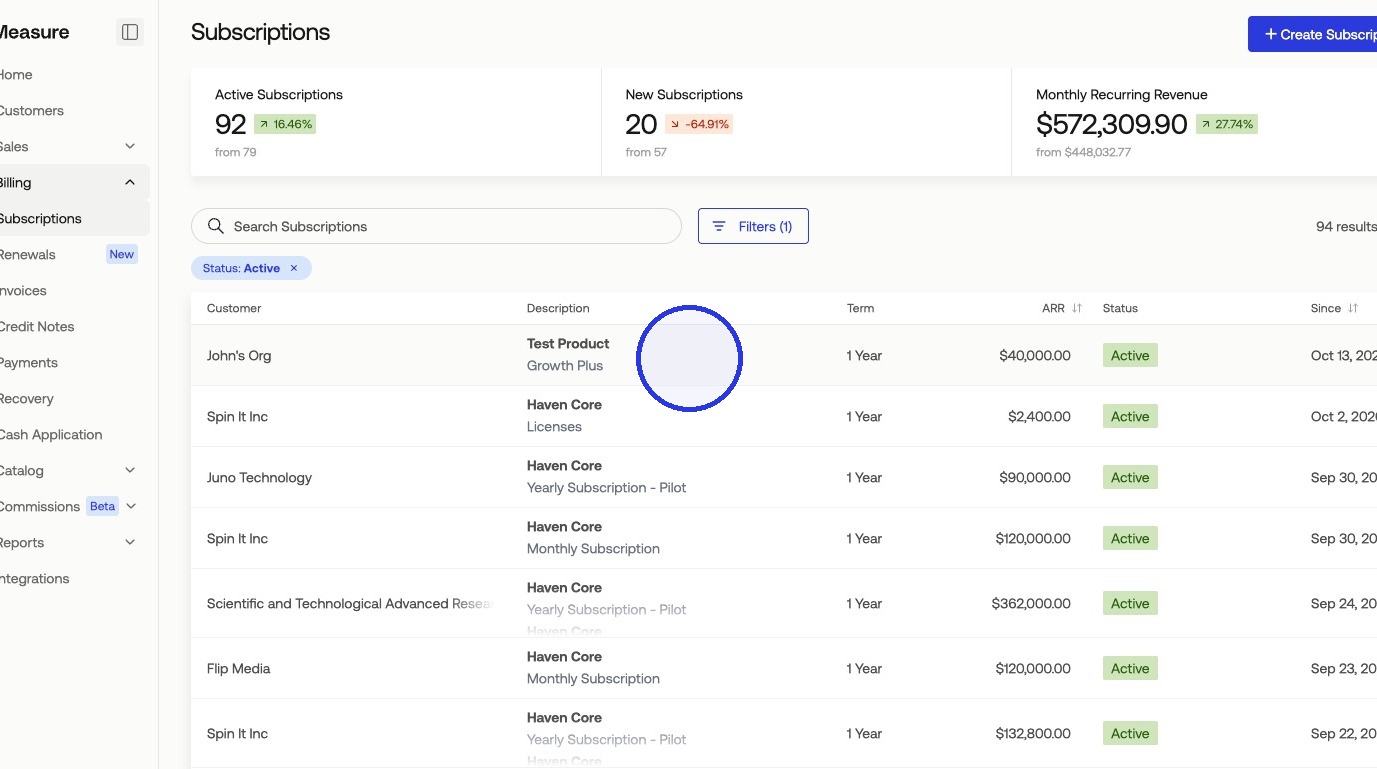
1. Navigate to Billing > Subscriptions and select a subscription
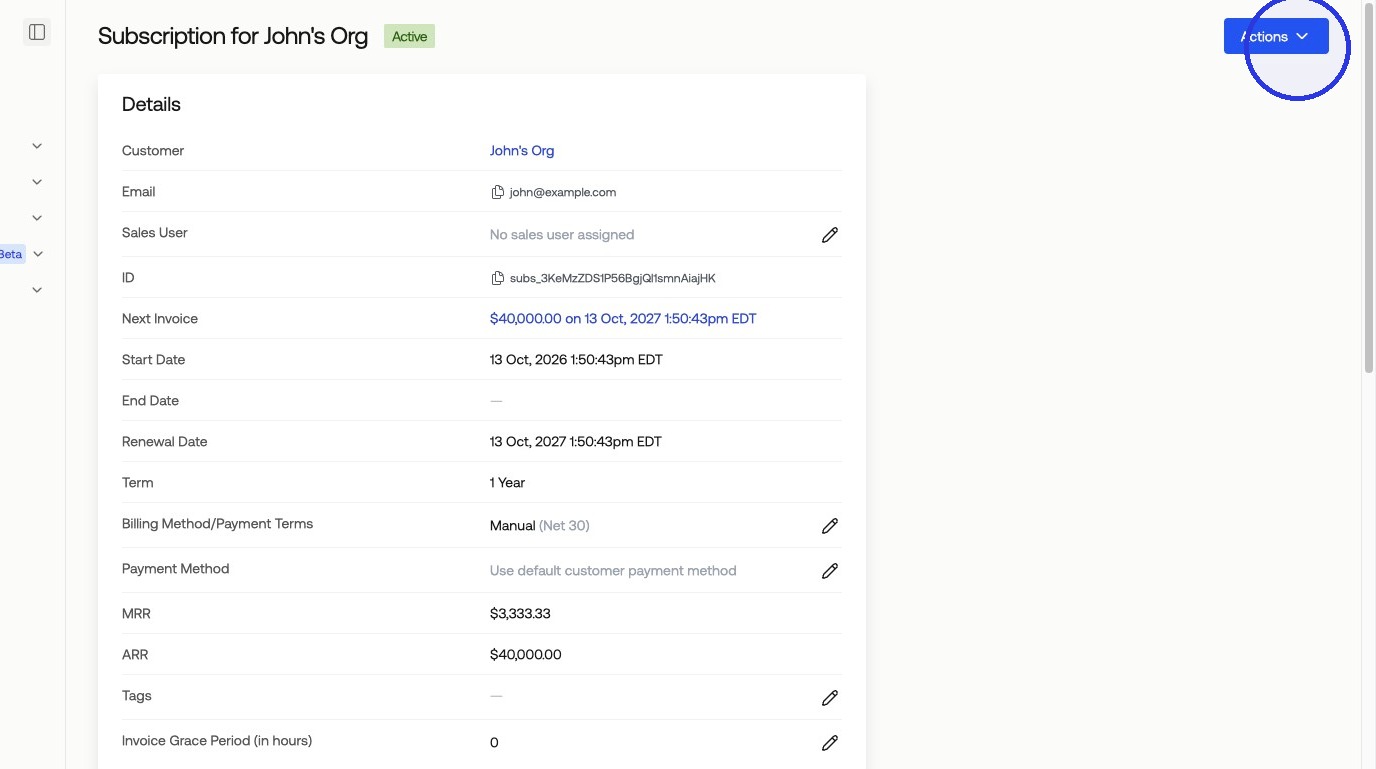
2. Click Actions
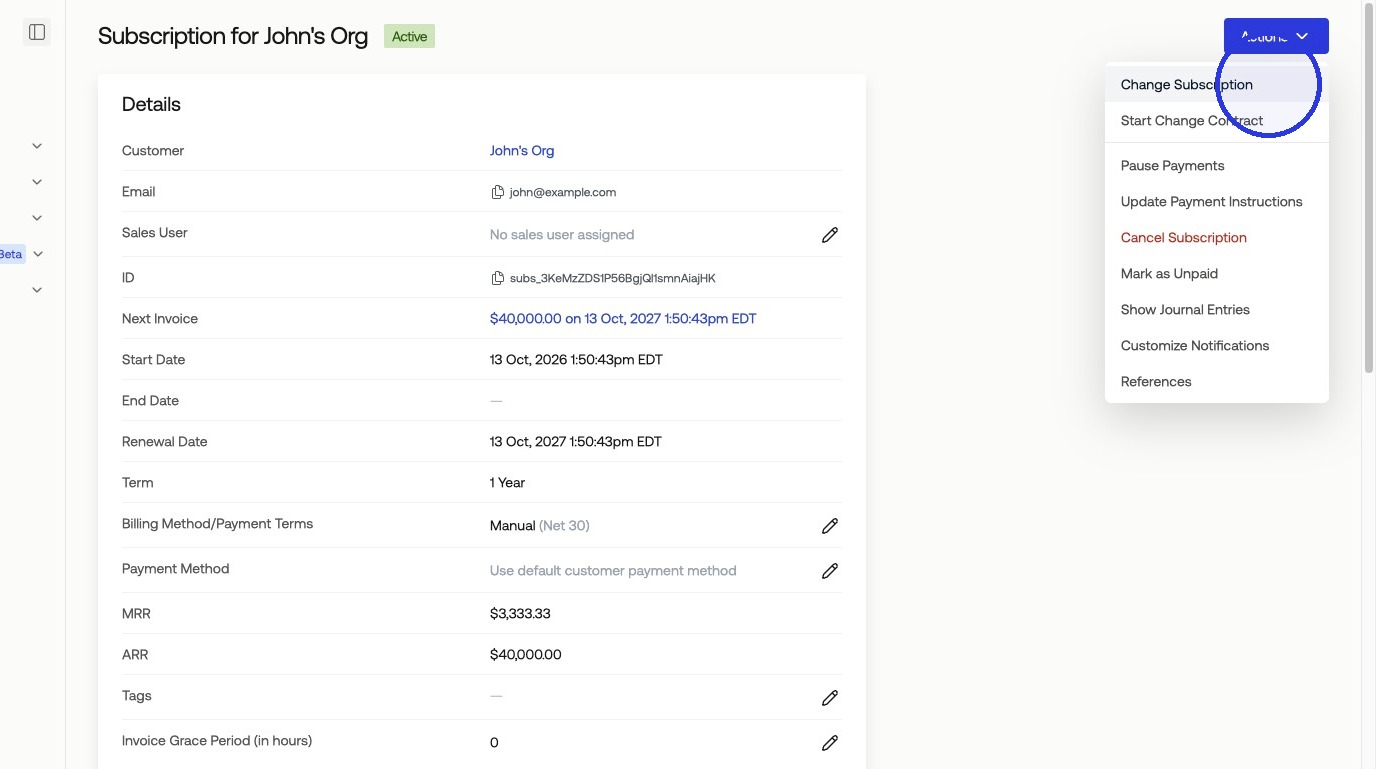
3. Click Actions > Change Subscription
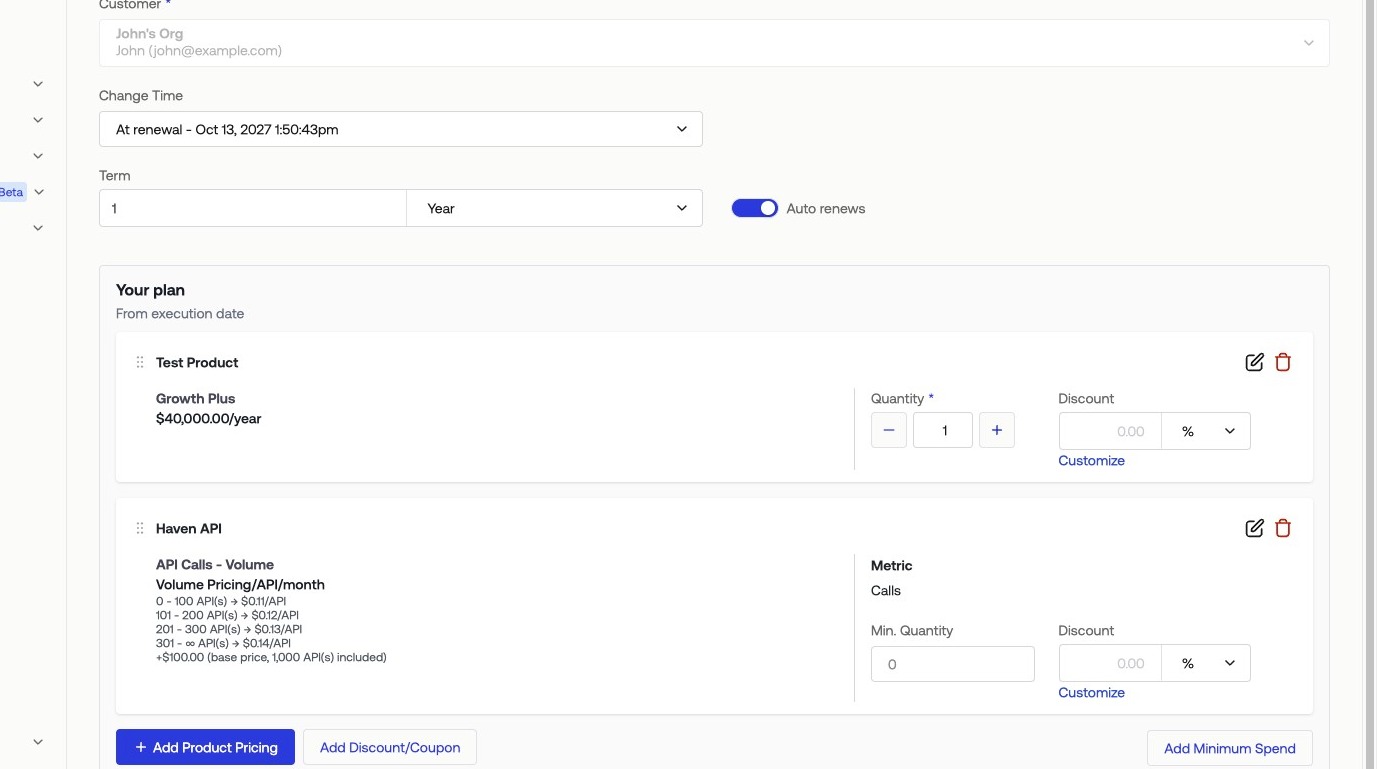
4. Make your selections and click Update
Choose the new product pricing and set a change time. For example, to add a product upon renewal, select the updated pricing and set the change time to renewal so the new pricing takes effect at the next billing cycle.
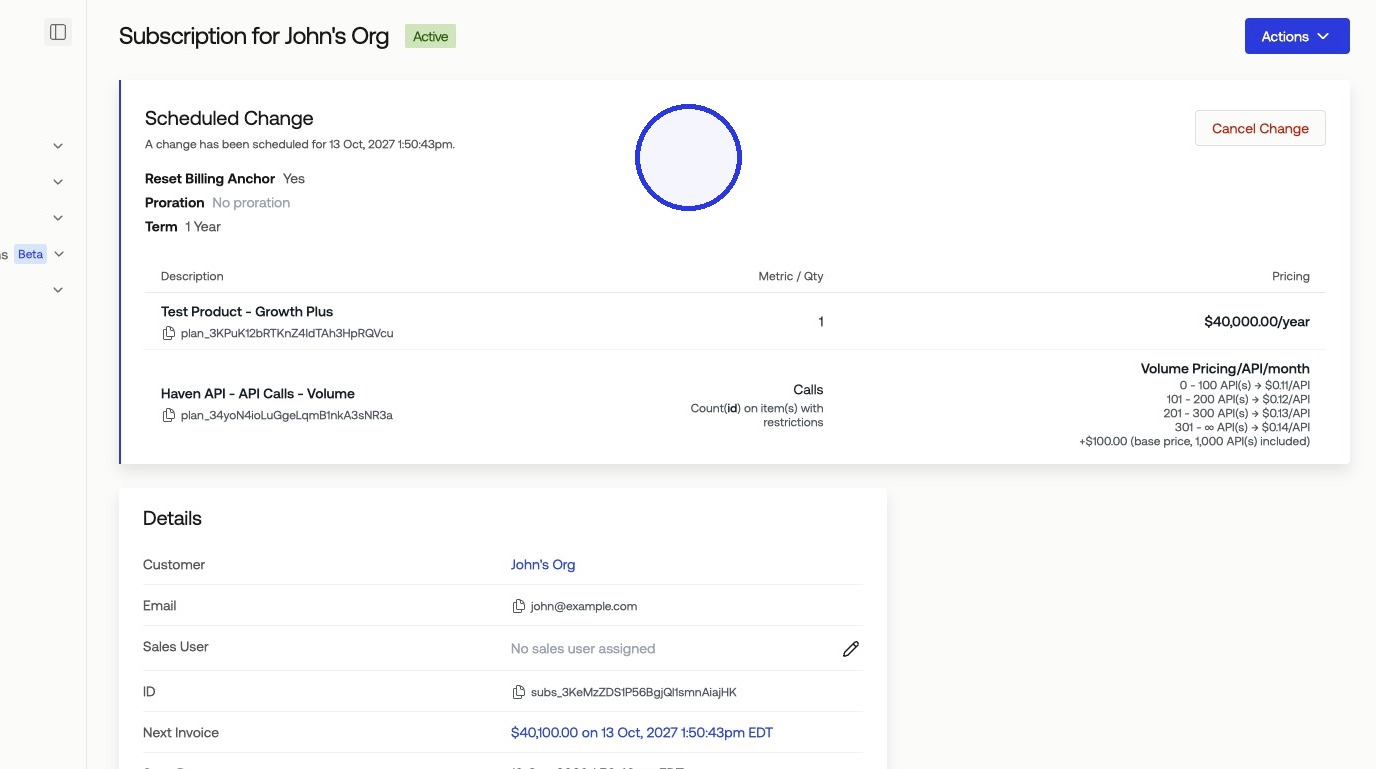
5. Review the scheduled change preview
Measure displays a preview of the scheduled change before it takes effect. Confirm the details are correct.
Was this article helpful?
Sorry about that! Care to tell us more?