Sales Contracts and Agreement Templates
Contract and Agreement Template Variables
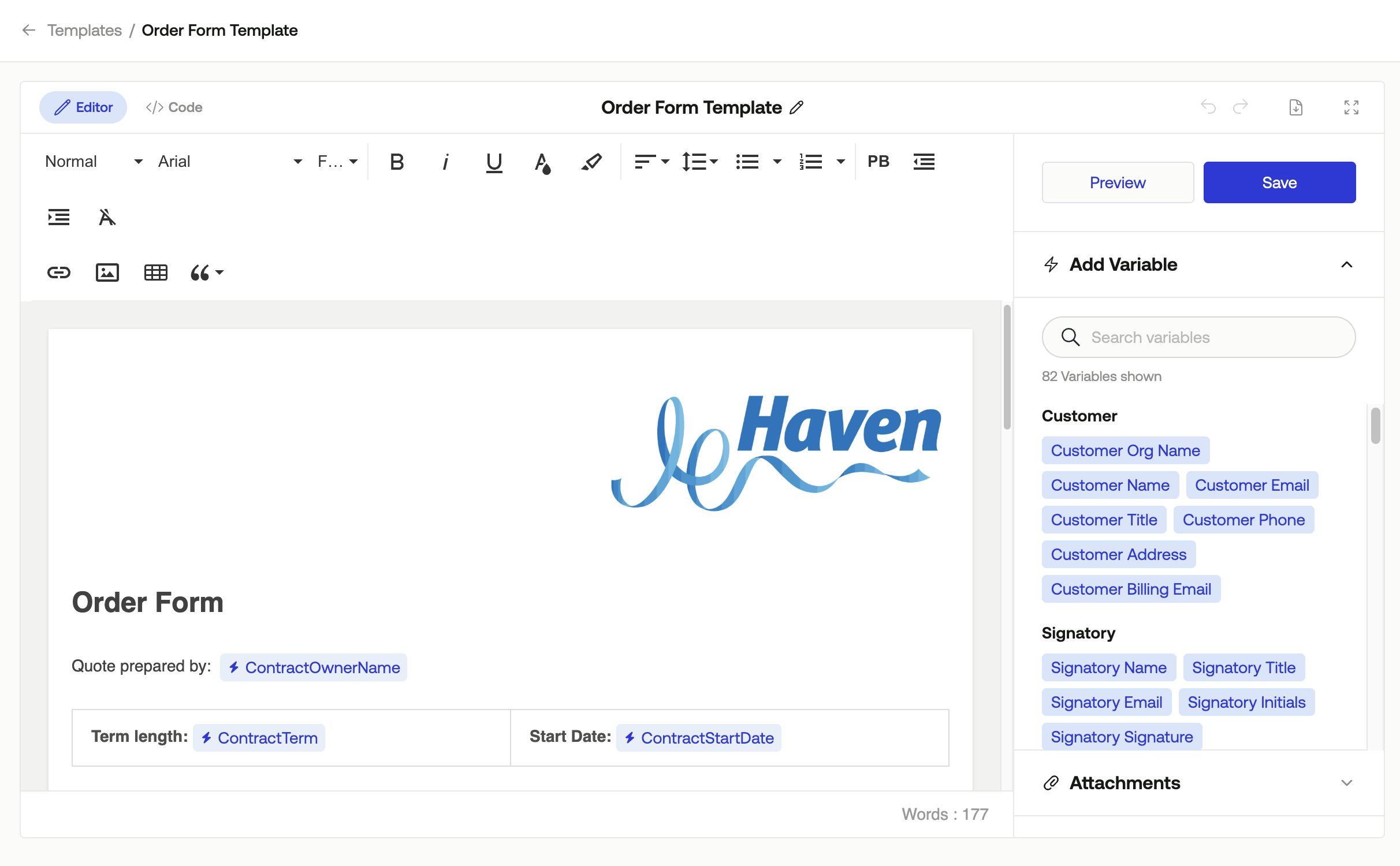
In your contract templates, you can add variables for any items that will need to change from contract to contract and will be filled out by either the Company (During contract creation) or the Customer (During signing).
Measure Variables
Customer: Information related to the customer the contract is being created for, such as Organization Name, Customer Name, Email, etc.
Signatory: Information related to the external signatories that will be required to sign the contract.
Counter Signatory: Information related to the internal/counter signatories that will be required to sign the contract.
If a contract requires multiple external signatures or a counter signature, the required variables need to be added to the template for the associated input fields to be displayed on the contract creation page.
Contract: Details about the contract terms, such as Pricing Information, Start Date, Net Terms, etc.
Pricing-related details such as “Pricing Information”, “ACV”, “TCV”, “Minimum Spend”, “Currency”, etc, are only available for Sales Contract templates.
Company: Information related to your company, such as Legal Name, Address, Contact Information, etc.
Customer Input: Information that is filled out by your customer that we need for contract obligations, such as Customer Billing Email, Customer Phone, and Customer Address.
Custom Variables
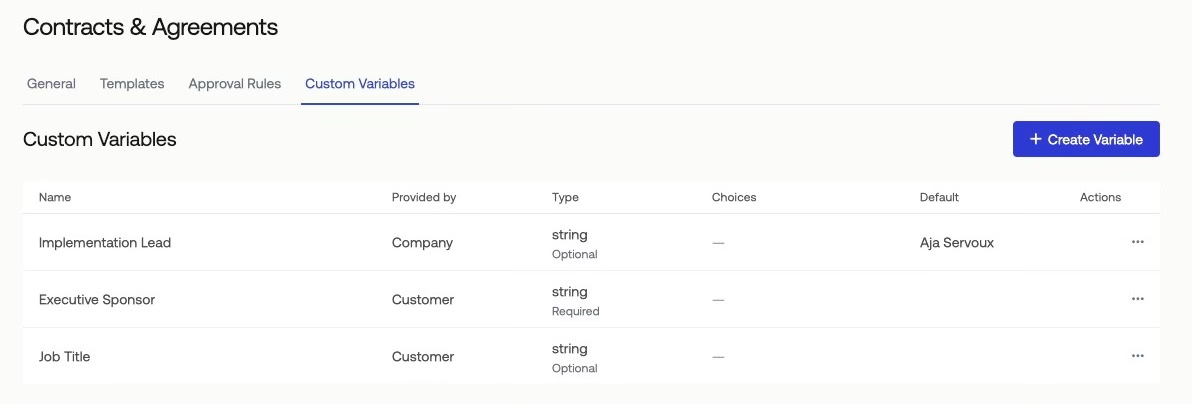
Use custom variables when you need information beyond the standard Measure Variables. Custom variables can be provided either by your company or by your customer and are managed under Settings > Contracts & Agreements > Custom Variables.
Provided By – Company: These can be Text, Choice, Multi-Choice, Date, or Date/Time fields. Use these for information that your company controls or wants to include.
Example:
ImplementationTeamLead- the name of the internal lead responsible for onboarding the customer.
Provided By – Customer: These are Text fields and capture information your customer provides that is required for the contract. These can be toggled as required for the customer to input upon contract signing.
Example:
ExecutiveSponsor- The customer’s designated executive sponsor. If not known at the time of signing, this can be filled in manually upon contract execution.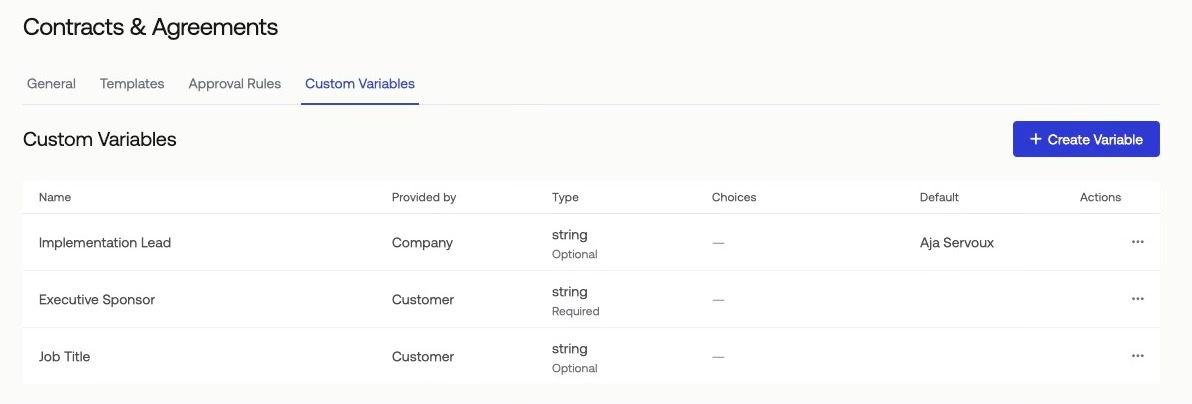
Contract Attachments
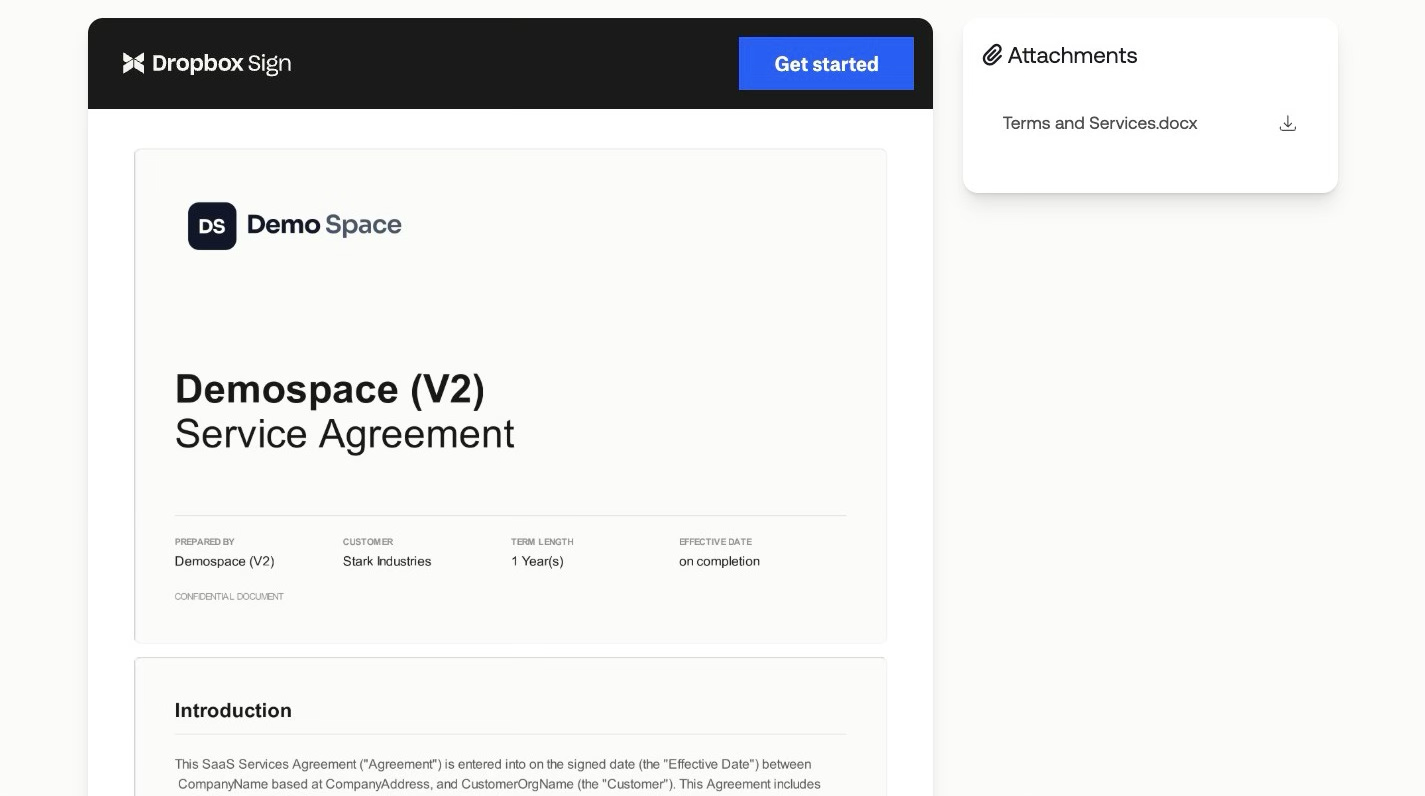
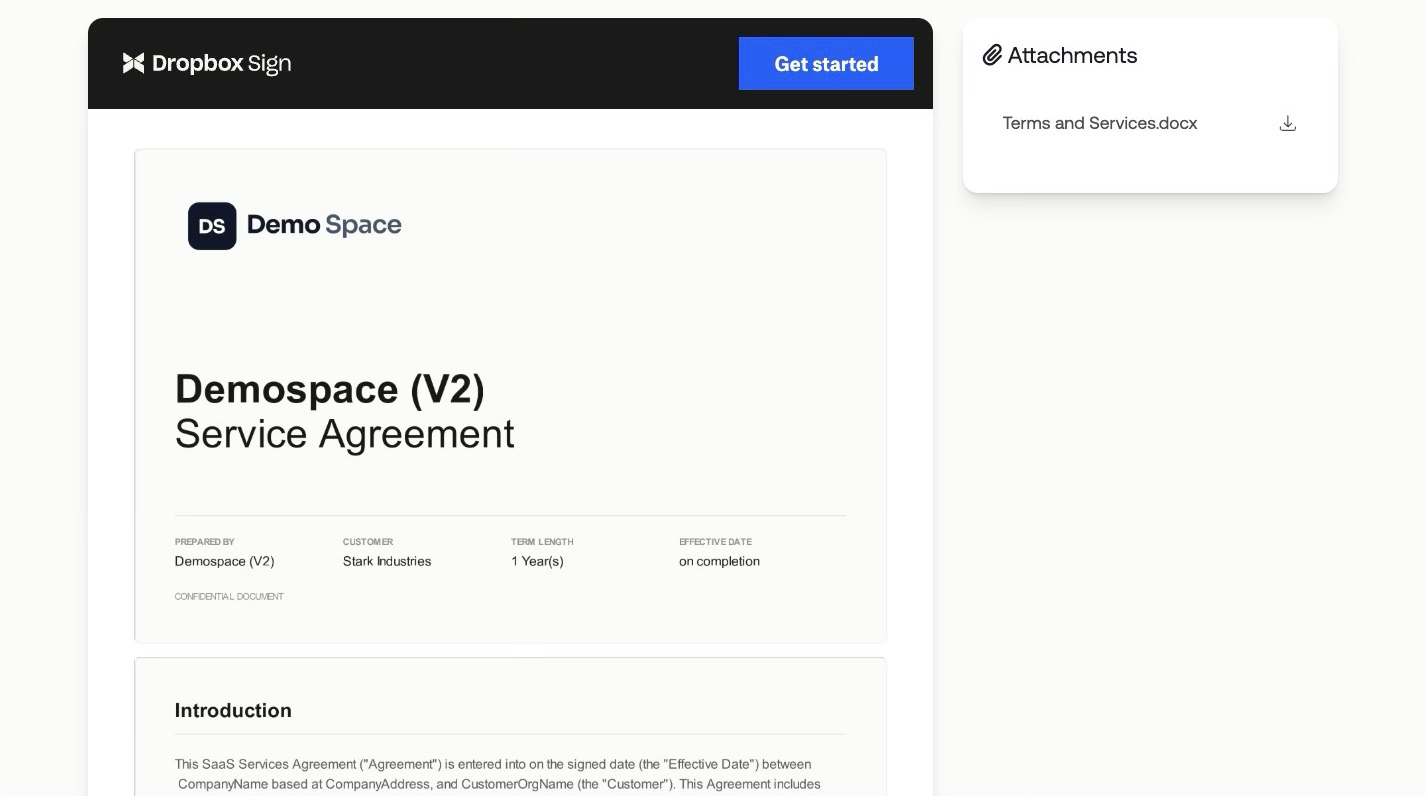
Contracts can include attachments to provide additional context or supporting information. At signing, attachments can be presented in two ways, allowing customers to review, redline, or annotate them as needed. Customers can choose to add a new attachment, revise an existing one, or replace it entirely to ensure the contract reflects the most up-to-date information.

Images: These will always appear visually on the right-hand side of the contract only.
PDFs and Word documents: Attachments appear on the right side of the document, with the option to append them at the bottom. To automatically append attachments to the end of contracts, go to Settings > Contracts & Agreements > General and enable “Merge attachments to contracts and agreements by default.