Anrok Integration Overview and Setup
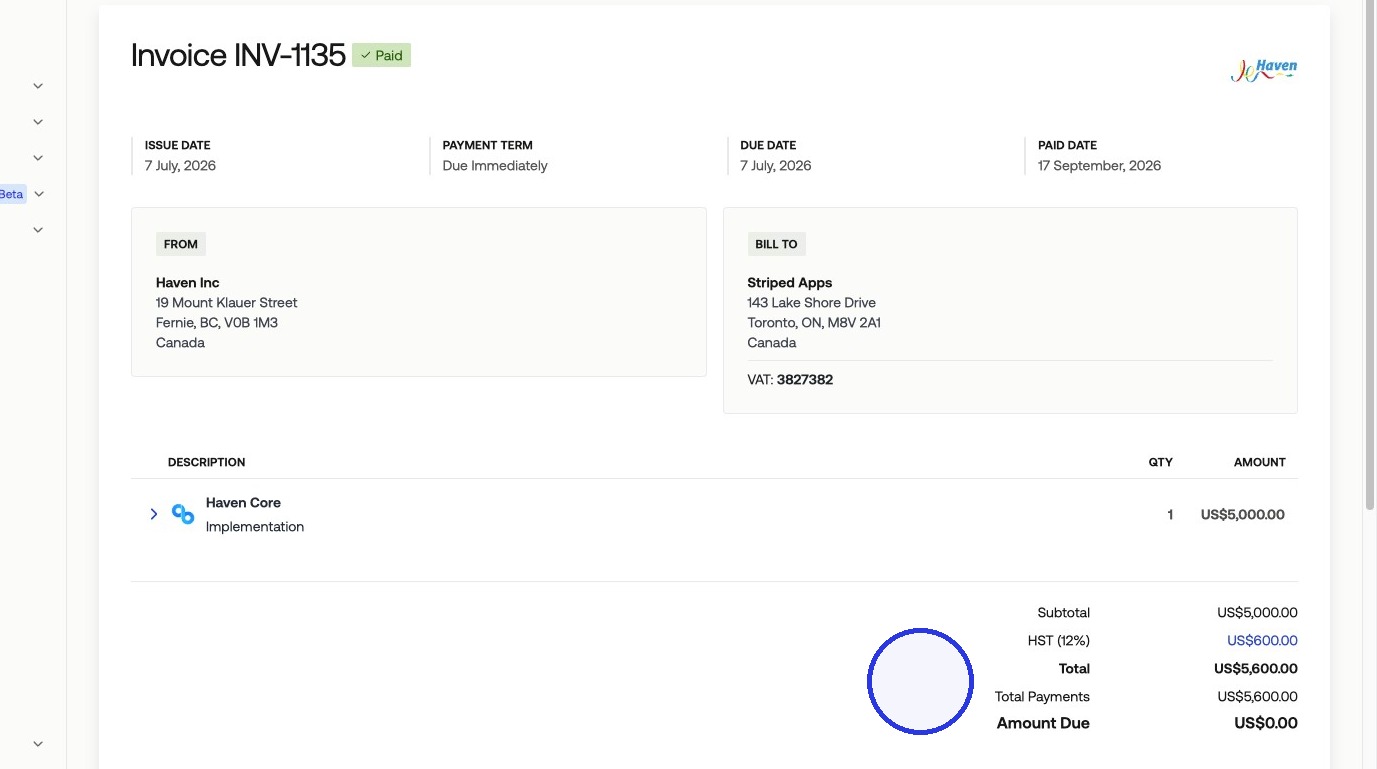
Anrok is a sales tax compliance platform that calculates and applies tax on your invoices automatically. When connected to Measure, Anrok determines the correct tax amount based on each product's tax category and your customer's billing jurisdiction, and only collects tax in jurisdictions where your company has nexus.
How Anrok Works
Anrok calculates tax rates based on two inputs: the product's tax category and the customer's billing jurisdiction. You define products and assign categories in Anrok, and Anrok handles the rate calculation.
Anrok only applies tax in jurisdictions where your company has nexus. Once products are mapped between Anrok and Measure, every invoice line item using those products will include the correct tax amount.
1. Connecting Anrok to Measure
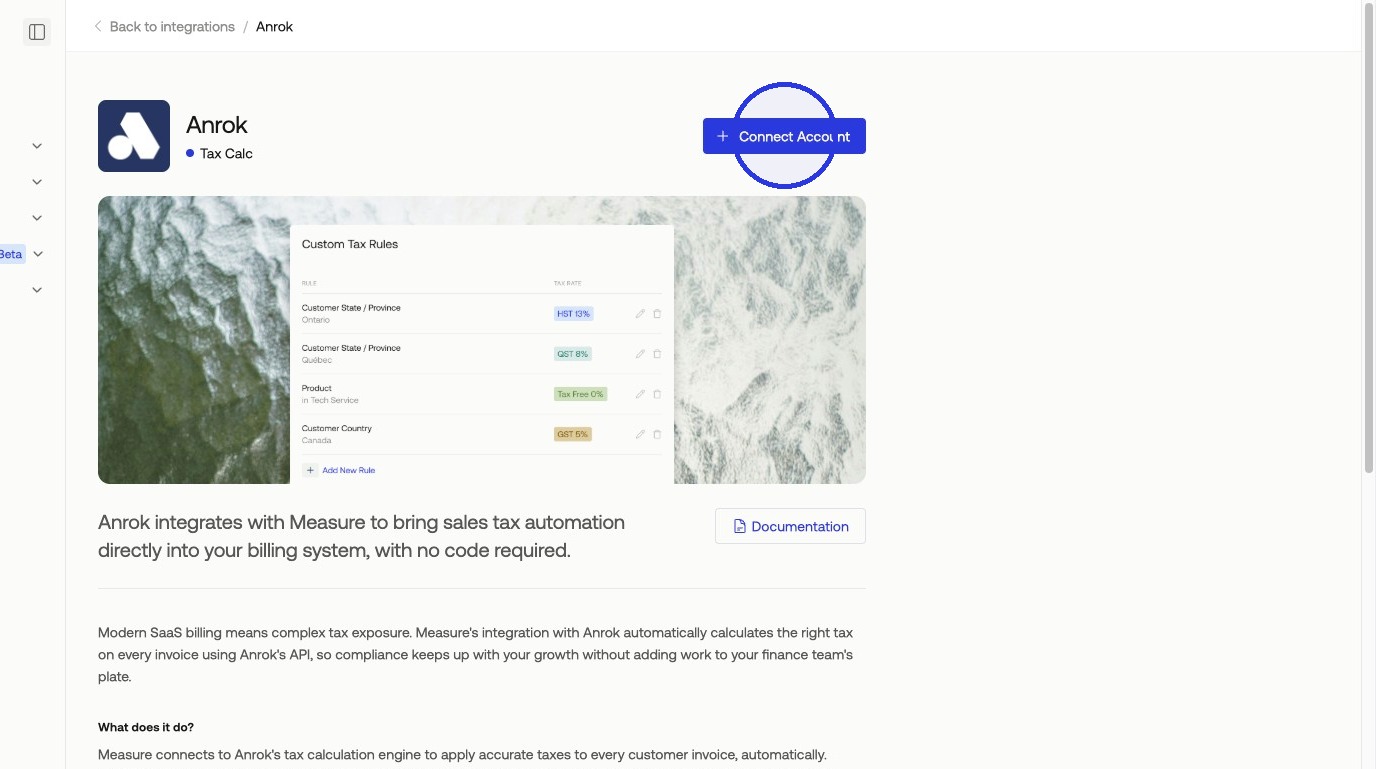
In Measure, navigate to Integrations and select Anrok > Connect Account.
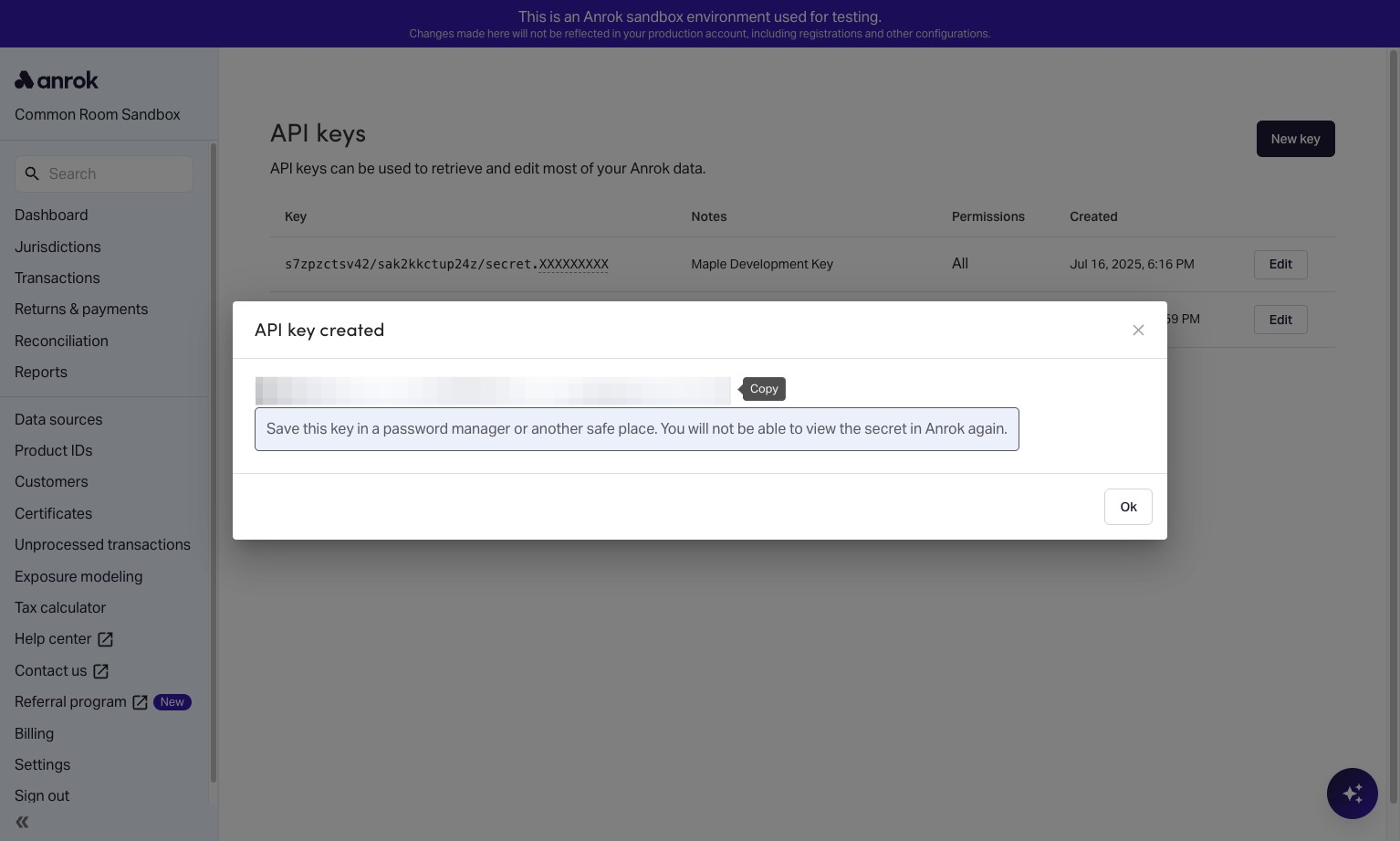
In Anrok, go to Settings > Developers and create a new API key. Copy the key.
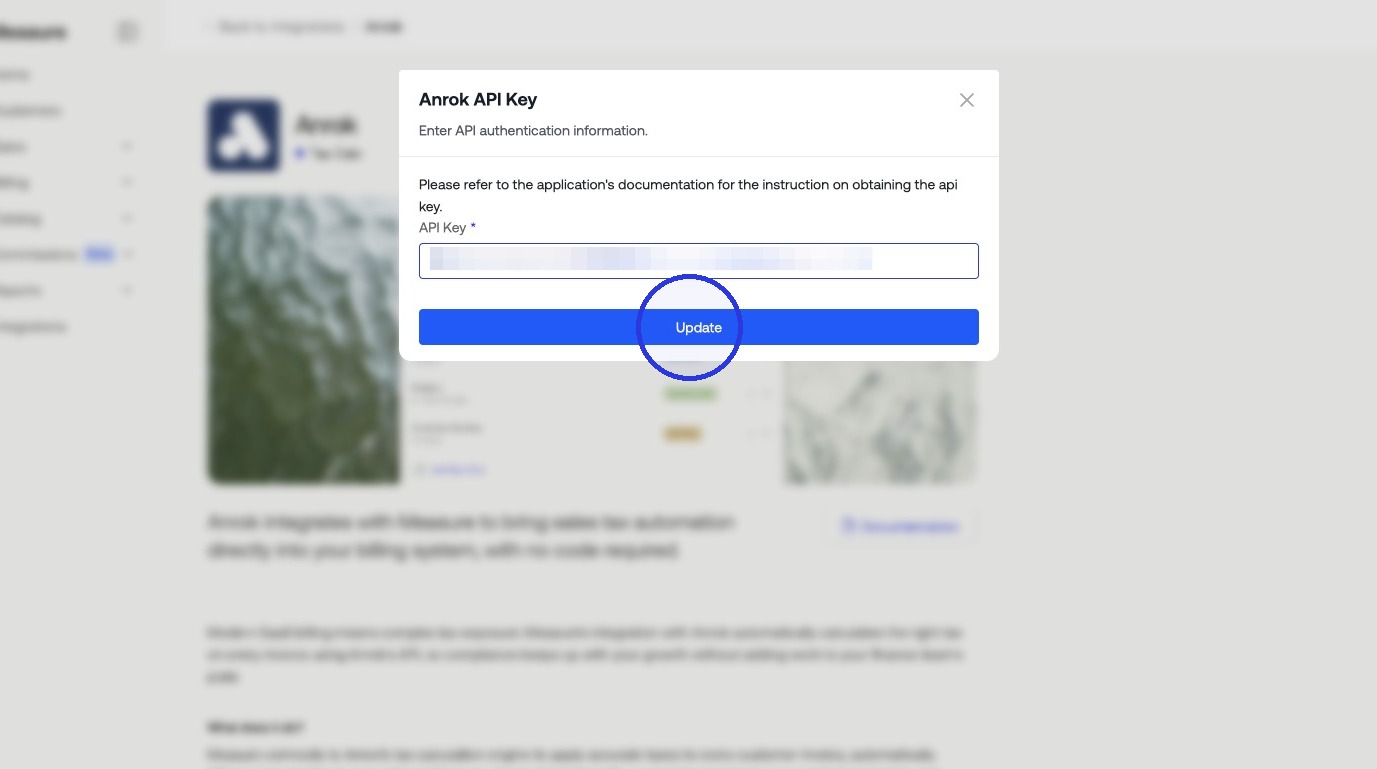
Back in Measure, paste the API key into the Anrok integration page and click Update.
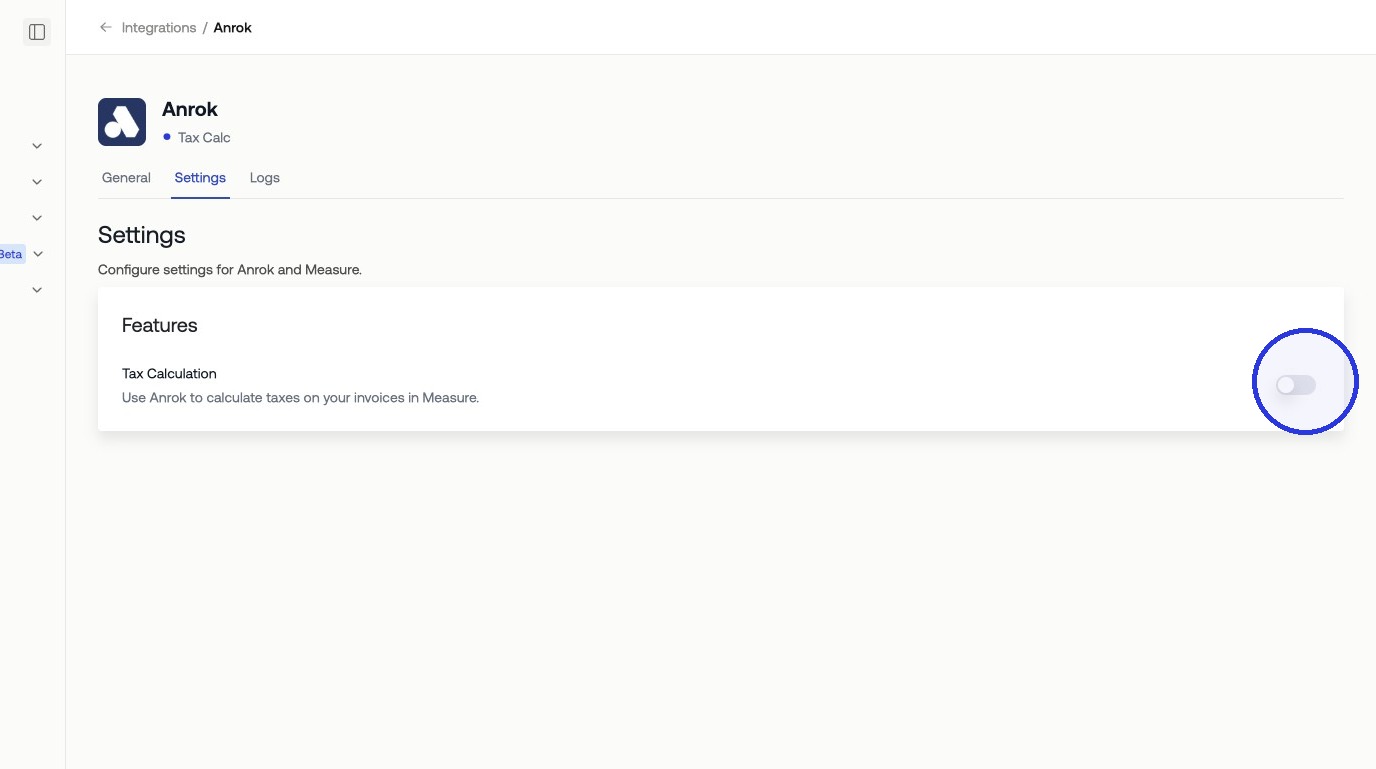
Toggle on Tax Calculation to activate the integration.
2. Configure Products in Anrok
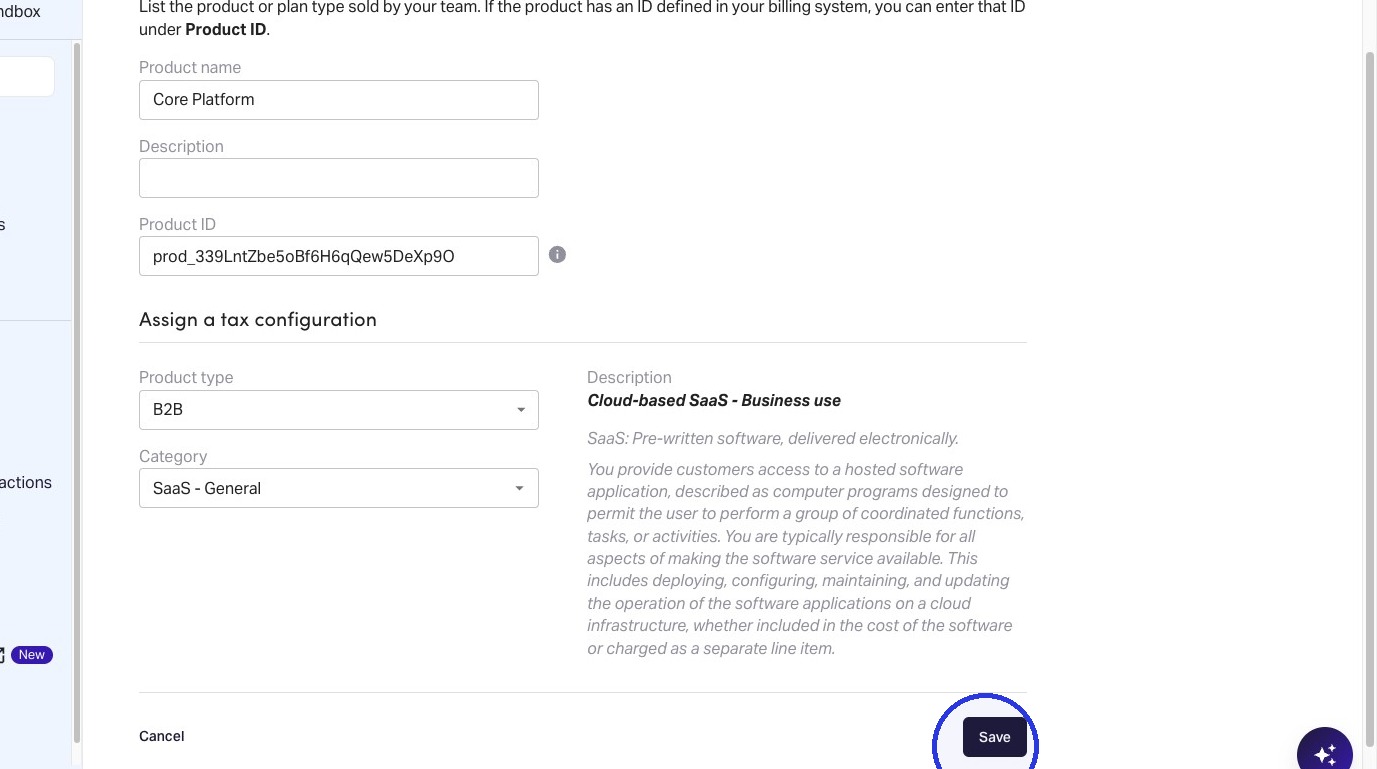
Before mapping products in Measure, make sure your products exist in Anrok with a product type and tax category assigned. These tell Anrok how to classify each product for tax purposes.
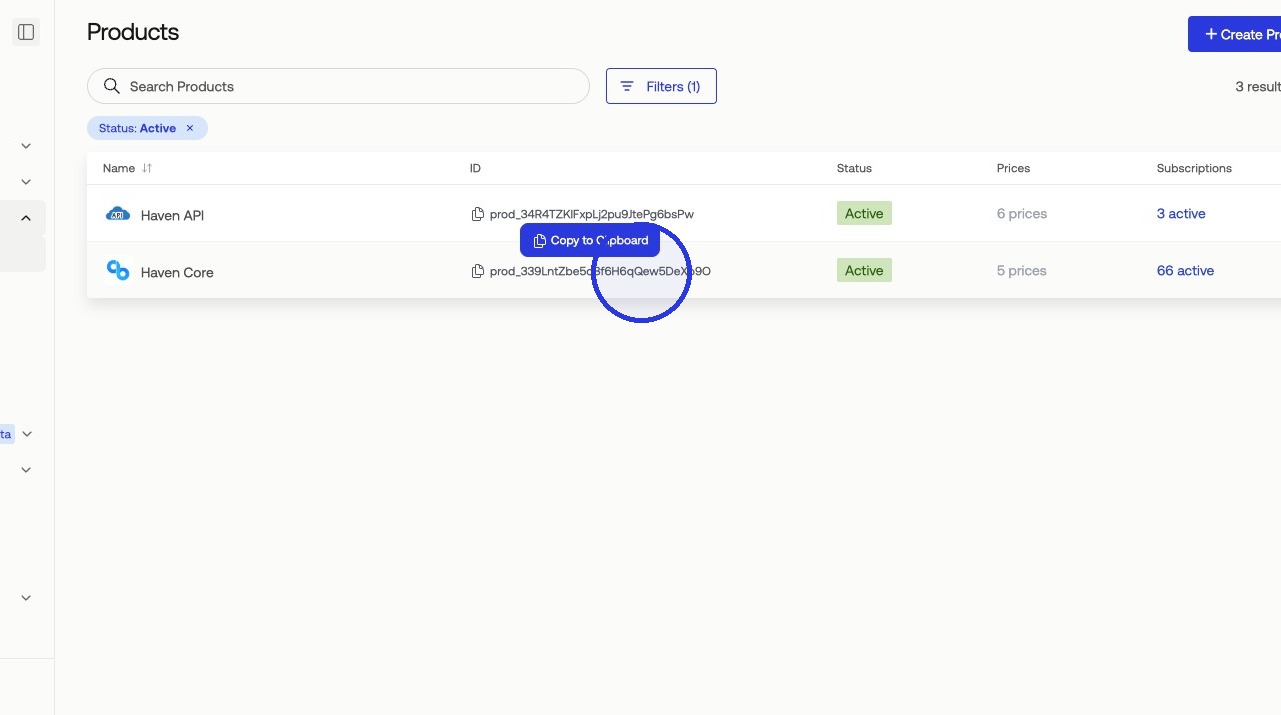
If your products are not yet created in Anrok, add them under Product IDs and assign the appropriate type and category before continuing.
3. Map Products in Measure
On the Anrok integration page in Measure, you will see a list of your products. For each product, select the corresponding Anrok product to link them. When all mappings are set, click Update Mapping.
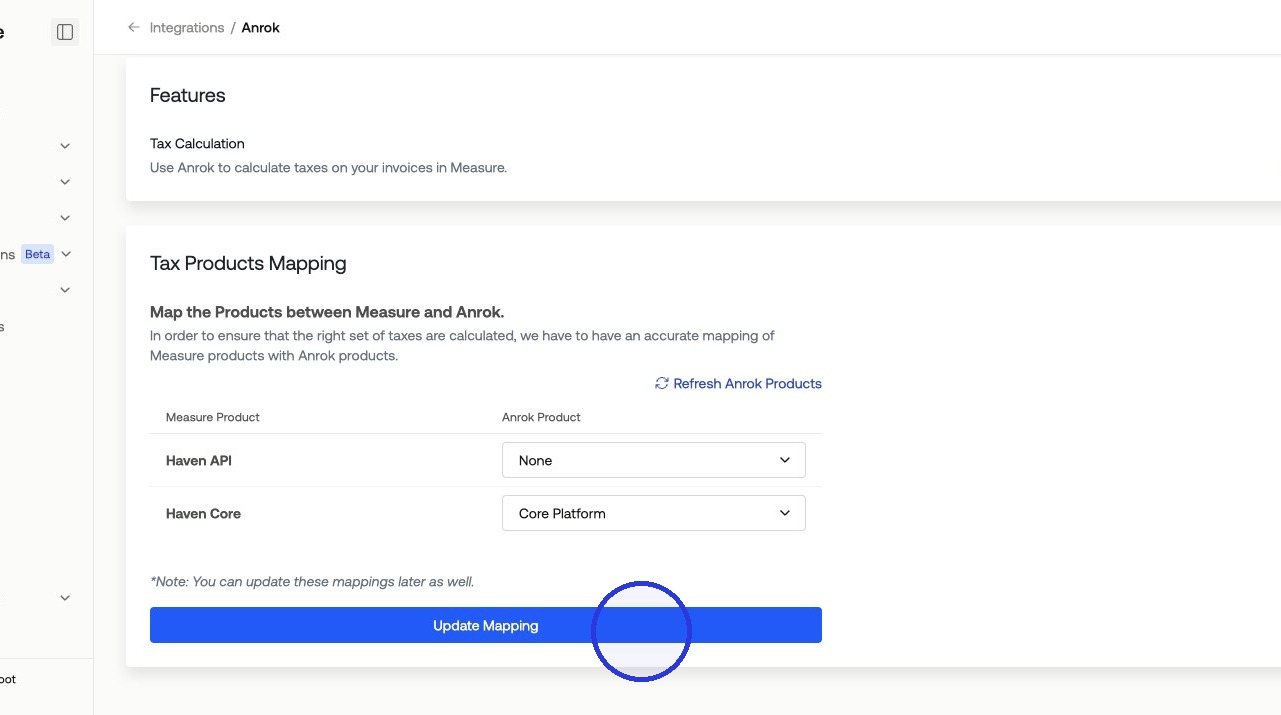
Once the mapping is saved, Measure passes product and jurisdiction data to Anrok on each invoice. Anrok returns the applicable tax amount, which is applied to the invoice line item automatically.