Stripe Tax Integration Overview and Setup
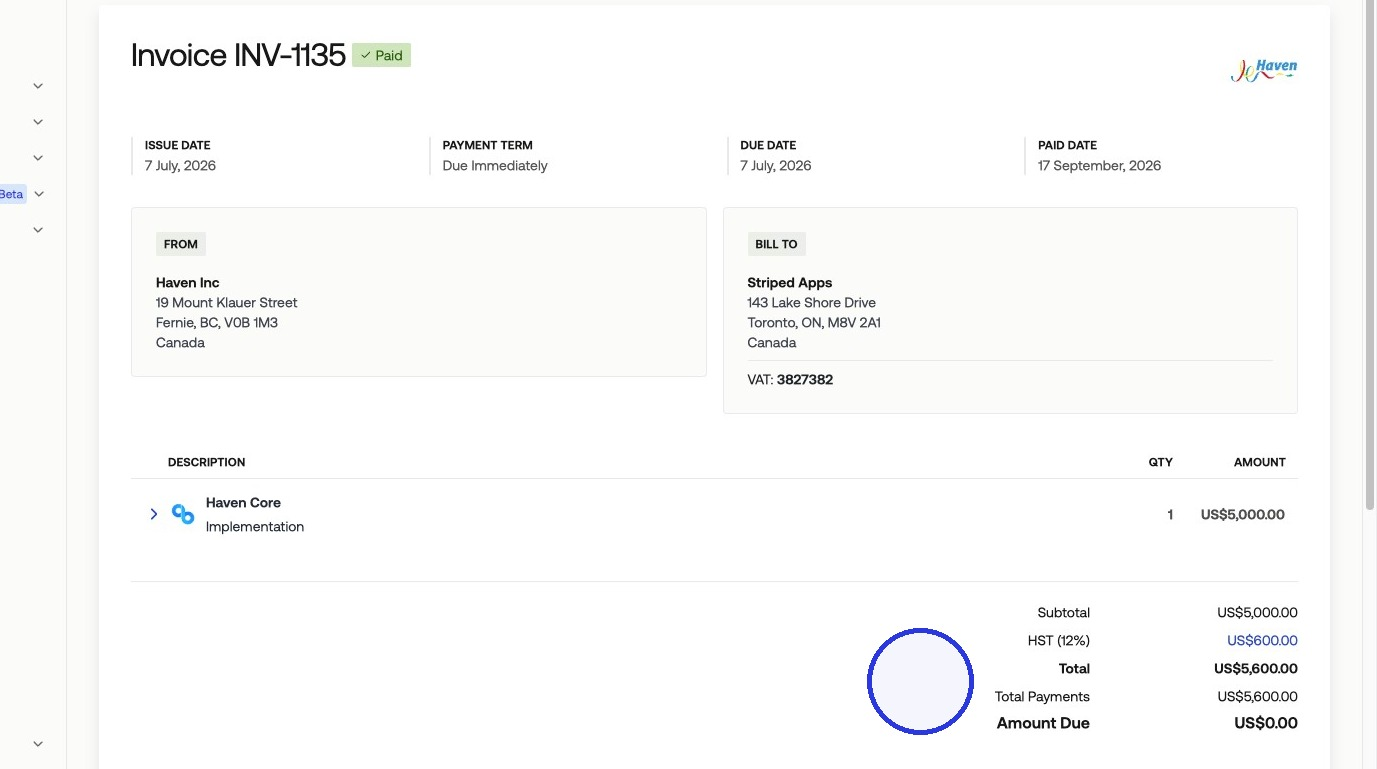
Stripe Tax calculates and applies tax on your invoices automatically. When connected to Measure, Stripe Tax applies the correct tax rate based on each product's tax category and your customer's jurisdiction, and only collects tax where your company is registered.
How Stripe Tax Works
Stripe Tax calculates tax rates automatically based on two inputs: the product's tax category and the customer's billing jurisdiction. You map your Measure products to the corresponding products configured in Stripe, and Stripe Tax handles the rate calculation.
Once products are mapped and the customer you are billing has an address on file, every invoice line item using those products will include the correct tax amount.
1. Open Stripe Integration Settings
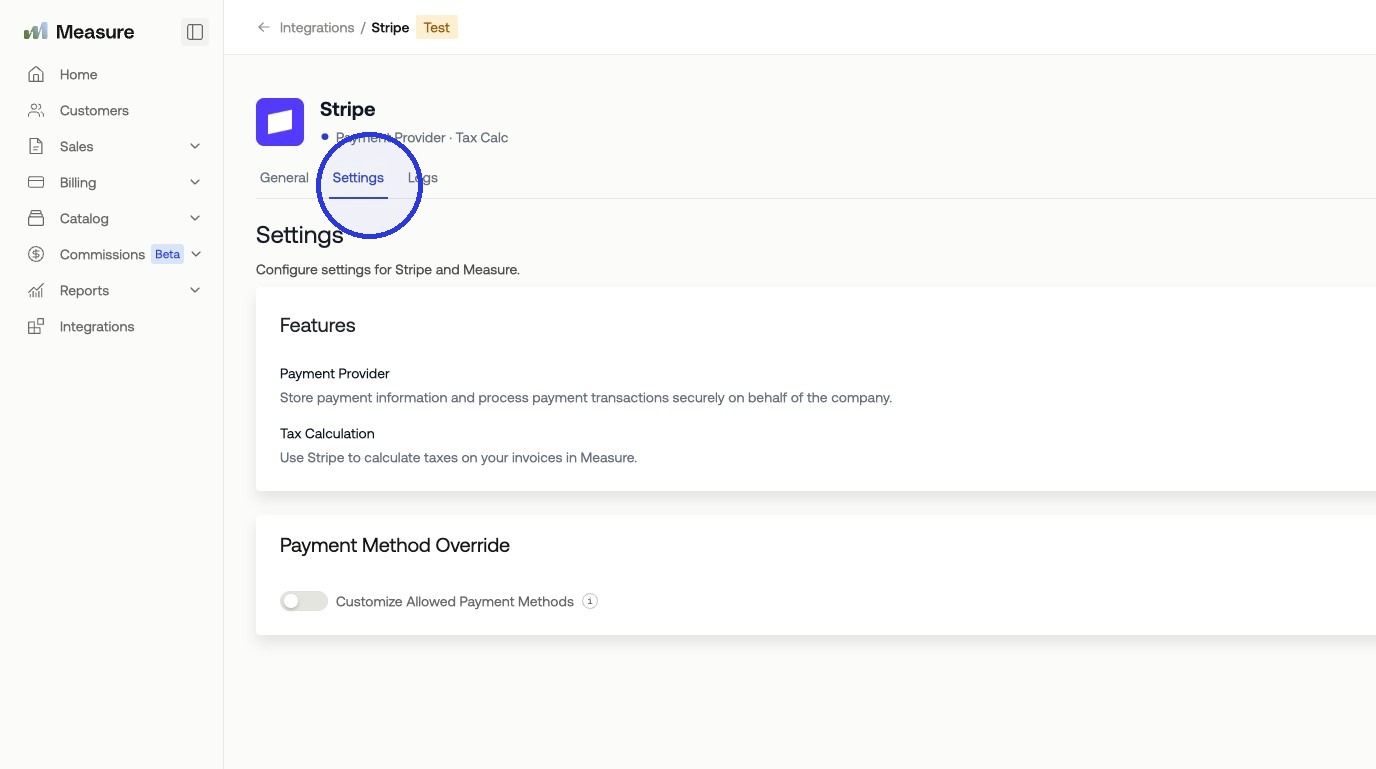
In Measure, navigate to Integrations and select Stripe > Settings.
2. Enable Tax Calculation
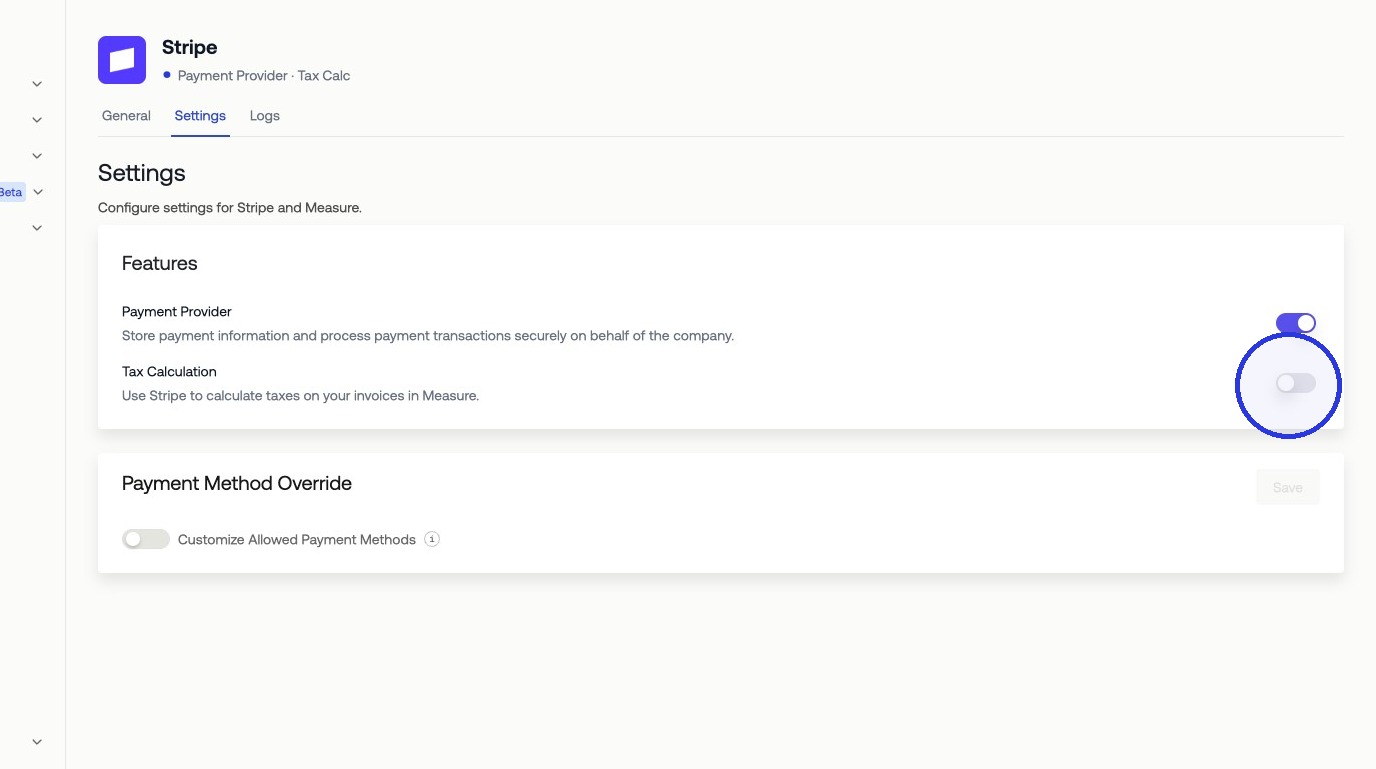
Toggle on Tax Calculation to activate tax calculation on invoices.
3. Map Products
On the Stripe integration page in Measure, you will see a list of your products. For each product, select the corresponding Stripe product to link them. Stripe Tax uses the product mapping to determine the applicable tax rate based on product type and customer location. When all mappings are set, click Update Mapping.
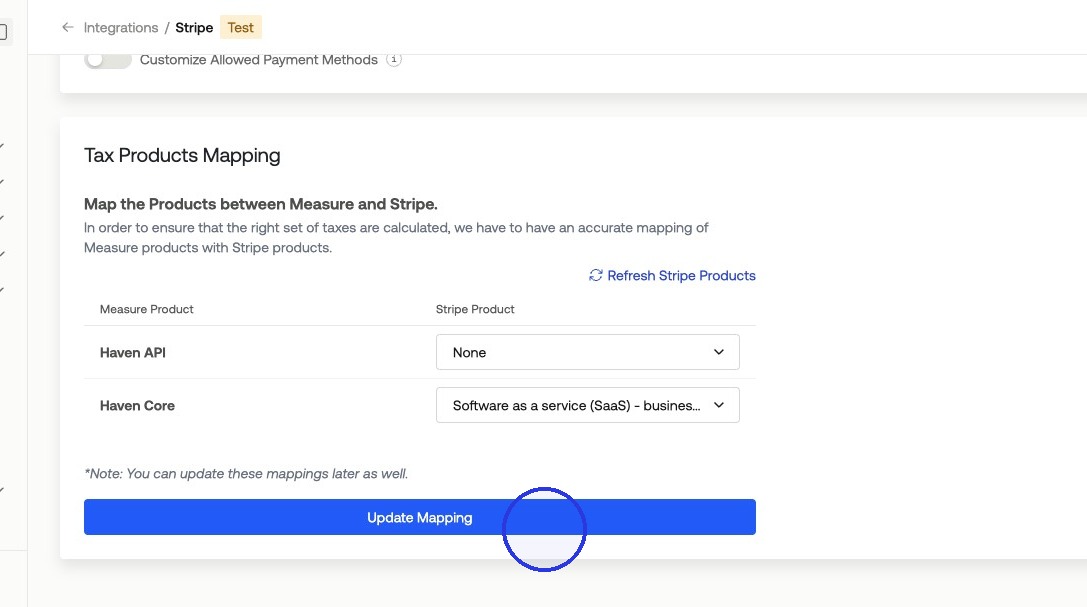
Once the mapping is saved, Measure passes product and jurisdiction data to Stripe Tax on each invoice. Stripe Tax returns the applicable tax amount, which is applied to the invoice line item automatically.