Slack Integration Overview and Setup
Slack notifications keep your team informed about key events in Measure like contract executions, upcoming subscription renewals, and invoice payments. You can configure notifications in the following domains:
Contract notifications: Get notified when contracts are signed or fully executed
Invoice notifications: Track paid invoices and failed payment recovery
Payment notifications: Alert on failed payments
Subscription notifications: Monitor subscription creation, updates, cancellations, and usage threshold breaches
These can be combined with matching conditions such as Customer Name, Customer MRR, Invoice Amount, and Subscription MRR to ensure you're only notified for scenarios you're interested in monitoring.
Setting Up the Slack Integration
1. Go to Settings and connect Slack
In Measure, navigate to Settings. Find the Slack integration and click + Connect Account. You will be redirected to Slack to authorize access for your workspace.
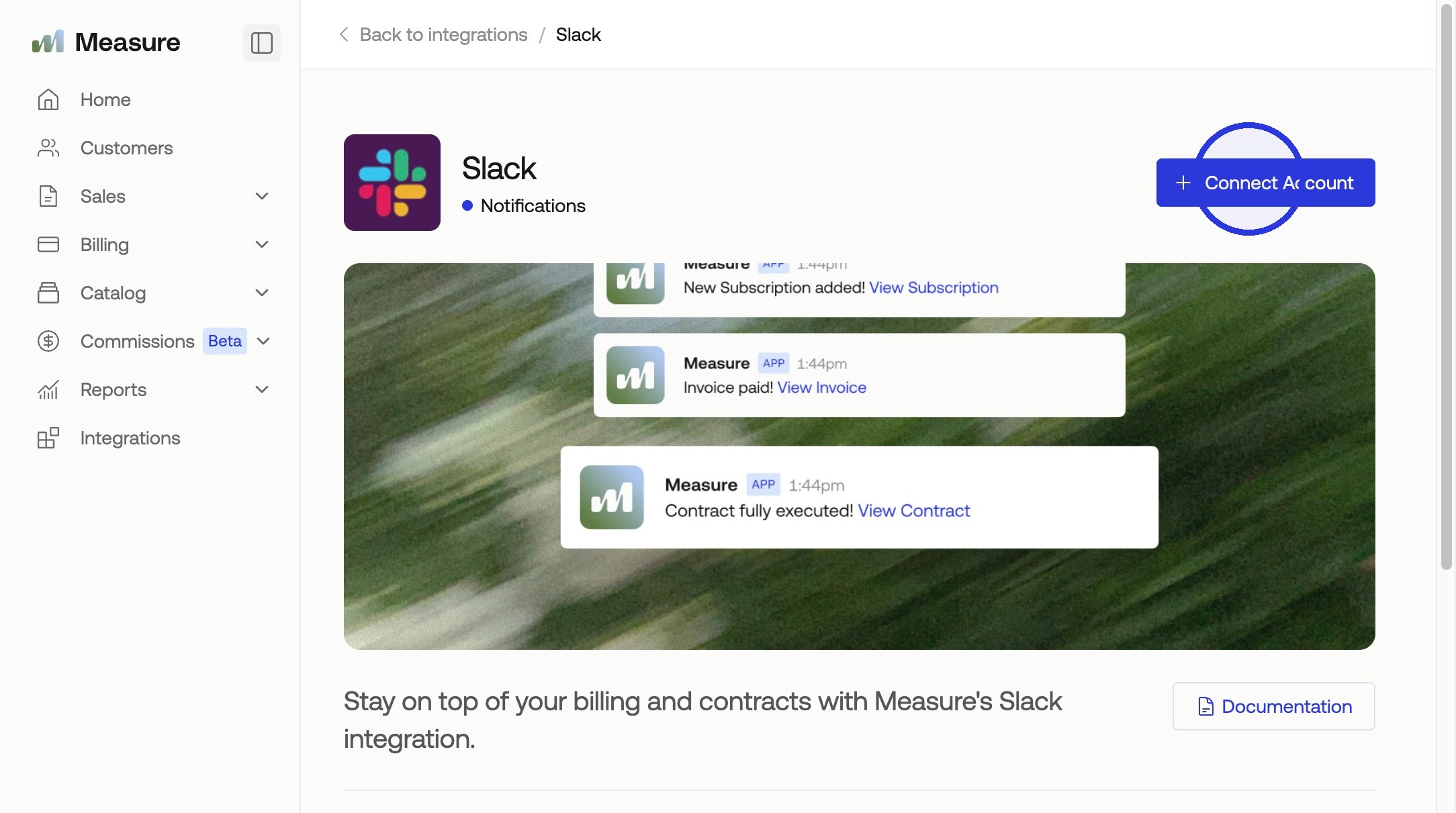
2. Authorize your Slack workspace
Select the workspace you want to connect and click Allow. Once authorized, you will be returned to Measure with the integration active.
Creating a Slack Notification Rule
1. Open the rule builder
Click Integrations > Manage, then click + Create Rule.
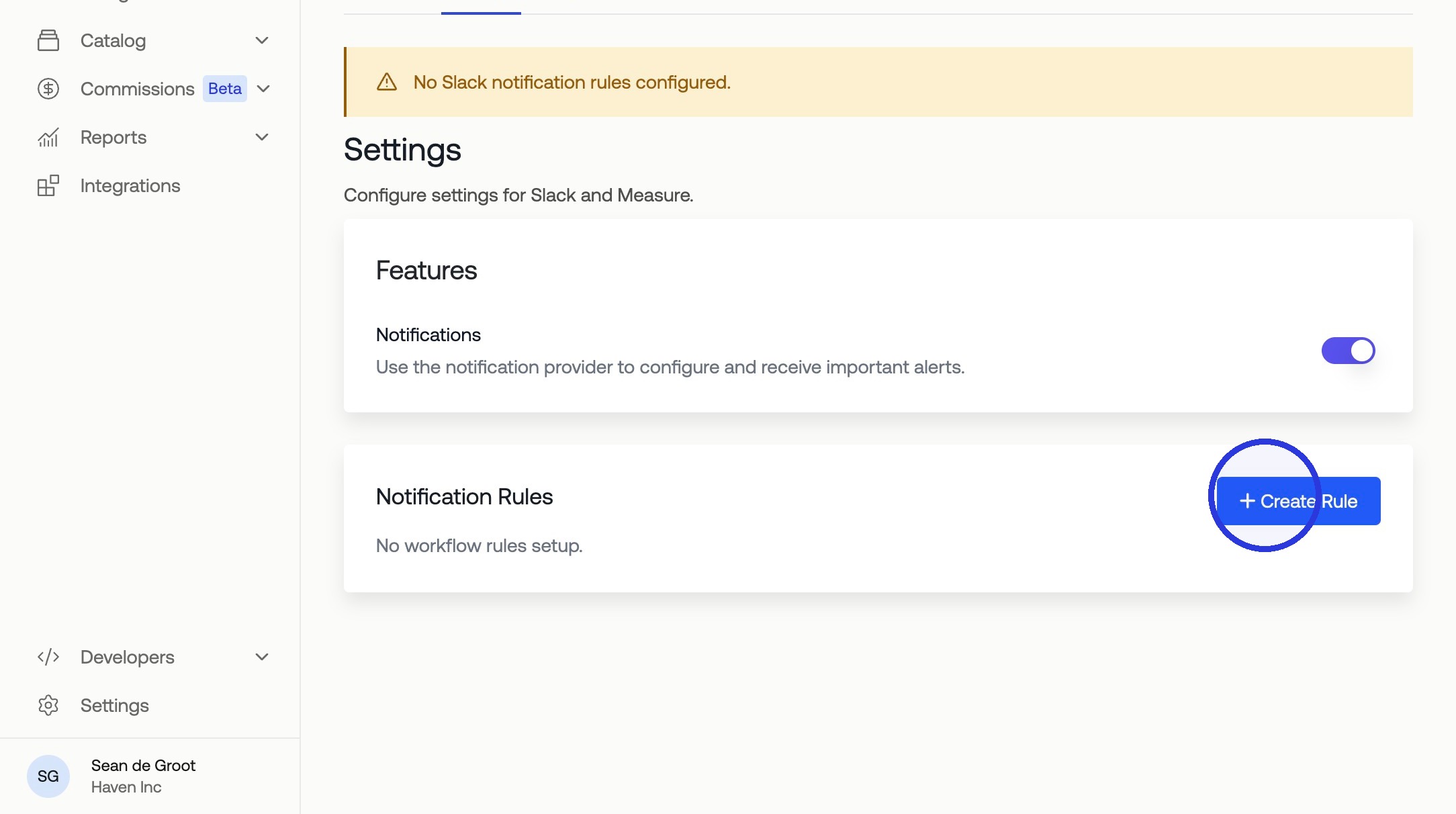
2. Fill in the rule details
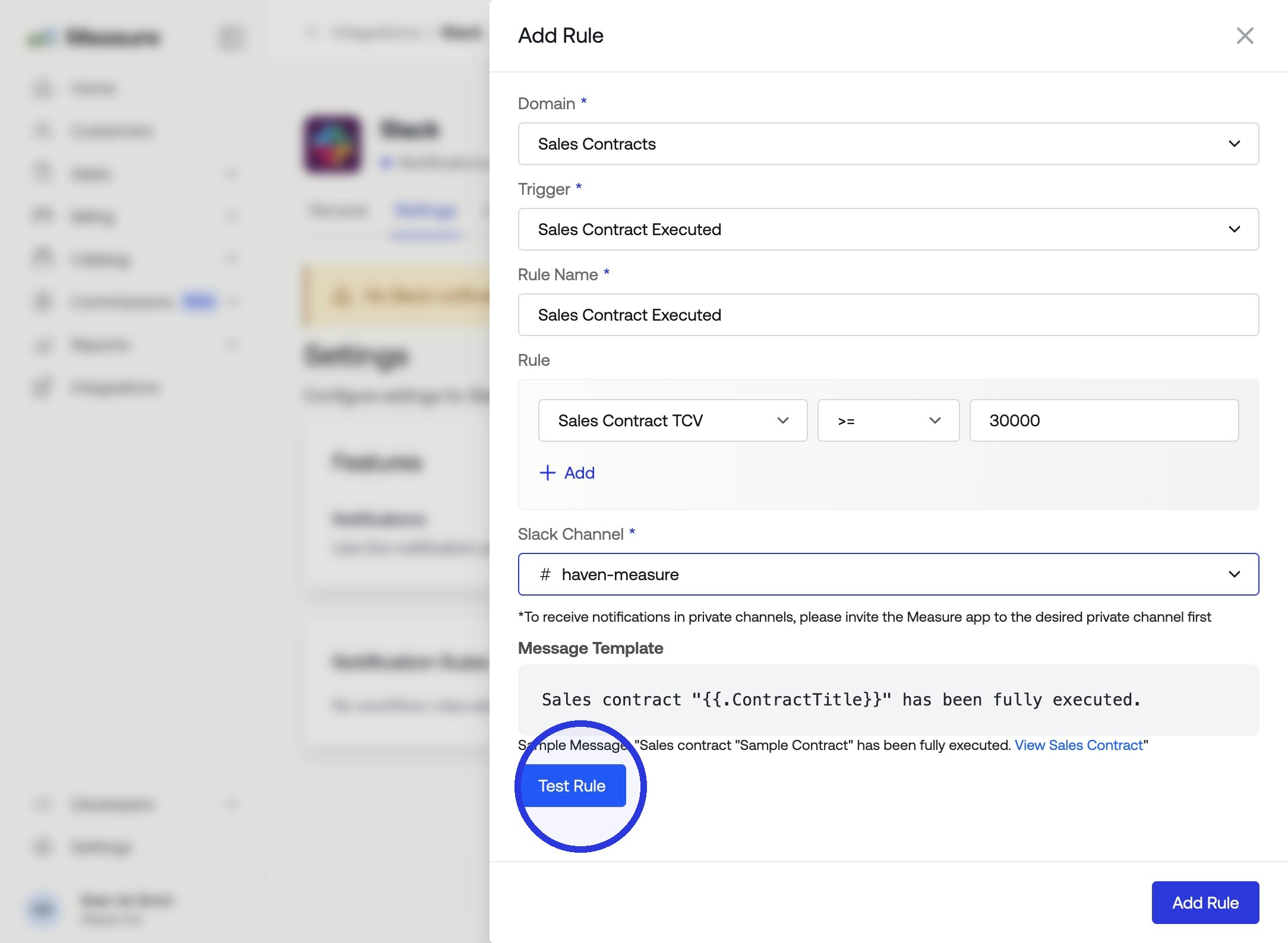
Configure the following fields:
Rule Name: A descriptive label for the rule.
Domain: The area to monitor. Choose from Contract, Invoice, Payment, or Subscription.
Trigger: The event that fires the notification, such as "Fully Executed" for contracts or "Paid" for invoices.
Rule: Optional conditions to narrow when the notification fires, such as filtering by Customer Name or Invoice Amount.
Slack Channel: The channel where Measure should post the notification.
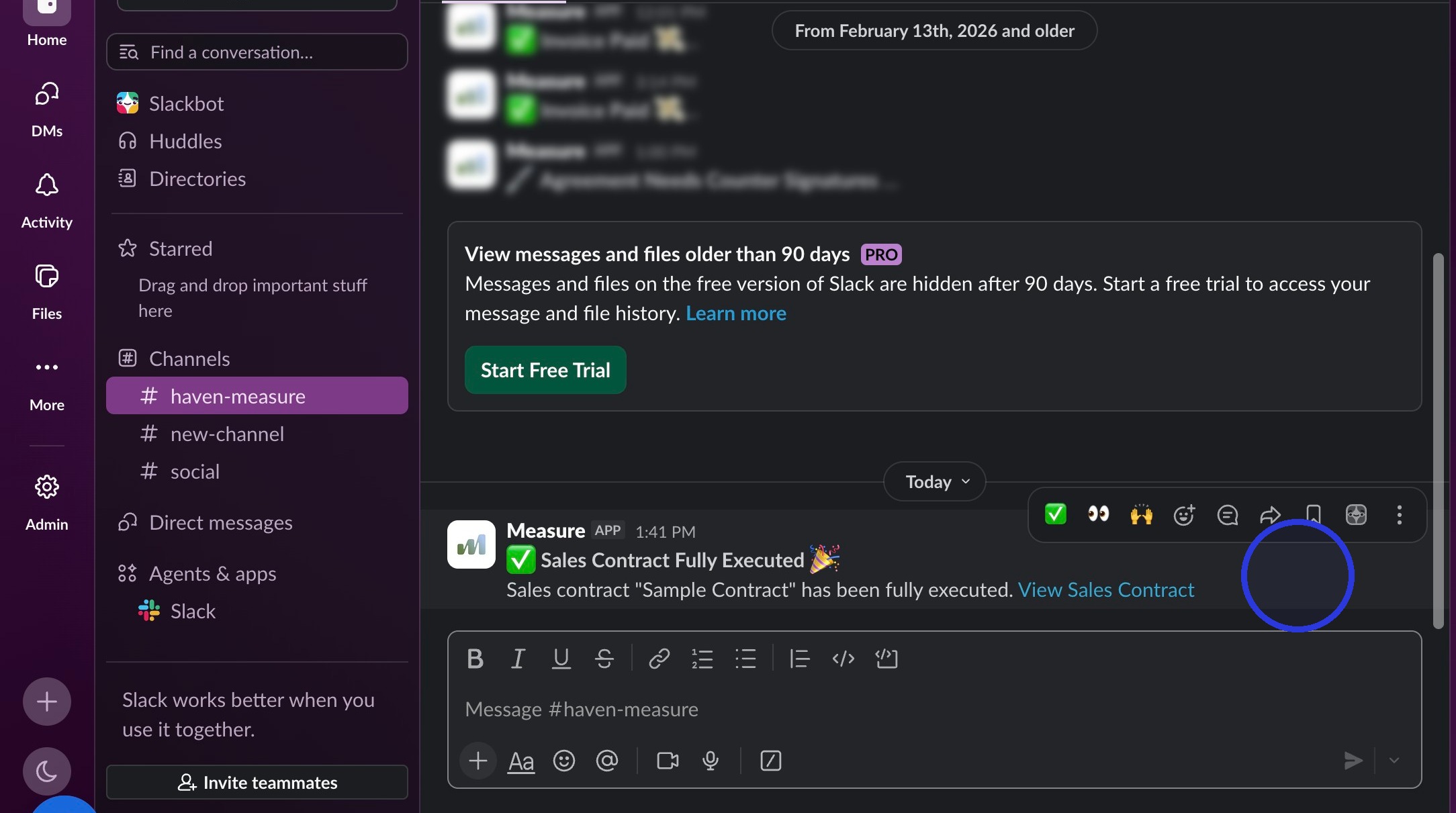
For example, to notify a channel whenever a contract is fully executed, set Domain to "Contract," Trigger to "Fully Executed," and Slack Channel to #haven-measure.
3. Test the rule
Click Test Rule to send a preview notification to your selected Slack channel. Confirm the message looks correct before saving.
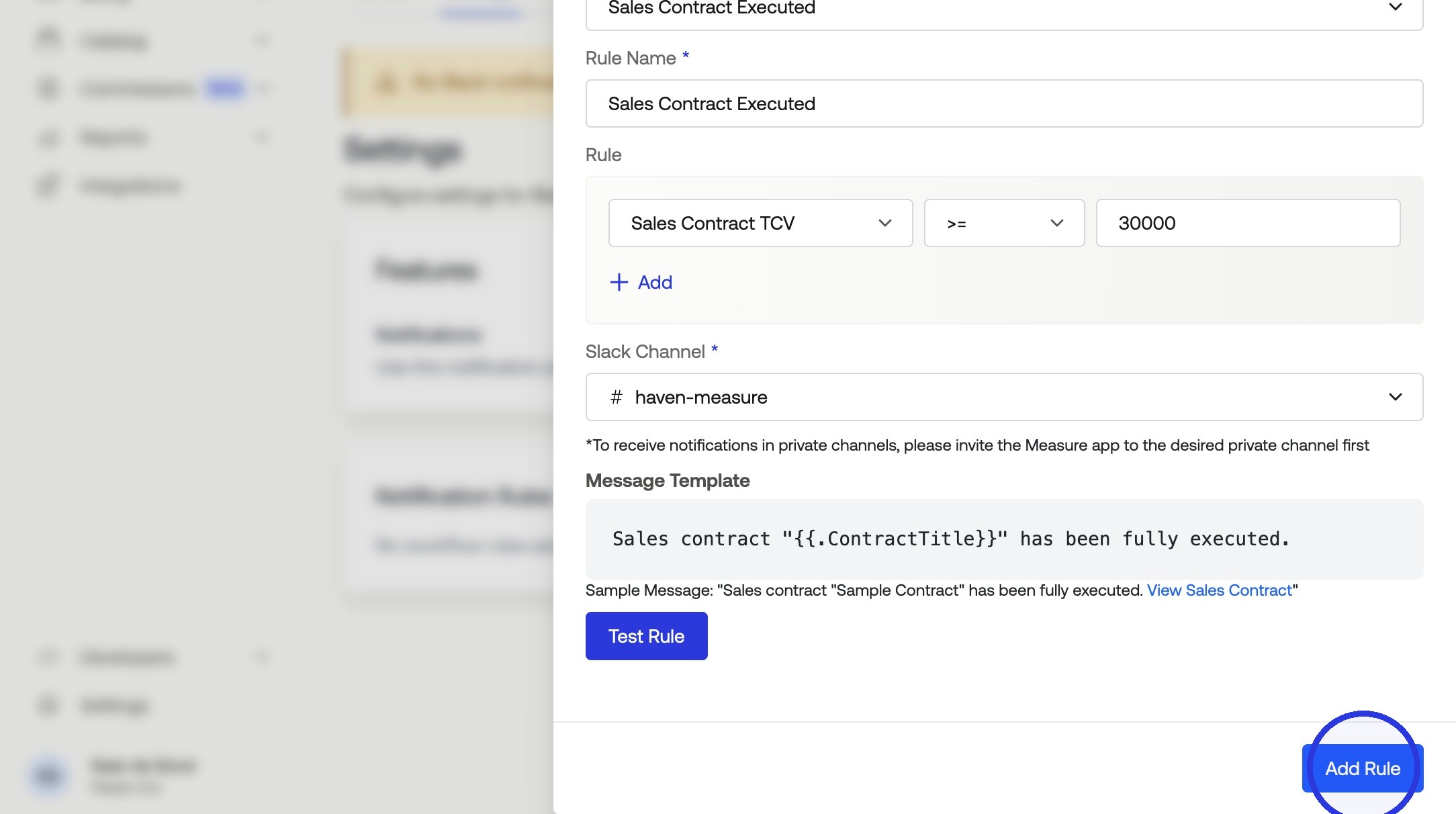
4. Add the rule
Once the test confirms the rule is working as expected, click Add Rule to activate it.