
Connecting Measure to Claude
The Measure connector lets Claude read data from your Measure account like customers, invoices, subscriptions, contracts, and more so you can query and analyze your billing data directly in conversation.
Prerequisites
An active Measure account
Access to Claude Desktop or Claude.ai (web)
If using a Claude company account, connector access must be enabled by your Claude admin
1. Open Connectors
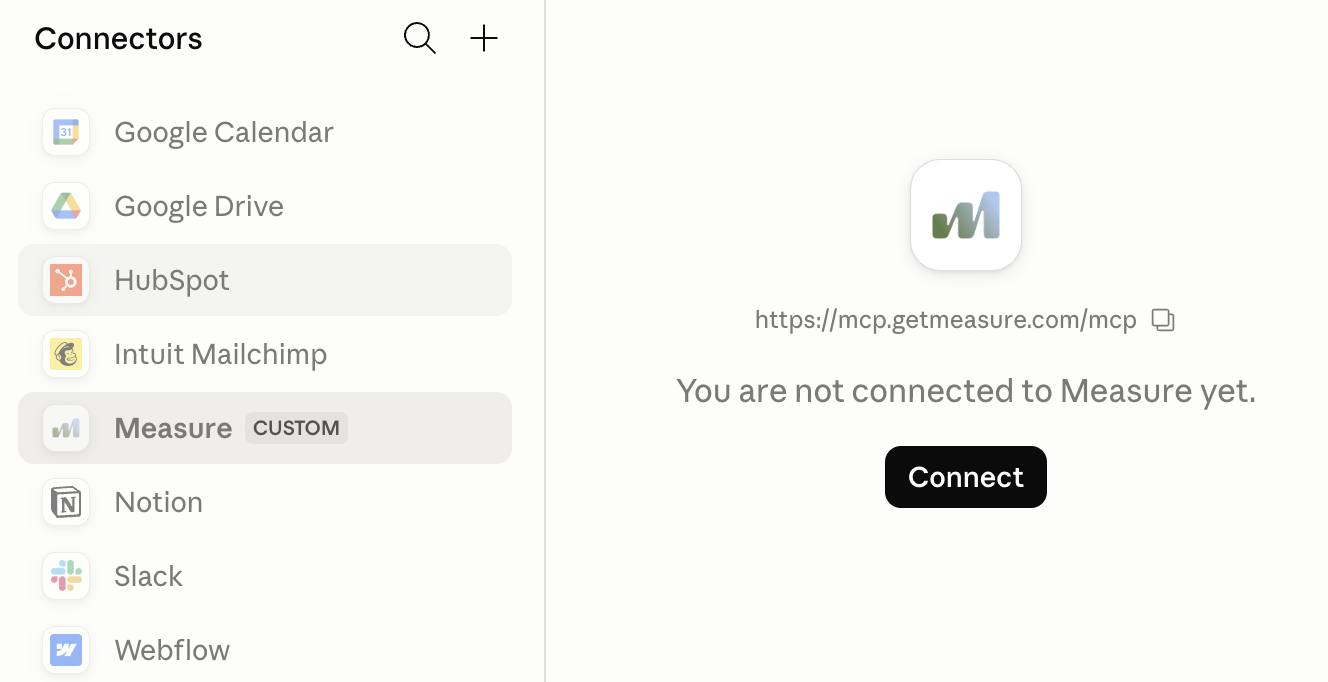
In Claude Desktop or Claude.ai, navigate to Connectors in the left sidebar.
You'll see a list of available integrations. Scroll down to find Measure under the "Not connected" section.
2. Connect to Measure
Click on Measure to open its detail panel, then click the Connect button.
This will launch the Measure authorization flow in your browser.
3. Authorize Access
You'll be prompted to select a company to authorize, choose the Measure organization you want Claude to connect to.
On the next screen, you'll see a permission prompt confirming that Claude Desktop is requesting access to read all data in your Measure account. Click Allow to grant access.
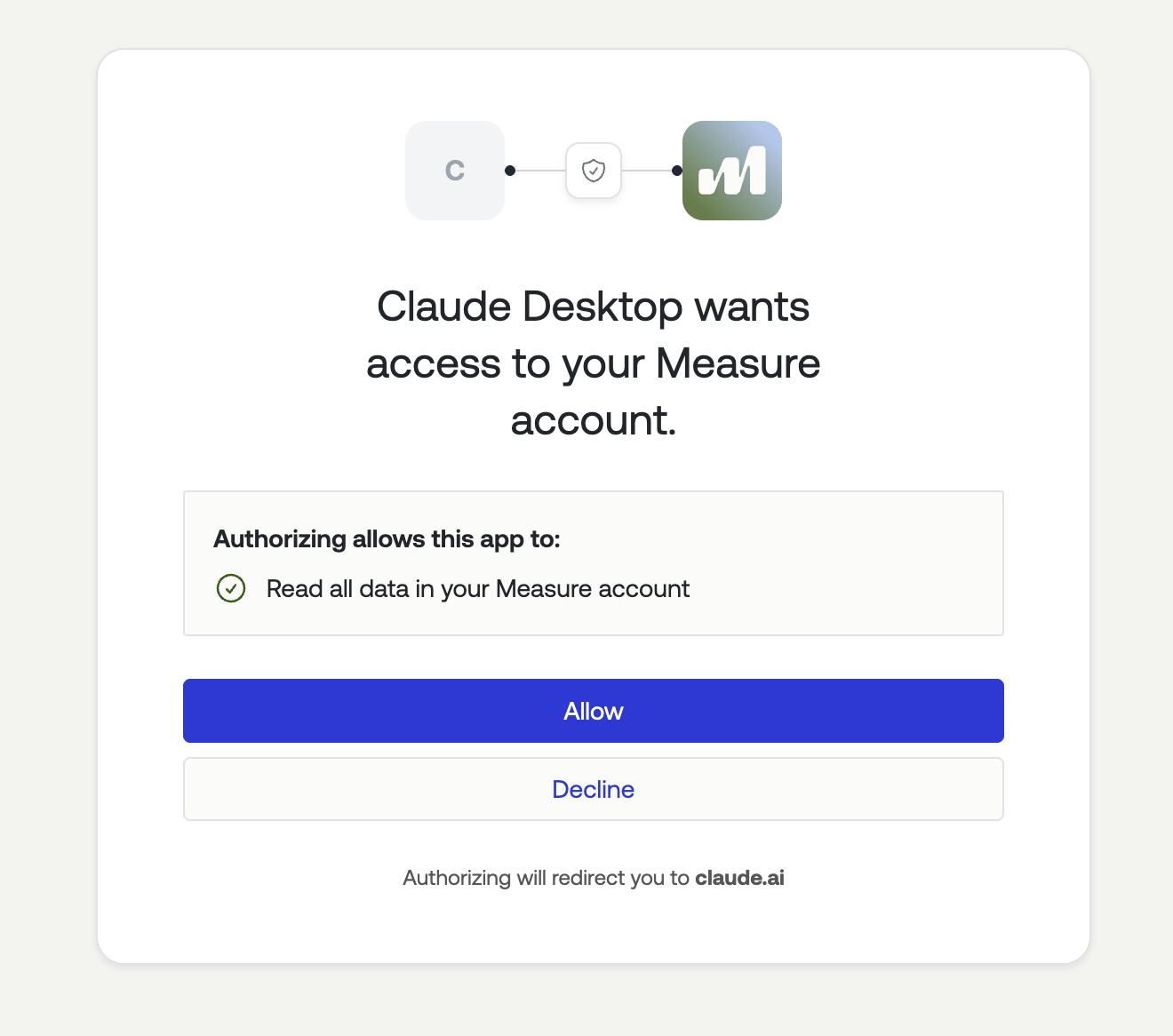
After authorizing, you'll be redirected back to claude.ai.
4. Configure Tool Permissions (Optional)
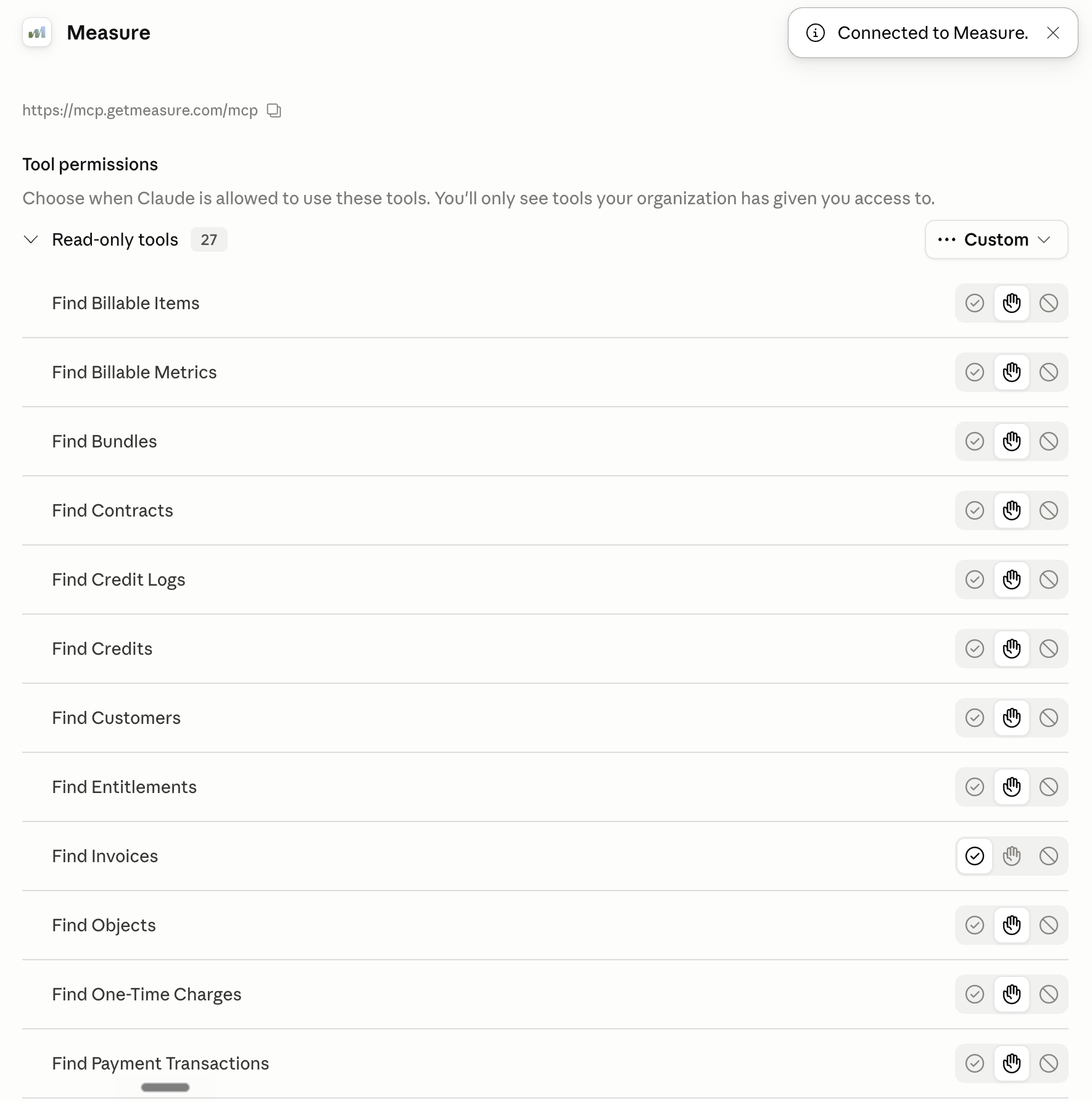
Once connected, you'll see a confirmation banner — "Connected to Measure" — along with a list of 27 read-only tools now available to Claude (Find Invoices, Find Customers, Find Subscriptions, etc.).
You can customize which tools Claude is allowed to use by adjusting the permission toggle next to each one:
Always allow — Claude uses the tool automatically
Ask every time — Claude asks before running the tool
Never — the tool is disabled
Prompts
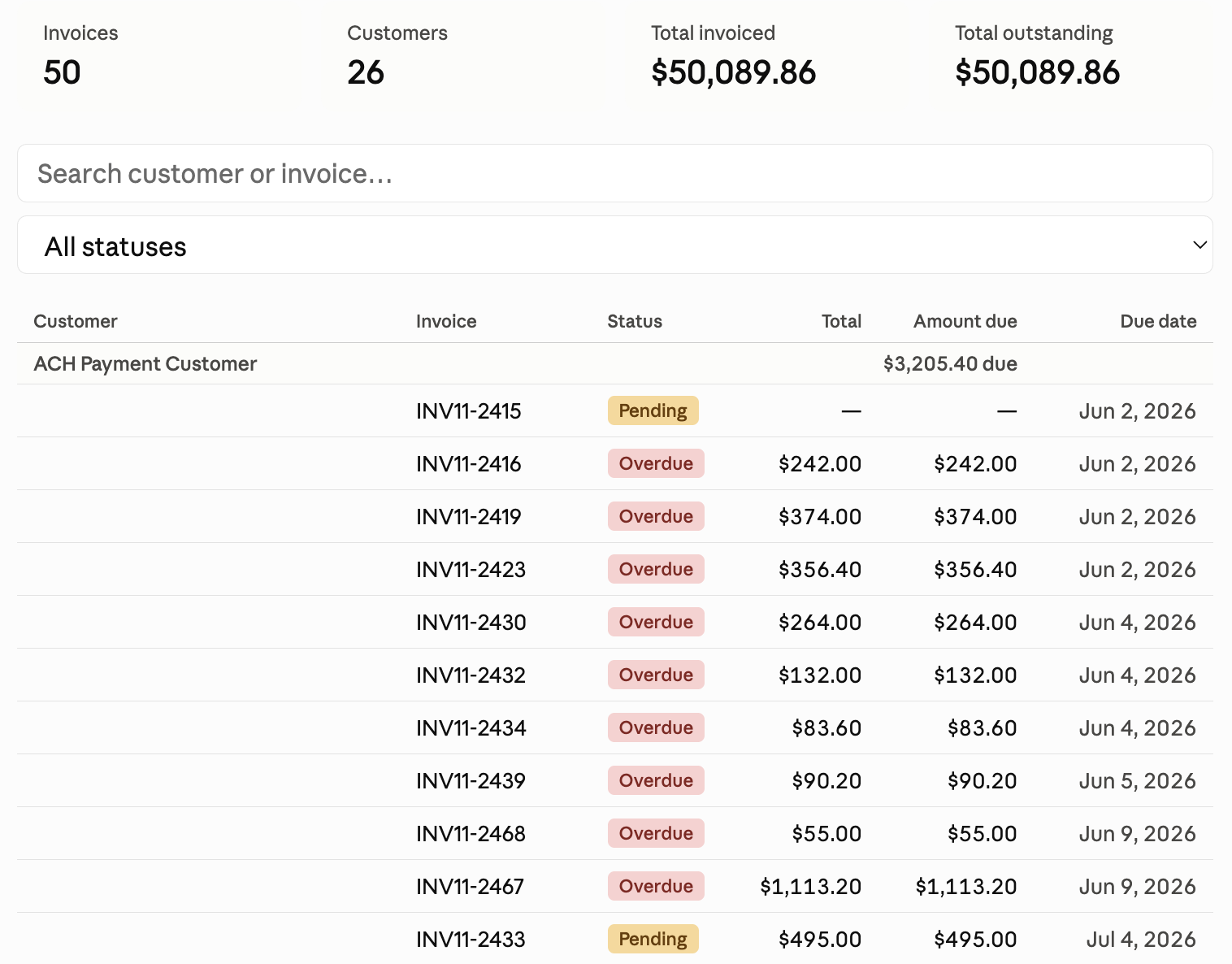
Once connected, you can ask Claude things like "Show me all overdue invoices from this month" or "Find all active subscriptions for Acme Corp" and Claude will query your Measure data directly.
Troubleshooting
Don't see the Measure connector?
If you're on a Claude company (Team or Enterprise) account and Measure doesn't appear in your connector list, your Claude organization admin may need to enable it. Reach out to them to request access.
Authorization failed or redirected incorrectly?
Make sure you're logged into the correct Measure account in your browser before clicking Connect, and that you have permission to authorize third-party integrations in that Measure organization.