Campfire Integration Overview and Setup
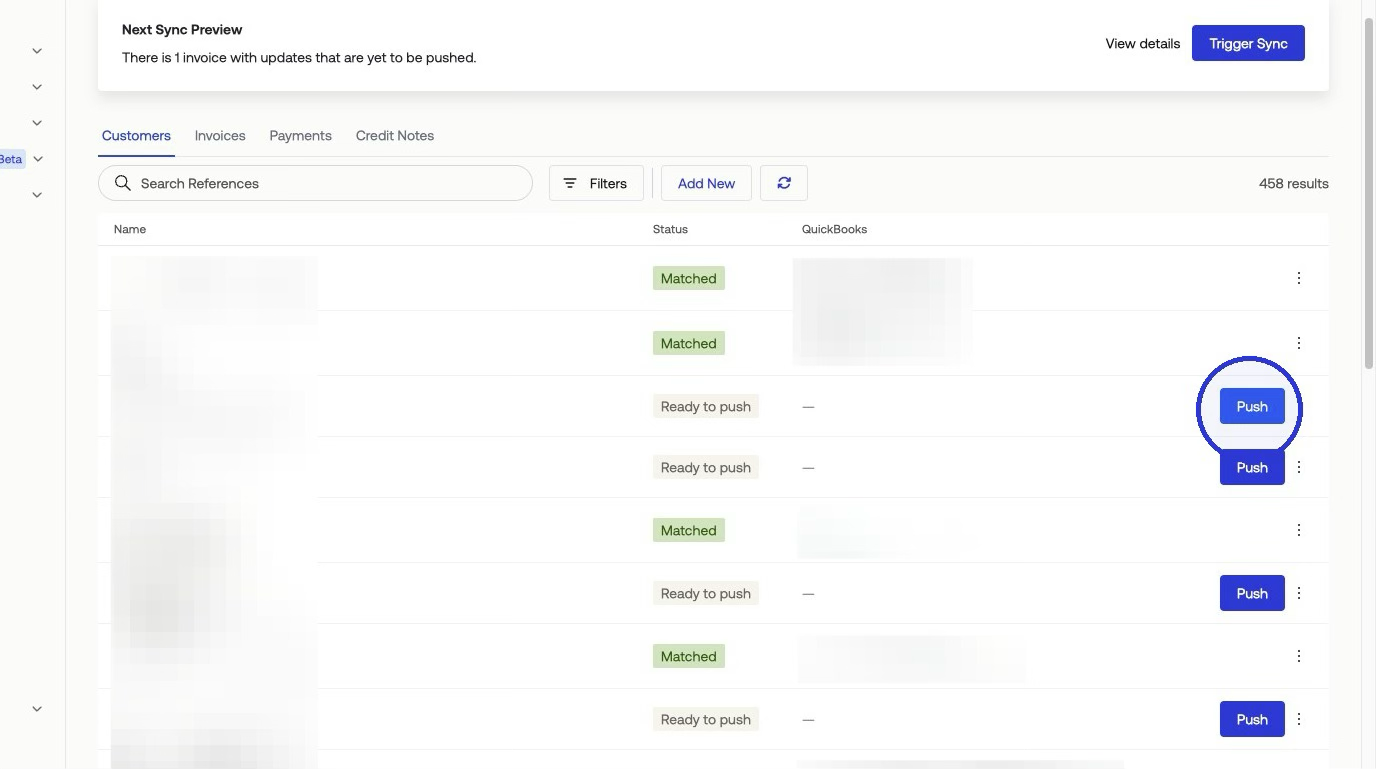
The Campfire integration pushes customers, invoices, payments, and credit notes from Measure to Campfire. When data changes in Measure, it automatically syncs to the corresponding records in Campfire via the daily sync, or immediately when Measure pushes that entity.
Connect your Campfire account
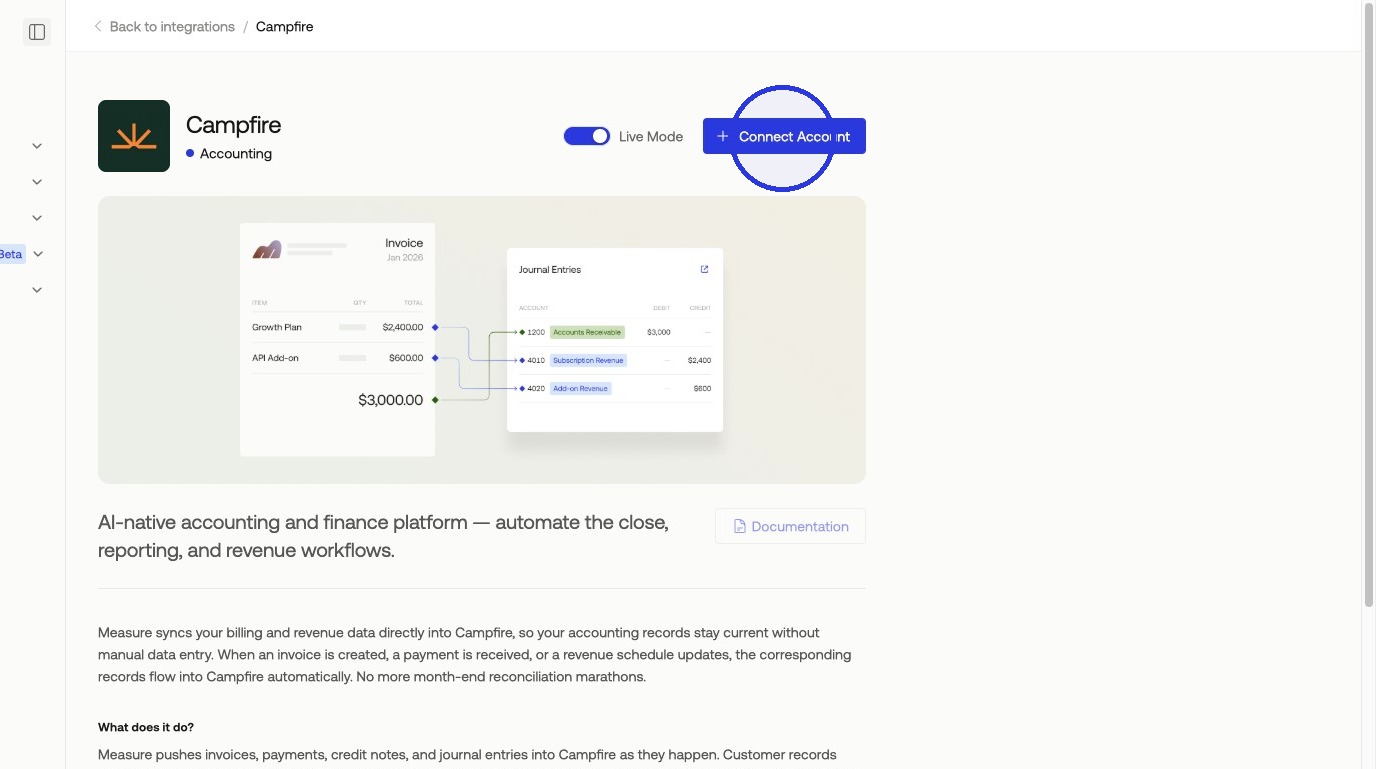
1. In Integrations > Search and click Campfire > Click + Connect Account
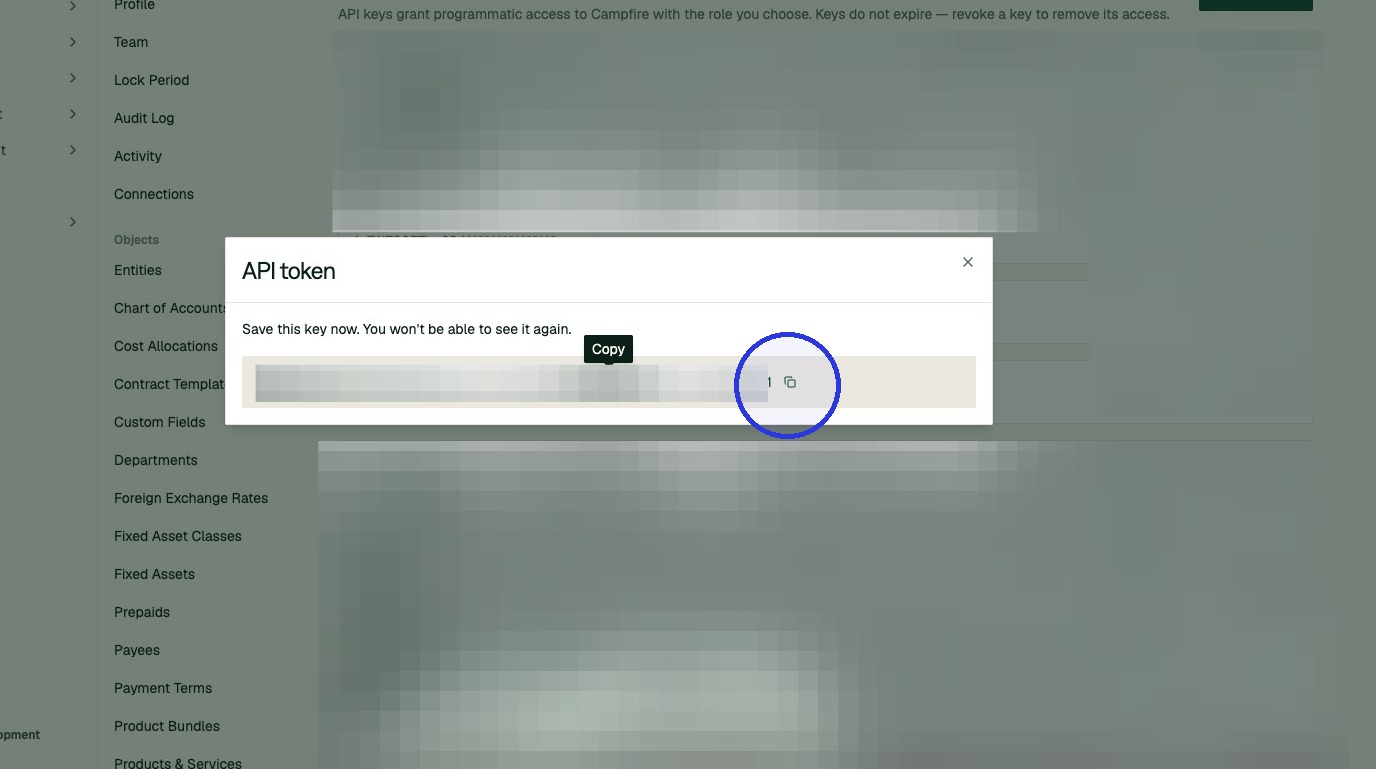
2. In Campfire, go to Settings > API Keys > New API Key > Create API Key > Copy the API Token
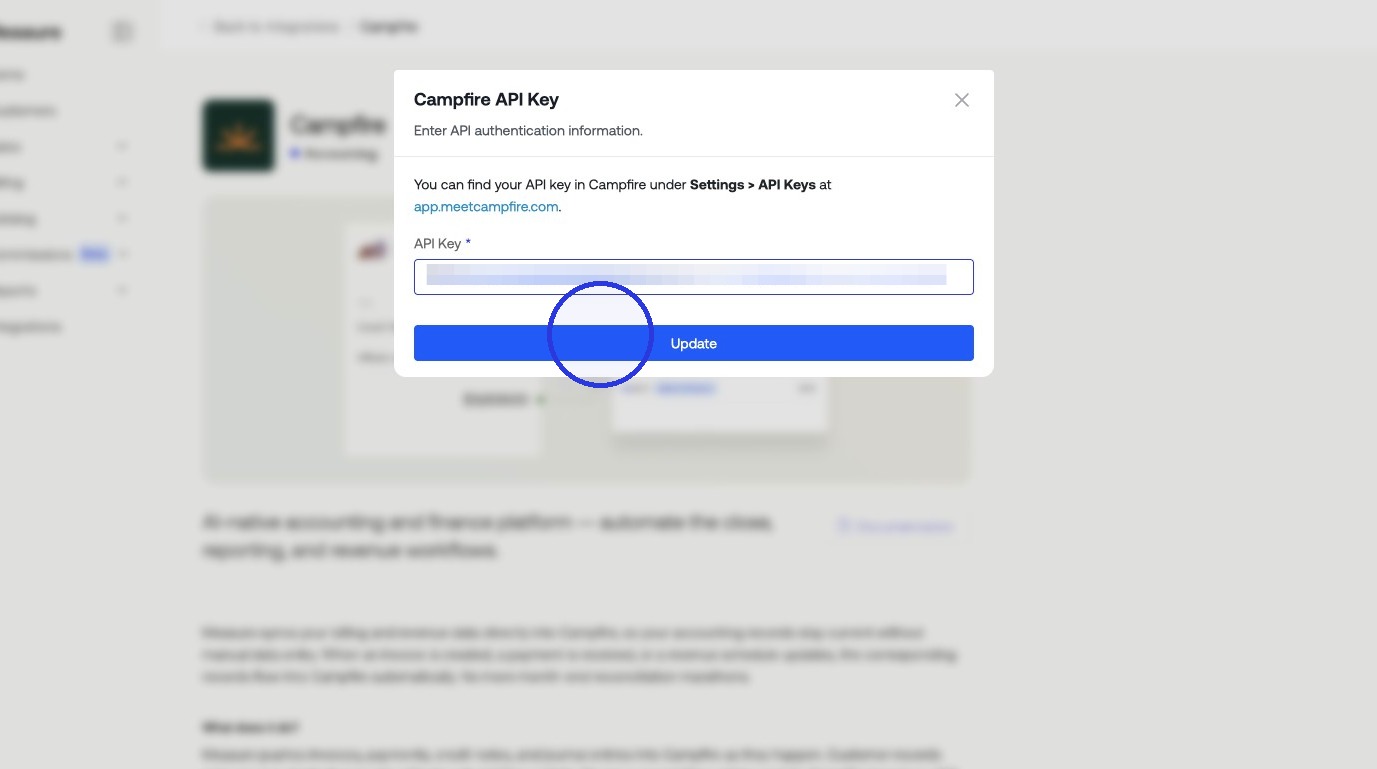
3. Paste the API Key into Measure > Update > Select your Organization
Configuring Mapping Settings
The settings panel lets you map data points from Measure to their corresponding fields in Campfire. You can update these at any time after the initial setup.
Product, Bank, and Tax Mapping
*Clearing Account Mapping: Match each currency in Measure to the corresponding Campfire clearing account. Clearing accounts temporarily hold payment amounts before they are deposited to your bank account. For example, map USD to your Stripe USD clearing account.
Transaction Fees Account (not currently available): Choose the Campfire account where transaction fees are recorded.
Bank Accounts Mapping: Match each currency in Measure to a Campfire deposit bank account. This determines where payments are recorded after settlement. For example, map USD to your Mercury Checking US account.
Accounting Products Mapping: Match each Measure product to the corresponding Campfire product. Accurate product mapping ensures taxes are calculated correctly when invoices sync.
Tax Rates Mapping: Map Measure tax rates to Campfire tax rates. Set a default mapping for 0% rates, then configure each non-zero rate individually.
Discounts Account: Choose the Campfire account where discounts are recorded.
*Minimum Onboarding Steps
Pushing Financial Records to Accounting
When first installing Campfire, you will be prompted to map your initial data between Measure and Campfire. This includes customers, invoices, payments, and credit notes.
Customers
For existing customers in both Measure and Campfire, match them under Matches > Customers by clicking Match and selecting the customer from Campfire. Any customers that are not yet in Campfire can be pushed to create them.
When you create or update a customer in Measure, it syncs to the corresponding customer record in Campfire.
Invoices
Measure invoices sync to Campfire. Upon installation, you can do an initial sync to push invoices from Measure to Campfire under Matches > Invoices > Initial Sync.
Line items map based on their type. Products and services map directly to the Campfire products you configured in your integration mappings. Quantity, unit price, and total amount sync automatically.
Discounts are booked to the Discount Account you selected in your Campfire integration settings.
Credits applied directly to an invoice push as negative, non-taxable line items on the Campfire invoice. If configured, the billing period for the line item (for example, 01 Jan 2024 - 31 Jan 2024) is appended to the description for clearer revenue recognition.
Taxes calculated in Measure map to Campfire via the tax mappings you configured in your integration settings.
Payments
Like invoices, upon installation, you can do an initial sync to push payments from Measure to Campfire under Matches > Payments > Initial Sync.
Measure handles payment reconciliation by breaking down a transaction into its core accounting components. This ensures gateway fees and net deposits are recorded accurately.
When you capture a payment in Measure, three objects are created in Campfire. The Payment represents the full gross amount paid by the customer and links to the corresponding Campfire invoice to mark it as paid.
The Purchase represents the gateway transaction fee, such as Stripe fees. This deducts from your mapped deposit bank account and is categorized under your configured Transaction Fee Account.
The Deposit represents the actual net amount transferred to your bank account. It bundles the gross payment and deducts the transaction fee, matching the net settlement on your bank statement.
Credit Notes and Refunds
Like invoices and payments, upon installation, you can do an initial sync to push credit notes from Measure to Campfire under Matches > Credit Notes > Initial Sync.
When you issue a credit note in Measure, it syncs to the corresponding credit note record in Campfire. The line items map to the same Campfire products as the original invoice. Taxes and amounts are mirrored to ensure accurate liability reduction.
When you apply a credit note balance to an open invoice in Measure, Campfire reflects the reduced open balance on the invoice.
When you refund a payment in Measure, it records as a corresponding refund entry in Campfire drawn from your mapped deposit bank account.
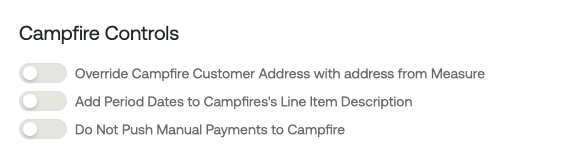
Campfire Controls
You can enable specific behaviors for the sync:
Override Campfire Customer Address with Address from Measure: Syncs customer billing addresses from Measure to the corresponding customer records in Campfire.
Add Period Dates to Campfire Line Item Description: Appends the service period (for example, 01 Jan 2024 - 31 Jan 2024) to each invoice line item description in Campfire.
Do Not Push Manual Payments to Campfire: Payments received outside of Measure but marked as paid on the corresponding invoice in Measure will not be pushed automatically. These will need to be reconciled manually in Campfire.
Syncs, Matches, and Logs
The top tabs in the Campfire integration panel let you monitor sync activity and history.
Matches: View and manage how customers, invoices, and payments in Measure are matched to records in Campfire. Manually match any items that were not linked automatically.
Syncs: See a summary of items pending a sync. Trigger a manual sync from this tab. The next scheduled automatic sync time is also shown here.
Logs: Review a detailed history of all sync activities and any errors that occurred.
Automatic Sync
Turn on and preview when your next automatic sync will occur under the Settings tab of your Campfire integration.

Manual Sync
Push a manual sync by going to Matches and selecting the item you want to push.