How to Configure the new CRM App Card in HubSpot
If you use the Measure HubSpot integration, you need to configure the new App Card in your HubSpot settings to continue accessing Measure from deal records.
This is a one-time setup that requires Super Admin permissions in HubSpot. If you do not have access to app cards in Step 3, contact your Super Admin.
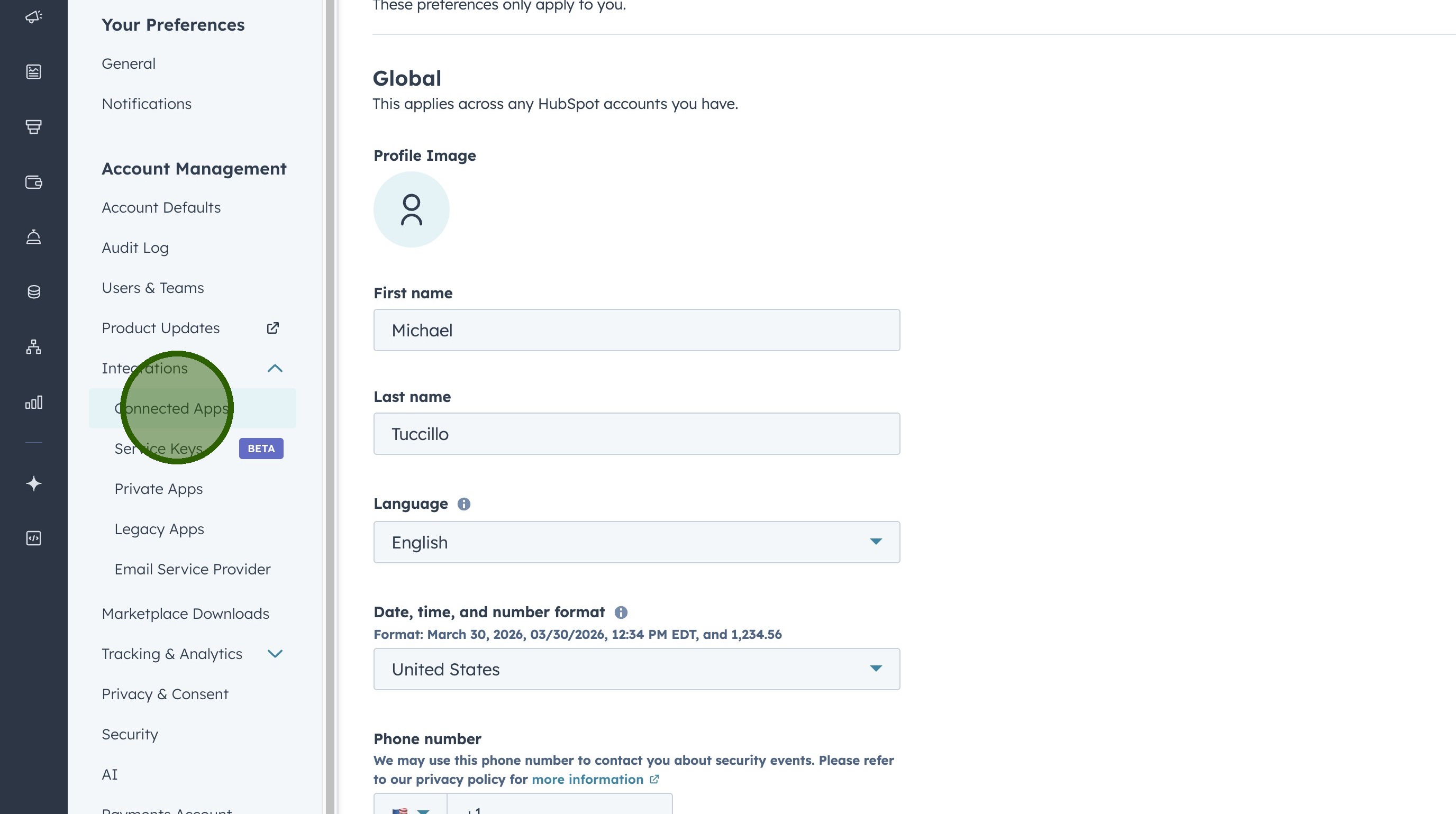
1. Open Connected Apps.
In HubSpot, click the settings icon in the top navigation. Select Integrations from the left sidebar, then click Connected Apps.
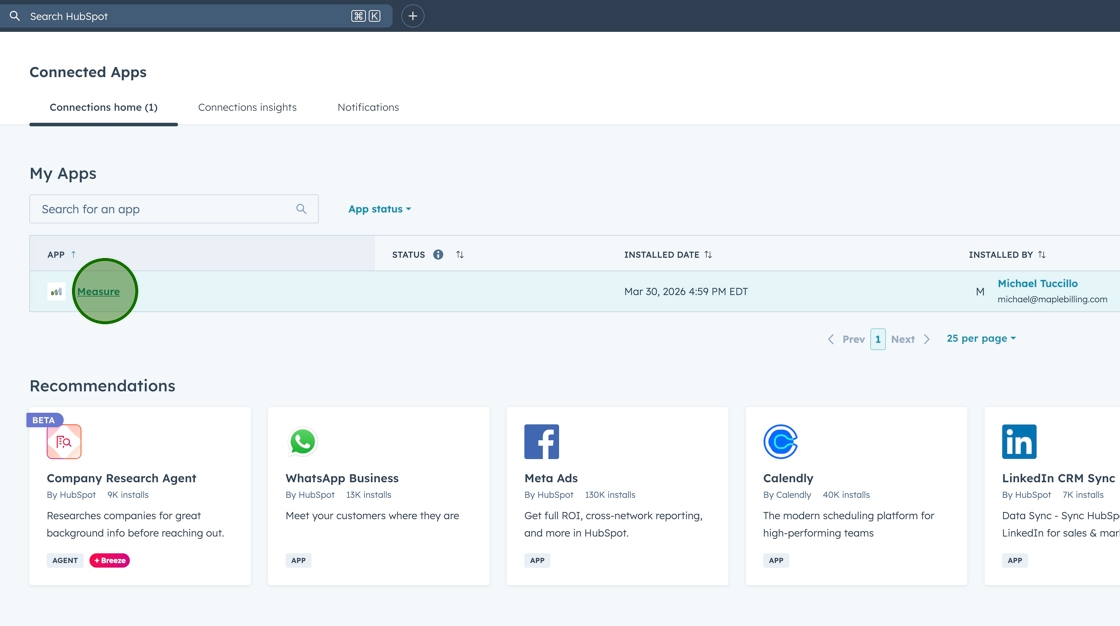
2. Select the "Measure" App.
In the list of connected apps, click the "Measure" app to open its settings.
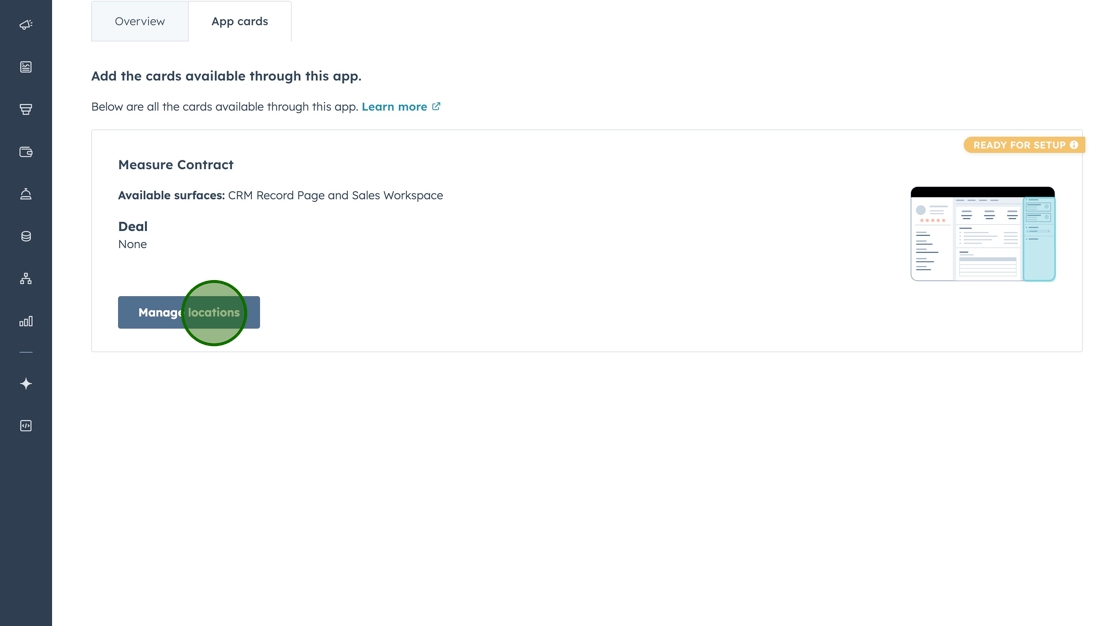
3. Open App Cards.
Click the App cards tab, then click Manage locations.
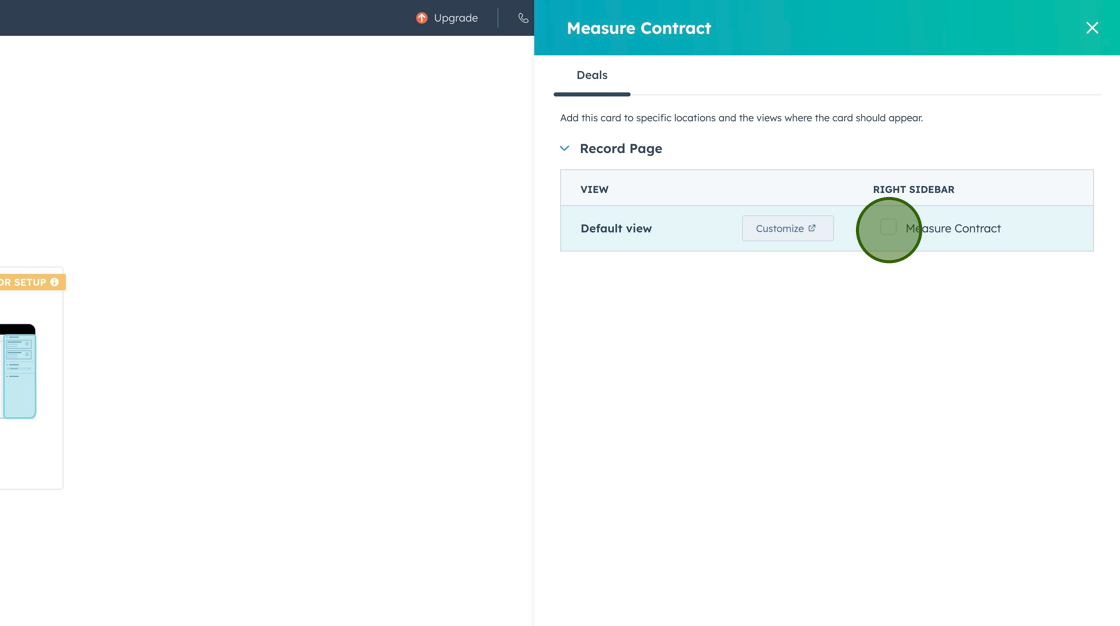
4. Configure Card Location.
Under Deals, select Record Page and then toggle Right sidebar. This controls whether the card appears on the Deal record page. When you open a deal, the right sidebar displays associated records and app cards. With this enabled, the Measure card appears in that sidebar.
Click Save to apply the configuration. The App Card now appears on your HubSpot deal records as it did with the Deal Card. You can create contracts and manage deal execution directly from the card.
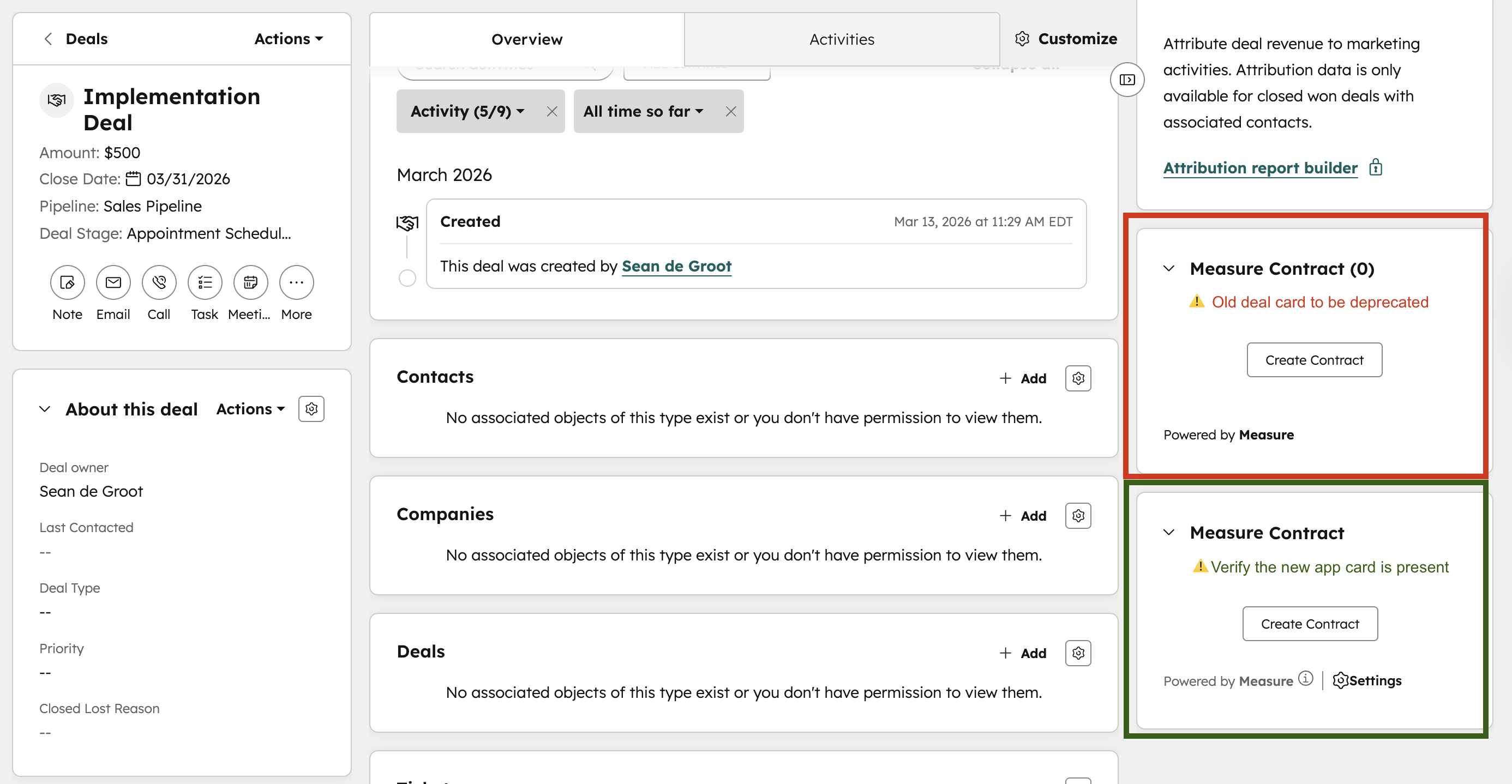
Note: The original deal card will be deprecated by our team in the future.
4. Verify the new App Card is Present when on a Deal.
To verify, simply go to a deal and make sure the new App Card is present (Screenshot below with the new App Card outlined in green). The new App card will state "Powered by Measure ℹ | ⚙️ Settings". One confirmed, message our team to let us know that this is configured successfully. The workflow for creating a Contract from an associated deal will remain the same.