How to Create a Contract for Renewal
You can schedule changes to a subscription that take effect at the next renewal date. This workflow creates a change contract that modifies an existing subscription when it renews. The contract requires signature before the scheduled change is applied.
1. Navigate to the Subscription and Start a Change Contract.
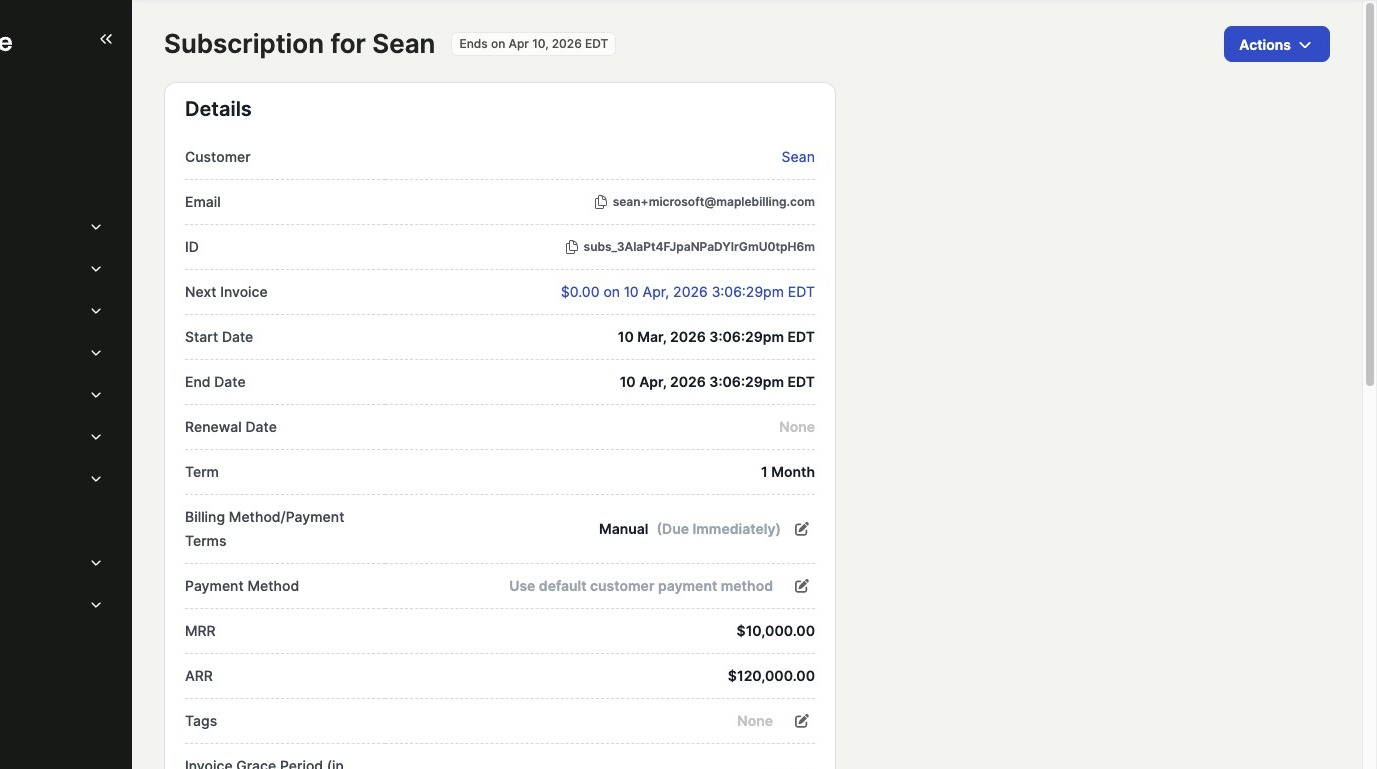
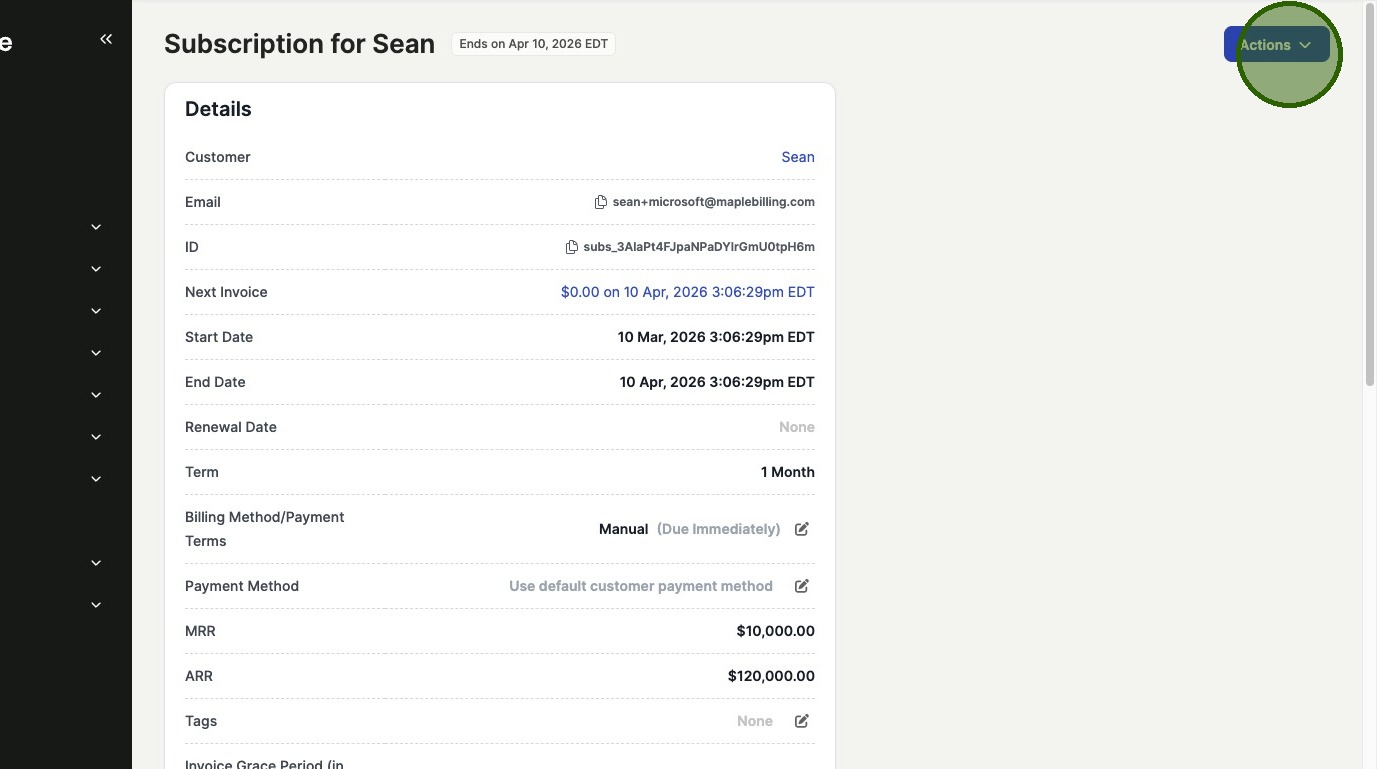
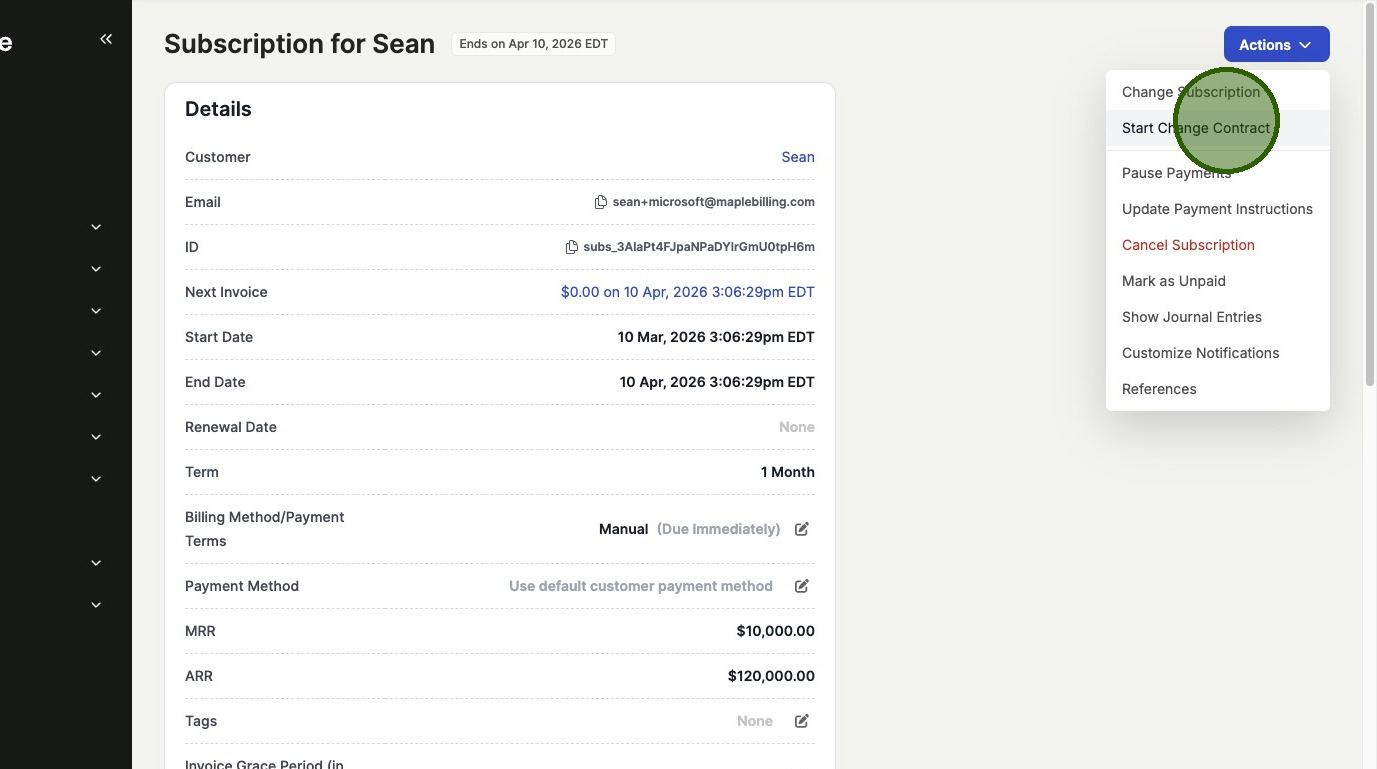
Open the subscription you want to modify. Click Actions, then select Start Change Contract from the dropdown menu.
2. Configure the Change Date and Renewal Settings.
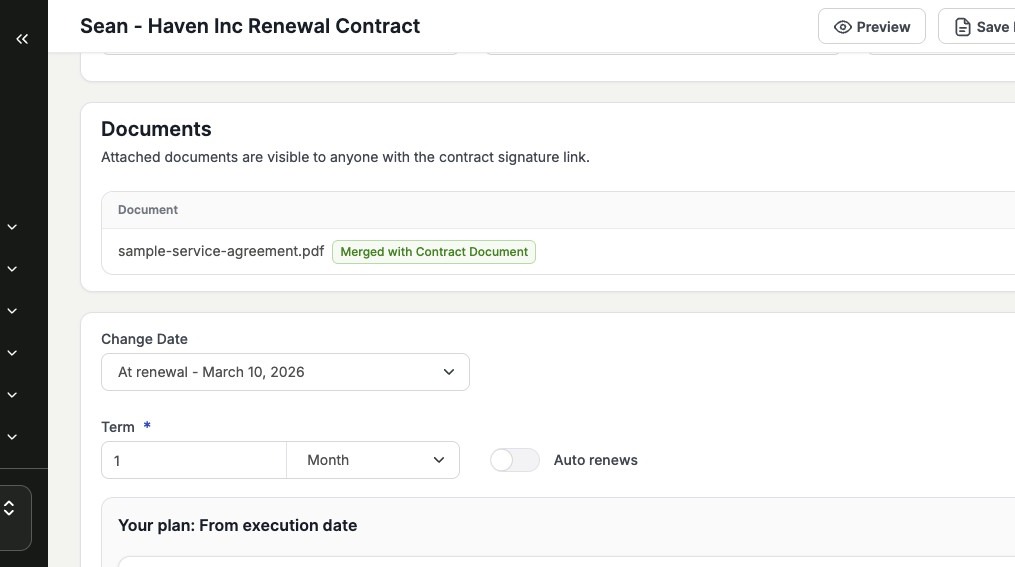
Set the change date to occur at the subscription's next renewal. If you want the subscription to continue renewing after this change, select Auto Renews. Make any modifications to the plan, such as adjusting quantities, adding or removing products, or changing pricing.
3. Finalize and Send the Contract for Signature.
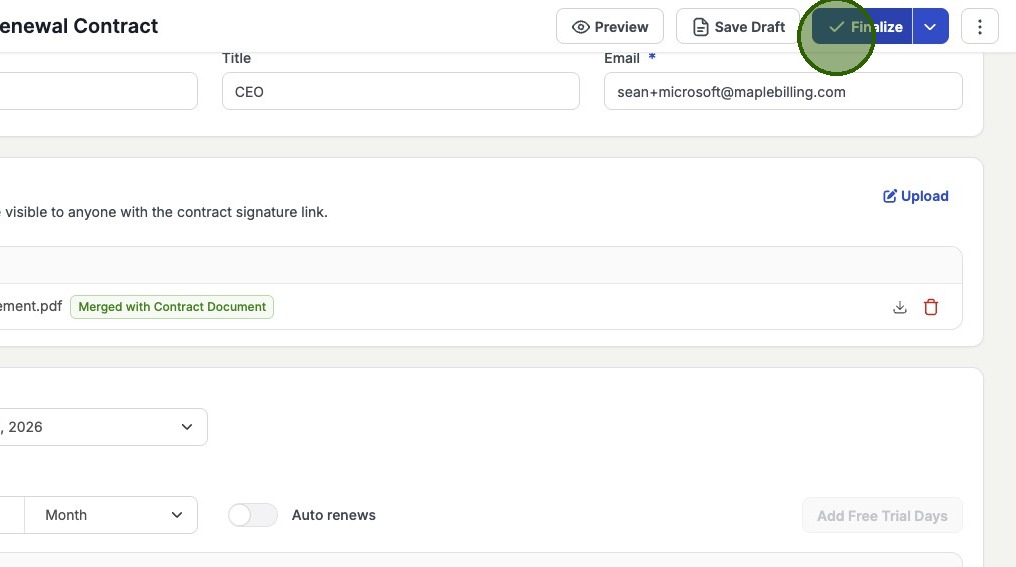
Review the contract details. When ready, finalize the contract and send it to the customer for signature. The change will not take effect until the contract is signed and the renewal date arrives.
4. Verify the Upcoming Change on the Subscription.
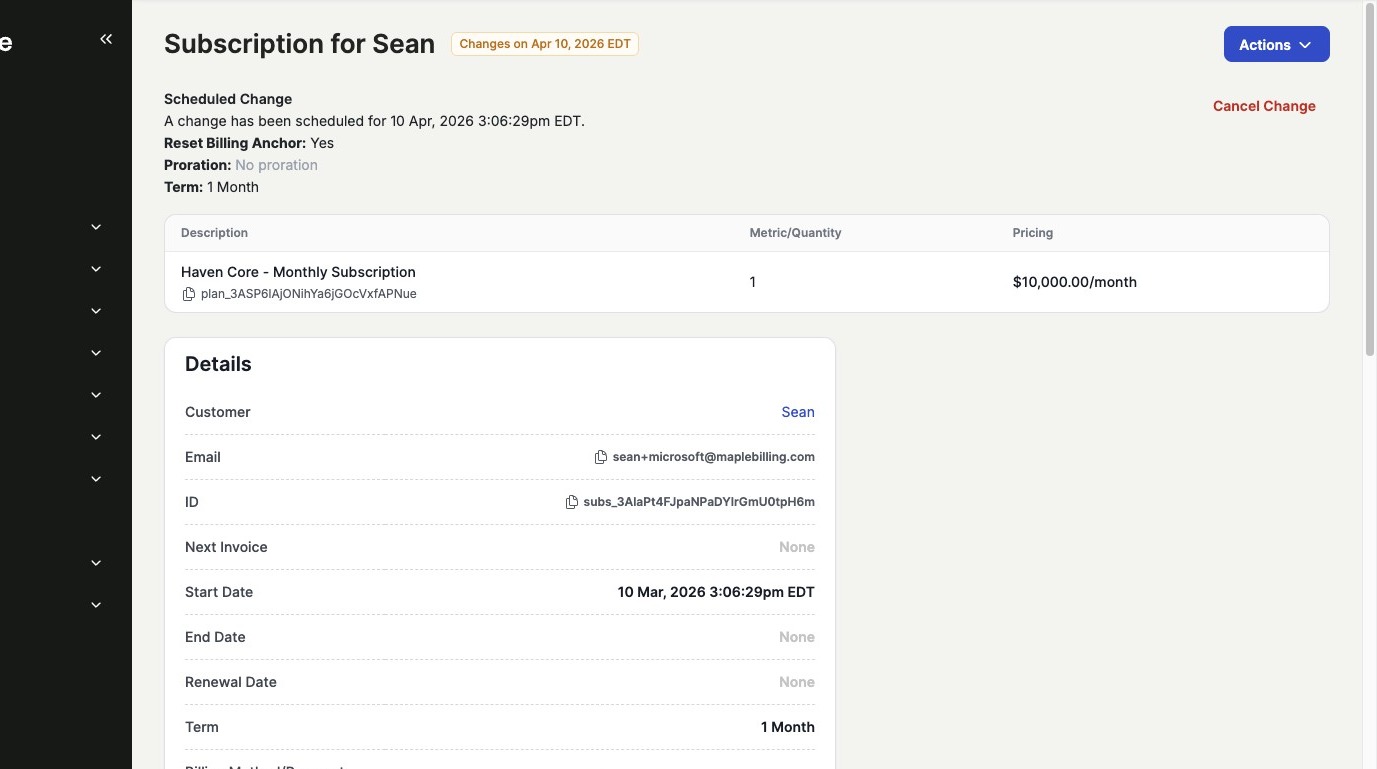
After the contract is signed, return to the subscription page. You will see a notification indicating the scheduled change that will take effect at the next renewal date.