
How to Set up a Subscription with a Billing Anchor Date
When a customer starts a subscription mid-month, Measure treats the start date as the beginning of the billing cycle by default. If you’d prefer to align billing to a specific calendar date (such as the first of each month), you can use a billing anchor date. This allows the first invoice to be prorated for the partial period, with all future invoices renewing on your chosen date.
In this guide, you’ll learn how to set up a subscription with a billing anchor date to keep billing consistent and predictable.
1. Click "+ Create Subscription"
Fill in Subscription Details and add Product Pricing.
Customer
Start date: actual start date of the subscription
Payment options and invoice payment terms
Term
Select + Add Product Pricing and add in the customer's plan.
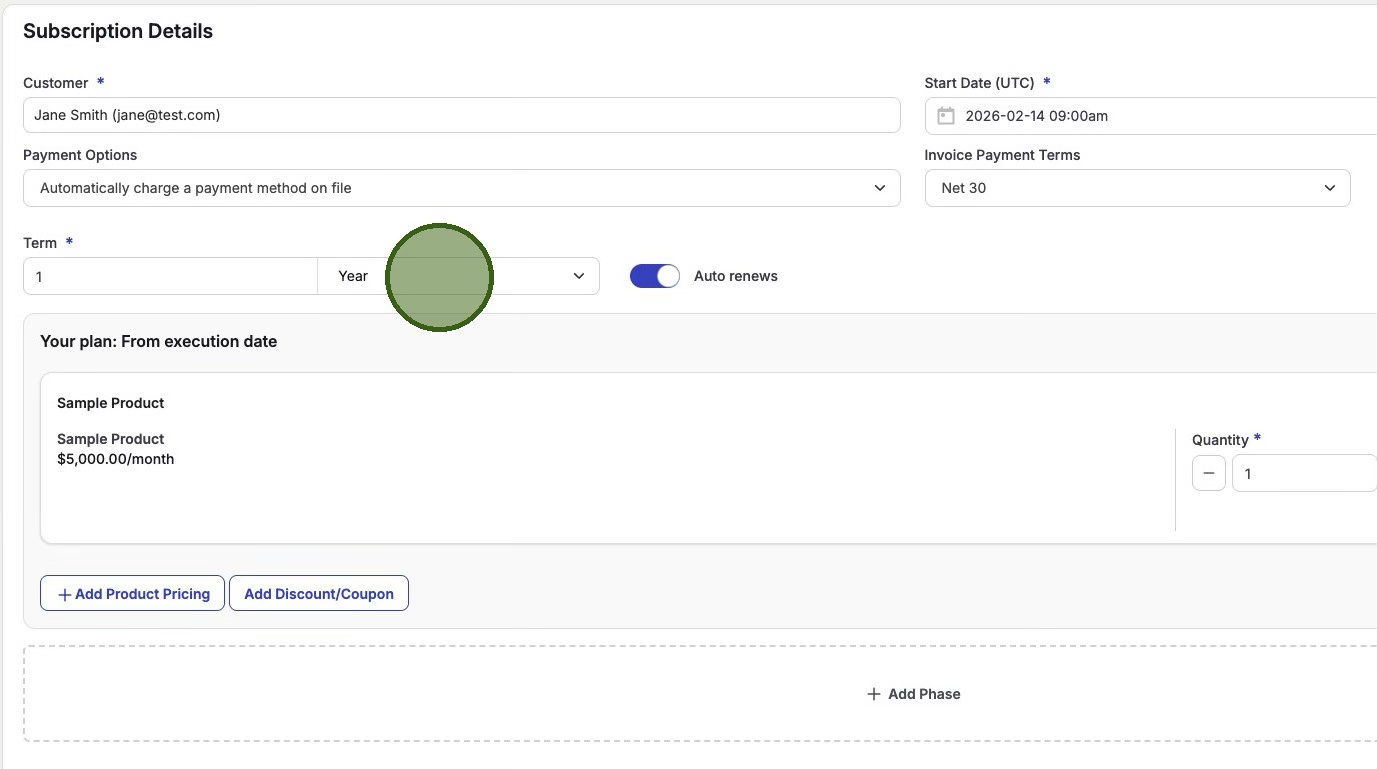
2. Select Billing Anchor Date
Expand the Advanced Options section. Choose your desired anchor date under Billing Anchor Date.
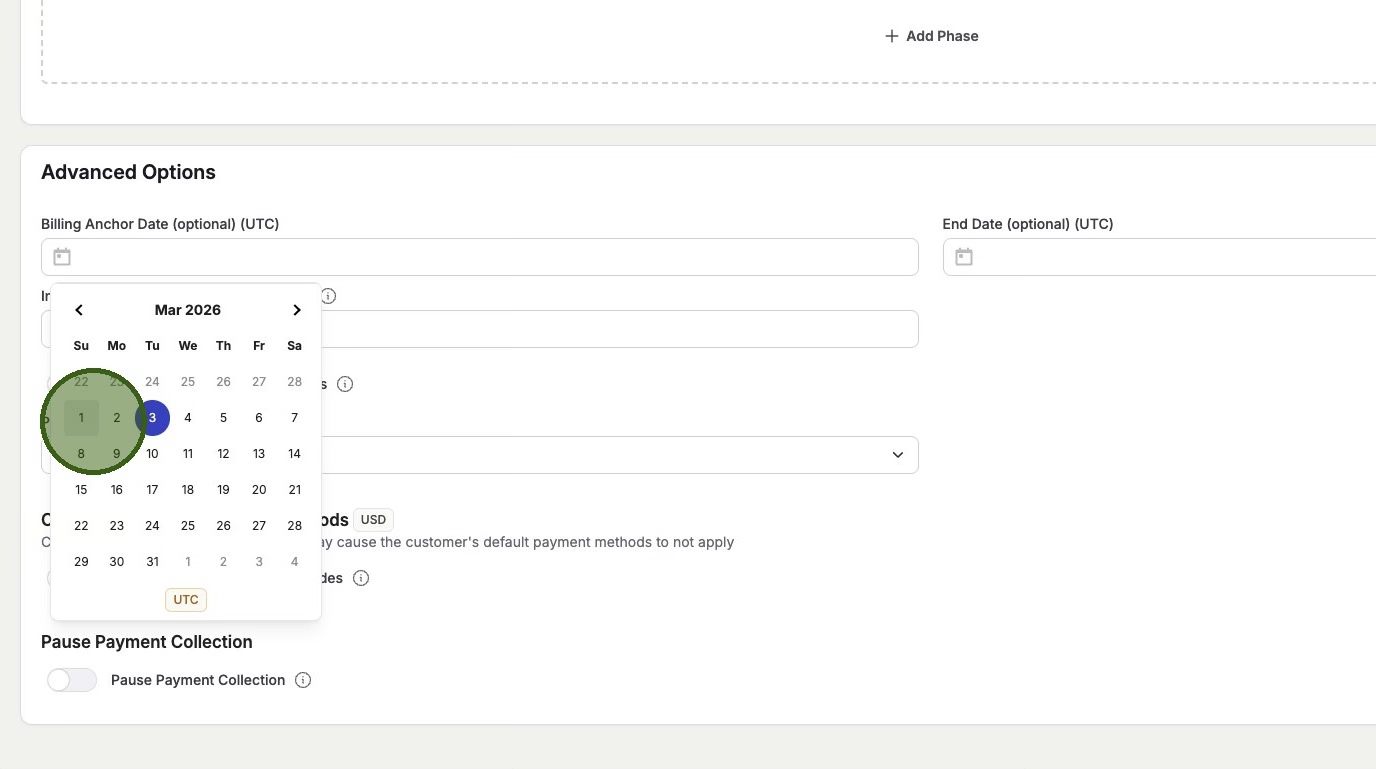
Example:
Subscription start date: February 14, 2026
Billing anchor date: March 1, 2026
First prorated invoice billing period: February 14, 2026 - February 28, 2026
Second invoice: March 1 - March 31, 2026
2.5 Generate Historical Invoice (if Start Date is in the Past)
If the Subscription Start Date you have selected is in the past, you will see the following pop up on your screen:
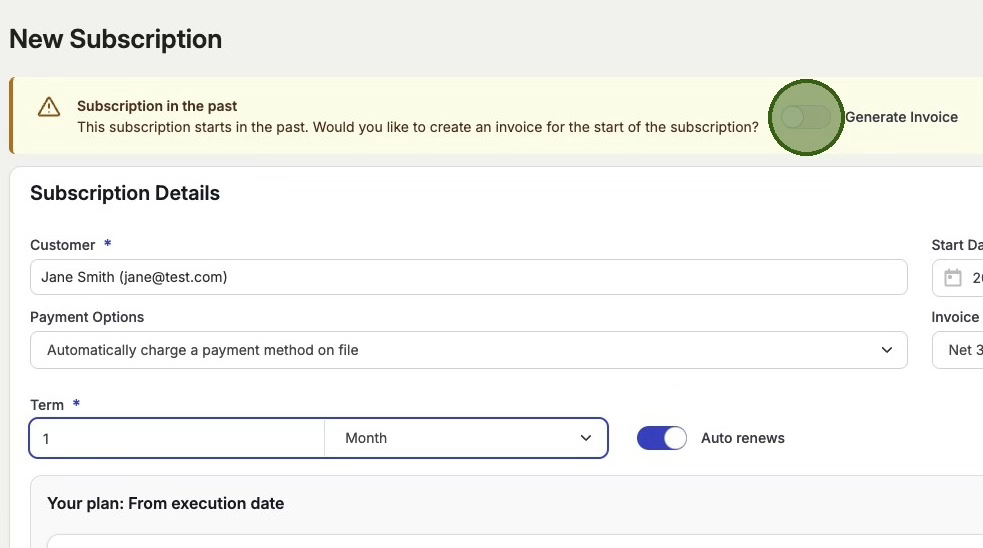
Toggle this feature on to generate the prorated invoice for the initial partial period before the anchor date.
3. Generate Historical Invoice (if Start Date is in the Past)
Click Create to generate the subscription.
In the subscription details, you can now view the prorated invoice for the partial period. The next invoice will generate for the full billing period on the selected billing anchor date.