Cash Application
Cash application in Measure matches payments deposited directly into your bank account with invoices in your system. Once you connect your bank account through Plaid, Measure pulls in your transactions and surfaces recommended matches in the Cash Application Dashboard.
Measure sends email notifications when you have outstanding transactions that need reconciliation. Your daily workflow is to review the recommended matches, approve them, and work to reduce your outstanding transactions to zero.
To get started, you need to connect your bank account using the Plaid integration.
1. Install the Plaid Integration
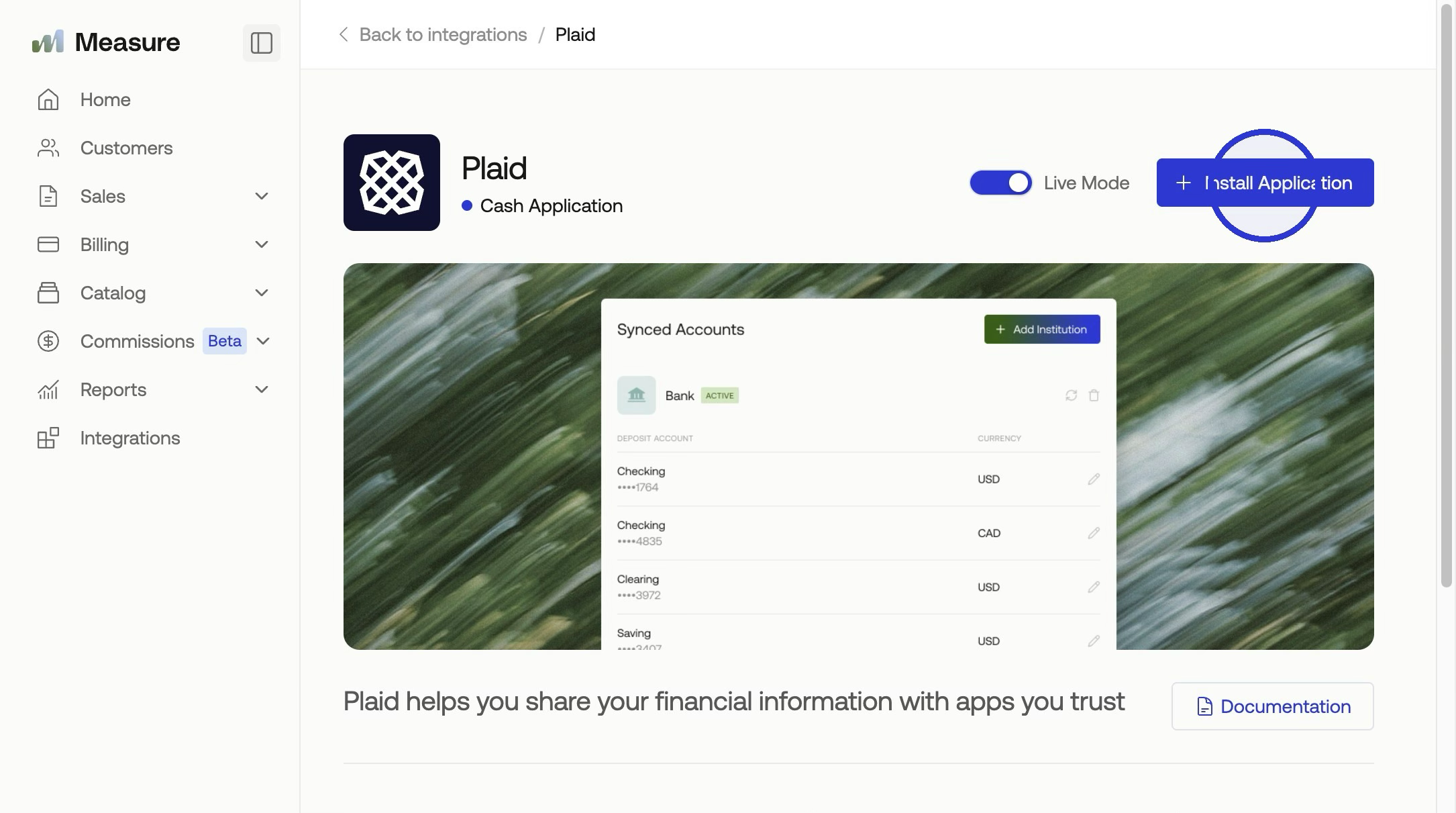
Navigate to Integrations in the left-side navigation. Find the Plaid integration and click Install, then confirm by clicking Install Application in the modal. Once installed, click Add Institution to begin connecting your bank account.
2. Connect Your Bank Account(s)
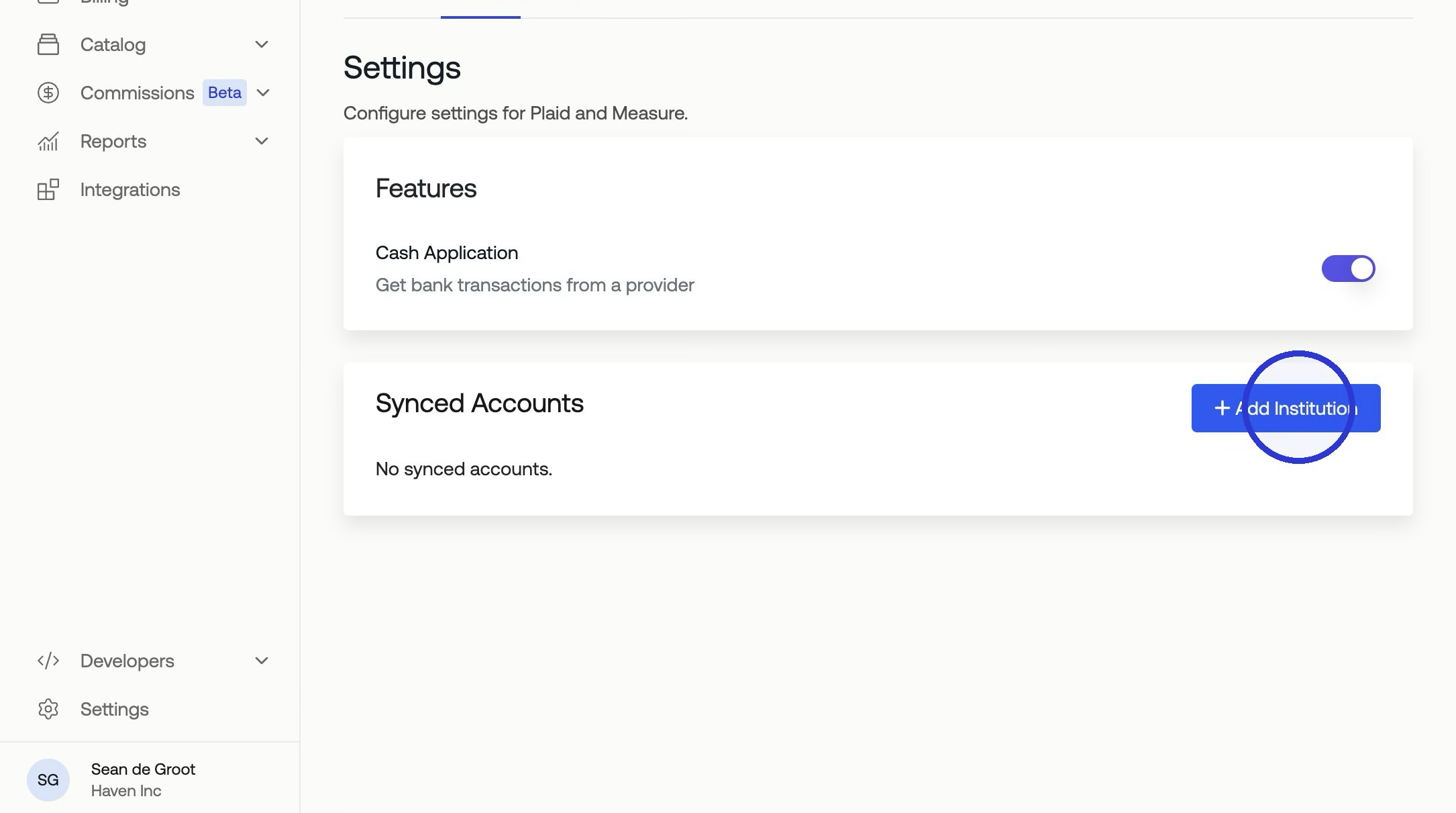
Next, you will want to click + Add Institution to connect your bank accounts.
In the Plaid connection window, search for and select your financial institution (e.g., Chase), then click Continue to login. Enter your banking credentials to sign in.
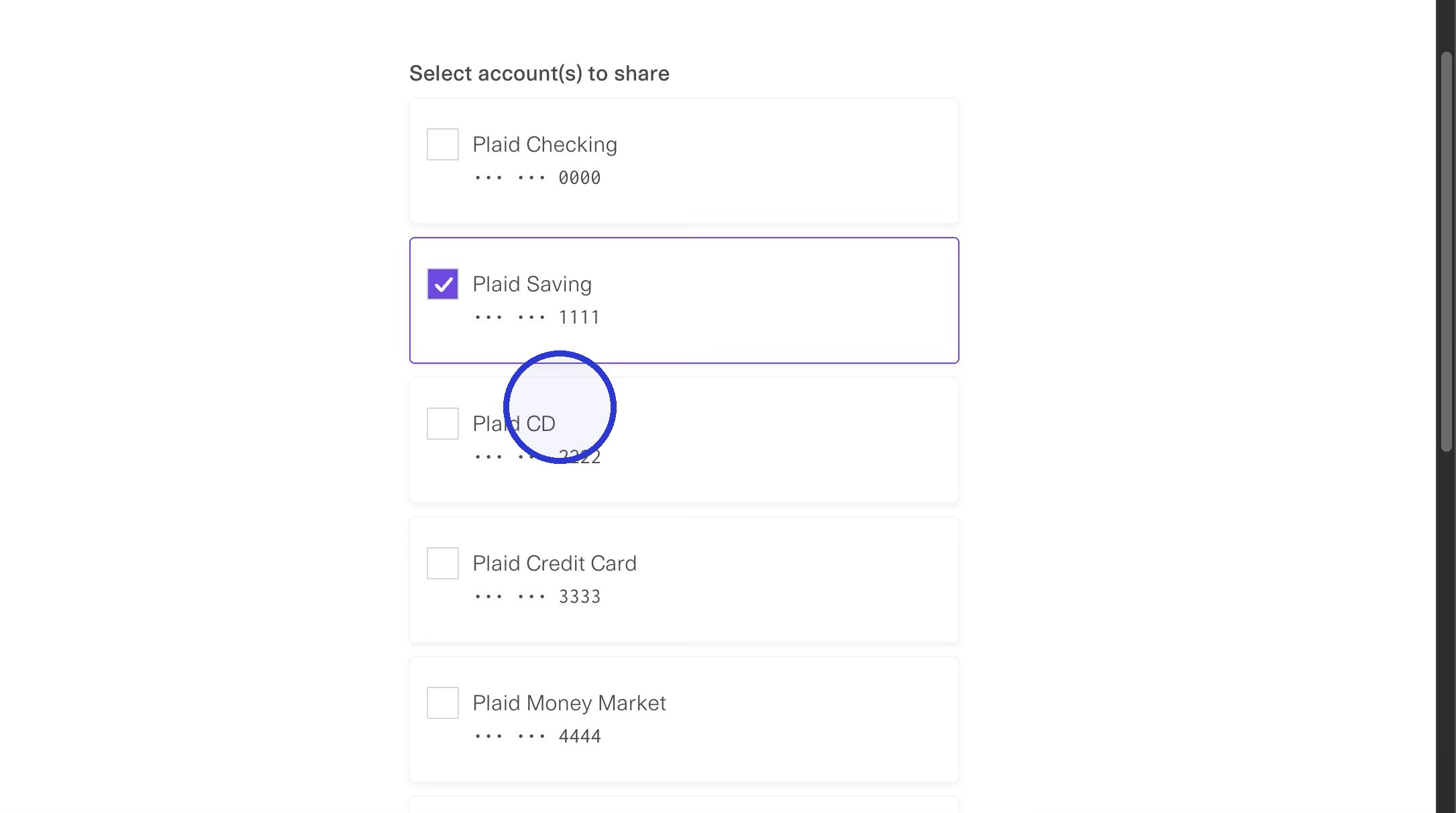
Once authenticated, you'll see a list of all available accounts at your institution. Select the account(s) you want to connect for reconciliation and click Continue. You can choose checking accounts, savings accounts, or credit card accounts depending on what you need to reconcile.
How Transaction Syncing Works
Once your bank account is connected, Plaid syncs transactions from your bank one to four times per day, depending on the institution. You can view these under Billing > Cash Application as Measure syncs transactions immediately when Plaid makes them available via webhook, with a daily backup sync to catch anything missed.
You may notice a delay between when a payment is received at your bank and when it appears in Measure. This is because Plaid must first pull the transaction from your bank before Measure can access it.
Dashboard - Recommended Matches
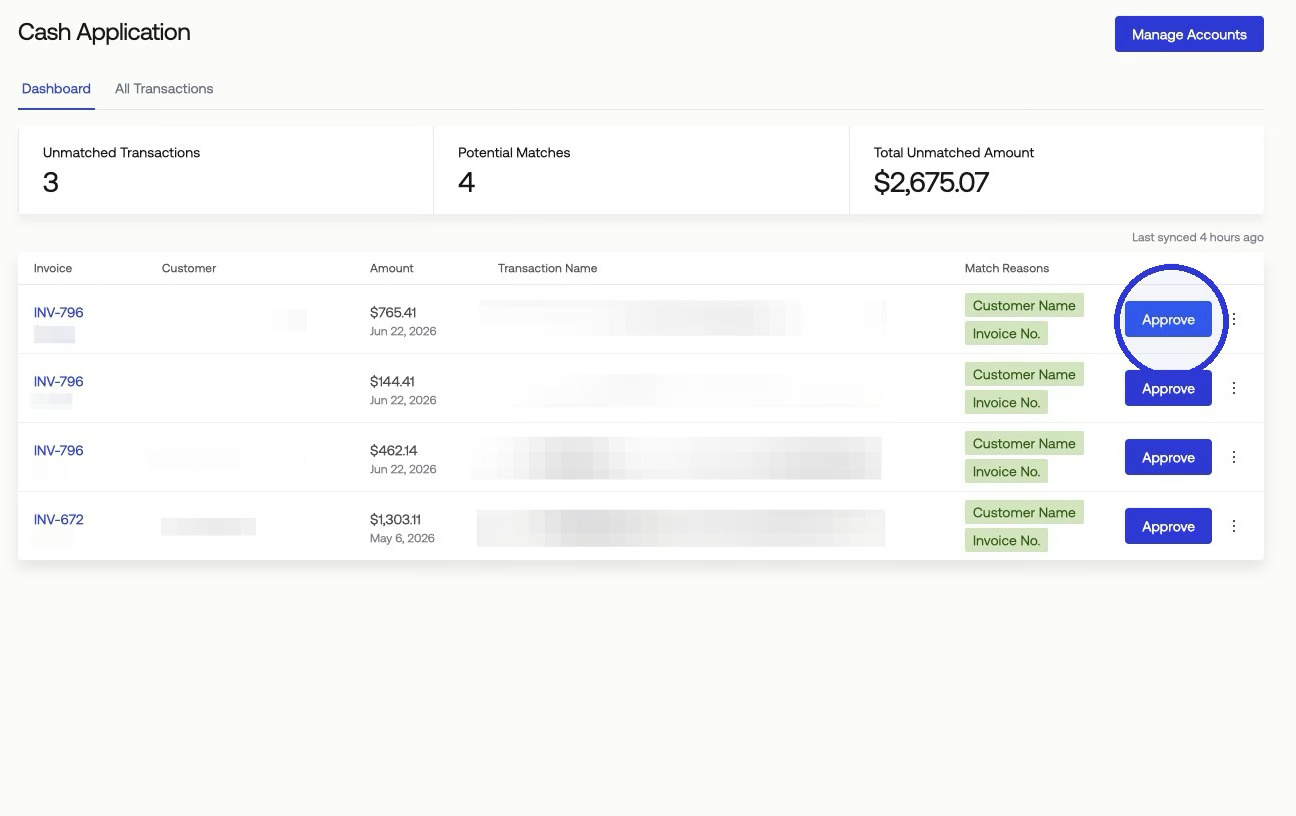
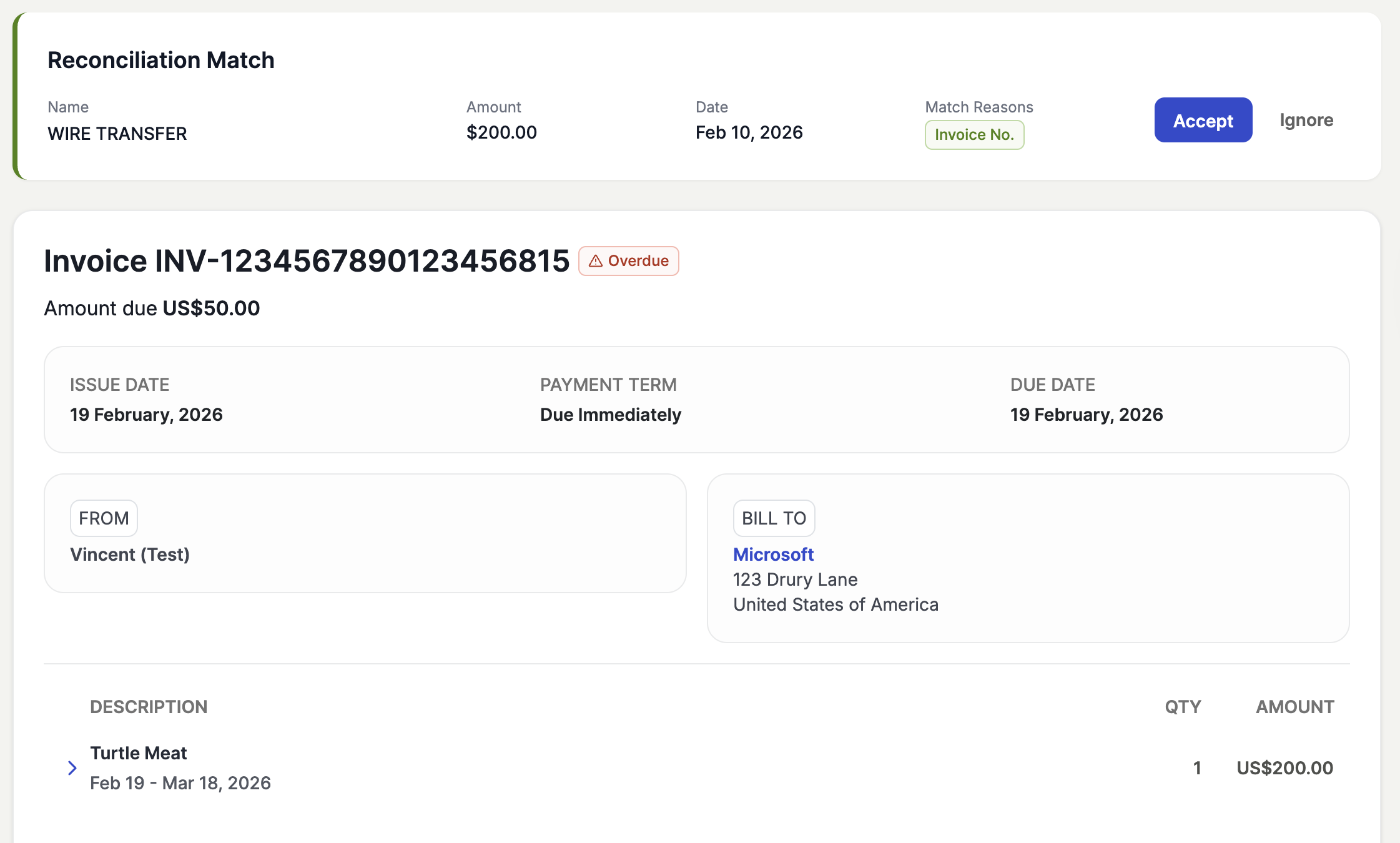
Under Dashboard, Measure generates recommended matches for your bank transactions by analyzing the transaction description for customer names and invoice numbers. When you select a transaction, you can view the recommended matches and the reasons behind each recommendation in a dedicated tab.
To approve a recommendation, select the transaction in the dashboard, review the suggested match, and confirm it. The transaction status updates to Matched and links to the corresponding payment in Measure.
If no recommendation is available for a transaction, you can manually match it using the search interface. Enter an invoice number or other search criteria to locate the correct invoice, select it, and mark it as reconciled.
All Transactions
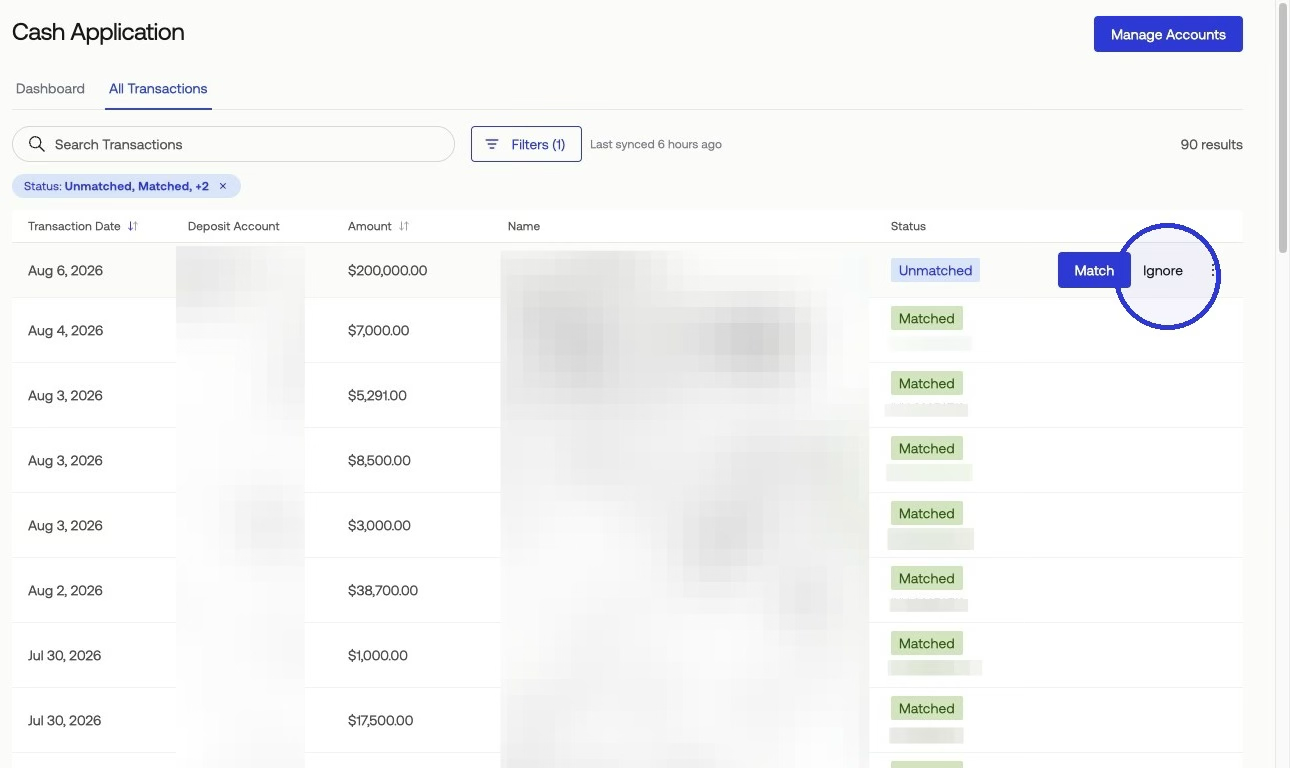
Navigate to Billing > Cash Application. The dashboard displays all bank transactions retrieved from your connected accounts through Plaid, with recommended matches surfaced first for quick approval.
Your goal is to review the recommended matches, approve the ones that are correct, and reduce your outstanding transactions to zero. Each transaction has one of the following statuses:
Matched- The bank transaction has been successfully linked to its corresponding payment in Measure.Unmatched- The bank transaction has not been linked to any payment in Measure.Ignored- The bank transaction does not correspond to any invoice or payment in Measure, so no action is required.
You can also do this from the invoices side. Navigate to the invoice, and attach the bank transaction from there.
Attach Bank Deposits to Existing Payments
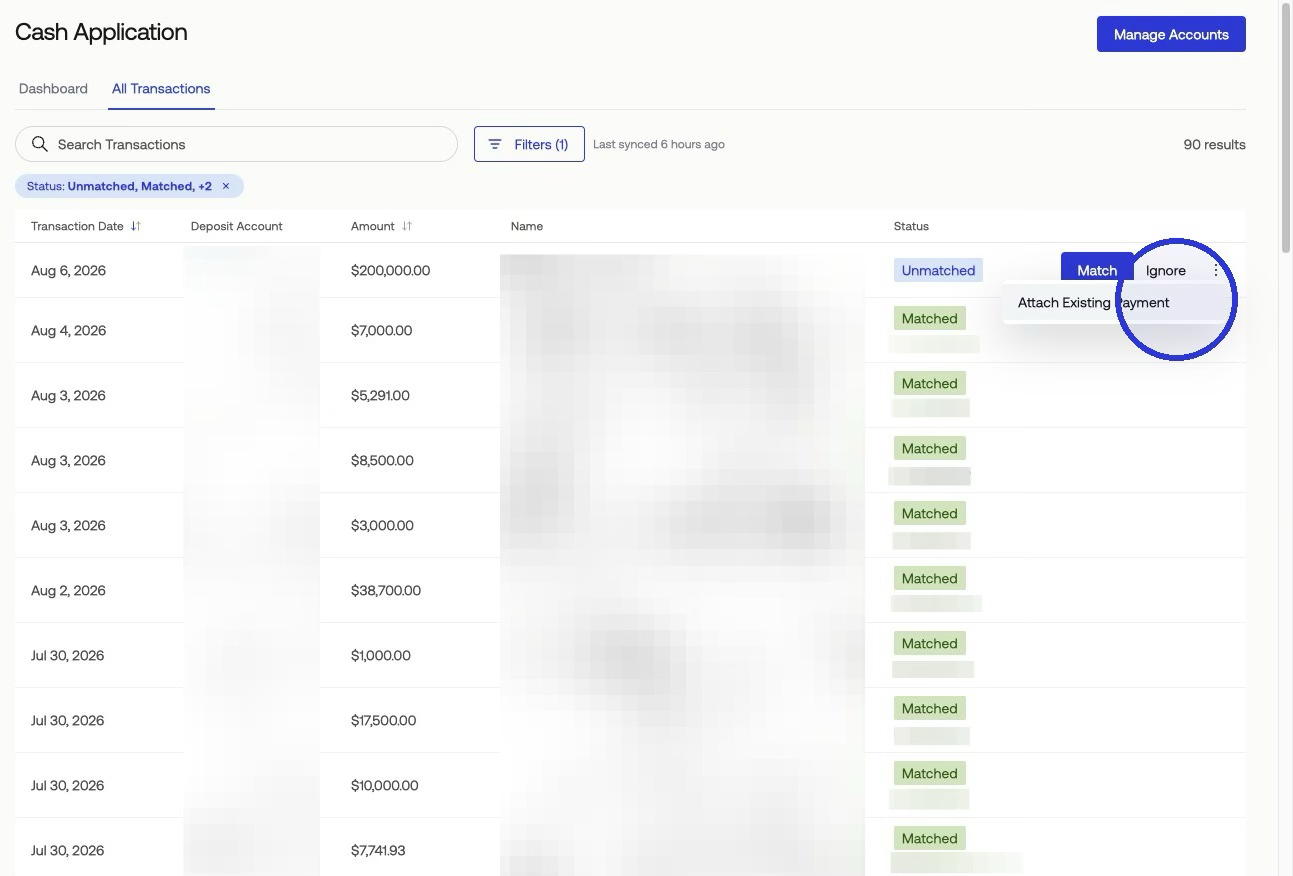
If an invoice was already marked as paid outside of Measure (for example, through an offline payment), you can still attach the corresponding bank transaction to that payment for a complete record.
Select the transaction in the All Transactions tab, click Attach existing payment, and you will see a list of offline payments that match the exact transfer amount. Select the correct payment to link it to the bank transaction.
Ignoring Transactions
Some bank transactions are not related to Measure invoices. Bank fees, account transfer charges, and other non-invoice transactions can be ignored to keep your reconciliation queue clean.
Click the Ignore button on any transaction to mark it as Ignored. The dedicated ignore button allows you to quickly process multiple irrelevant transactions without opening each one individually.
Measure also applies auto-ignore rules for certain transactions. Transactions containing "STRIPE; TRANSFER" or "Merchant name: STRIPE" in the description are automatically marked as Ignored, since these represent Stripe payouts that are already tracked in Measure through the Stripe integration.