QuickBooks Integration Overview and Setup
The QuickBooks integration pushes customers, invoices, payments, and credit notes from Measure to QuickBooks Online (QBO). When data changes in Measure, it automatically syncs to the corresponding records in QBO via our daily sync, or manually when Measure pushes that entity.
Connect your QuickBooks account
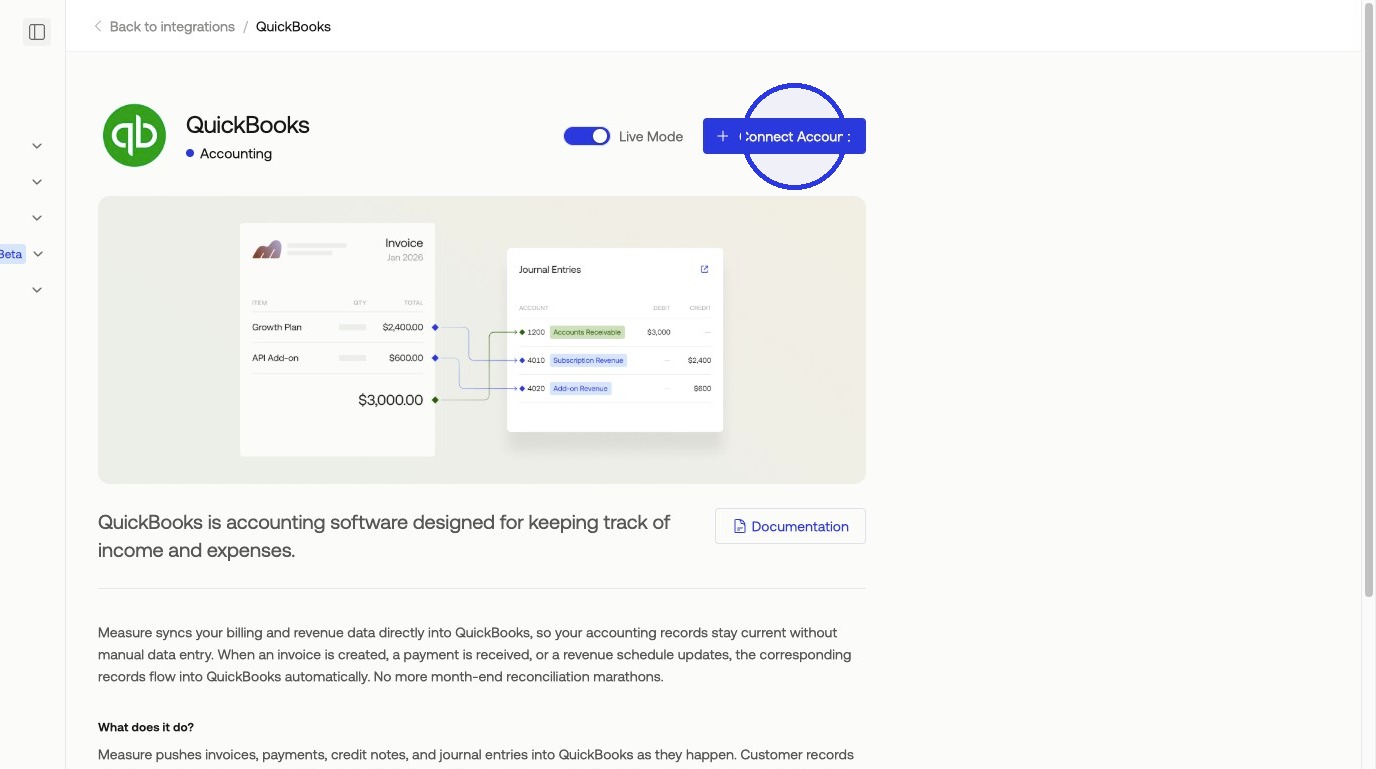
In Measure, go to Integrations > QuickBooks. Click Connect Account, log in to QuickBooks, and select your company to authorize the connection.
Configuring Mapping Settings
The settings panel lets you map data points from Measure to their corresponding fields in QuickBooks.
Product, Bank, and Tax Mapping
*Clearing Account Mapping: Select the account (example: "Undeposited Funds") that temporarily holds payments.
*Transaction Fees Bank Account: Select a transaction fee bank account to record all fees against.
Bank Account Mapping: Match currencies in Measure to your deposit accounts in QBO.
If calculating taxes:
Product Mapping: Match products in Measure to your QBO products.
Tax Rates Mapping: If calculating taxes, map tax rates from Measure to the corresponding tax rates in QuickBooks.
Journal Account Mapping: Match Measure accounts to each journal account in QuickBooks.
QuickBooks Revenue Account: Select a revenue bank account to record all fees against.
QuickBooks Discounts Account: Select a discount bank account to record all fees against.
*Minimum Onboarding Steps
Pushing Financial Records to Accounting
When first installing QuickBooks, you will be prompted to map your initial data between Measure and QuickBooks. This includes:
Customers
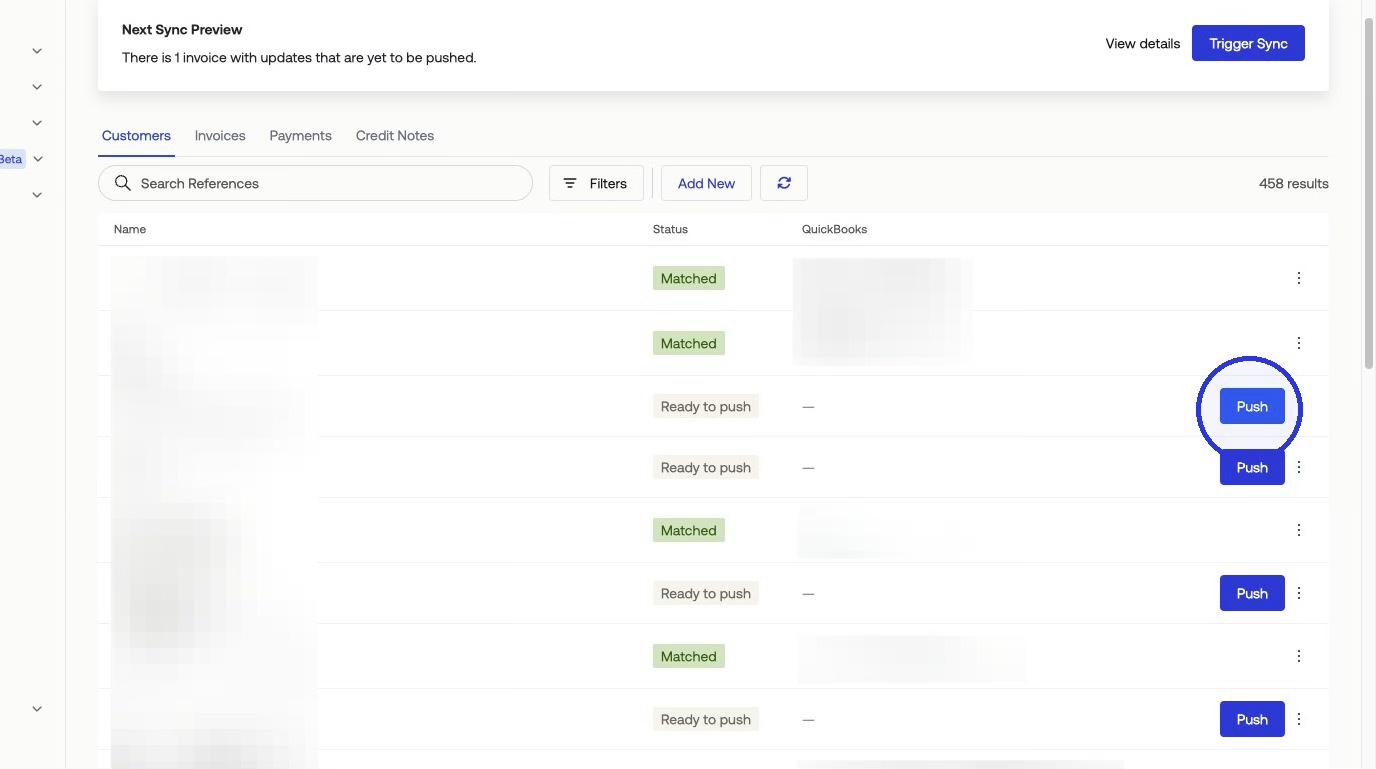
For existing customers in Measure and accounting, you can simply match these under Matches > Customers by clicking Match and selecting the customer from QuickBooks. Any customers that are not created in accounting can be pushed to create.
When you create or update a customer in Measure, it syncs to a Customer record in QuickBooks. If you bill a customer in multiple currencies, Measure creates a separate QuickBooks Customer for each currency.
The currency code is appended to the customer's display name to distinguish them. For example, a customer billed in both CAD and USD appears as Acme Corp (CAD) and Acme Corp (USD). The CurrencyRef field in QuickBooks is set to match the invoice currency.
Display Name maps to the customer's Name or Company Name in Measure, with invalid characters removed. Email maps to the PrimaryEmailAddr in QuickBooks. Company Name maps to the CompanyName field.
If address syncing is enabled, Measure's customer billing address maps to the BillAddr field in QuickBooks using ISO Alpha-3 country codes.
Invoices
Measure invoices sync to QuickBooks. Upon installation, you can do an Initial Sync to push over invoices from Measure to QuickBooks under Matches > Invoices > Initial Sync.
Line items map based on their type. Products and Services map directly to the QuickBooks Products or Services you configured in your integration mappings. Quantity, unit price, and total amount sync automatically.
Discounts are booked to the default Discount Account you selected in your QuickBooks preferences. If no account is selected, Measure reduces the pre-tax unit price of the product line item instead.
Credits applied directly to an invoice (not part of a formal Credit Note) push as negative, non-taxable line items on the QuickBooks Invoice. Invoice line descriptions sync to QuickBooks. If configured, the billing period for the line item (for example, 01 Jan 2024 - 31 Jan 2024) is appended to the description for clearer revenue recognition.
Taxes calculated in Measure map to QuickBooks via the tax mappings you configured in your integration settings.
Payments
Like Invoices, upon installation, you can do an Initial Sync to push over payments from Measure to QuickBooks under Matches > Payments > Initial Sync.
Measure handles payment reconciliation by breaking down a transaction into its core accounting components. This ensures gateway fees and net deposits are recorded accurately.
When you capture a payment in Measure, three objects are created in QuickBooks. The Payment represents the full gross amount paid by the customer. It links automatically to the corresponding QuickBooks Invoice to mark it as paid.
The Purchase (with payment type set to Cash) represents the gateway transaction fee, such as Stripe fees. This purchase deducts from your mapped Deposit Bank Account and is categorized under your configured Transaction Fee Account.
The Deposit represents the actual net amount transferred to your bank account. It bundles the gross payment and deducts the transaction fee, matching the net settlement on your bank statement.
Credit Notes and Refunds
Lastly, like invoices and payments, upon installation, you can do an initial sync to push over Credit Notes from Measure to QuickBooks under Matches > Credit Notes > Initial Sync.
⚠️ Credit notes will not sync from Measure to QuickBooks unless the Automatically apply credits setting is turned off in your QuickBooks Online settings (Account and Settings > Advanced > Automation). This is an important configuration requirement.
When you issue a Credit Note in Measure, it syncs as a Credit Memo in QuickBooks. The line items on the credit note map to the same QuickBooks Products or Services as the original invoice. Taxes and amounts are mirrored to ensure accurate liability reduction.
When you apply a credit note balance to an open invoice in Measure, Measure creates a zero-dollar Payment record in QuickBooks that ties both the Invoice and the Credit Memo together. This lowers the open balance of the invoice.
When you refund a payment in Measure, it records as a Purchase (Payment Type: Check) in QuickBooks. This purchase is drawn from your mapped deposit bank account and credited to the Accounts Receivable account, representing cash returning to the customer.
QBO Controls
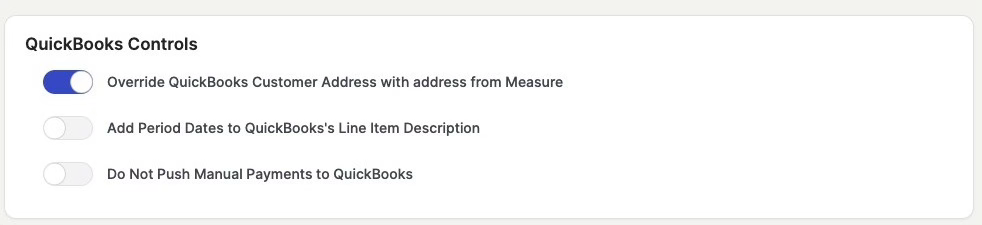
You can enable specific behaviors for the sync:
Override QuickBooks Customer Address with Address from Measure: Syncs customer billing addresses from Measure to the corresponding Contact records in QuickBooks.
Add Period Dates to QuickBooks Line Item Description: Appends the service period (for example, 01 Jan 2024 - 31 Jan 2024) to each invoice line item description in QuickBooks.
Do Not Push Manual Payments to QuickBooks: Payments received outside of Measure but marked as "Paid" on the corresponding invoice in Measure will not be pushed over automatically. These will need to be reconciled manually in accounting.
Syncs, Matches, and Logs
The top tabs in the QuickBooks integration panel let you monitor sync activity and history.
Matches: View and manage how customers, invoices, and payments in Measure are matched to records in QuickBooks. Manually match any items that were not linked automatically.
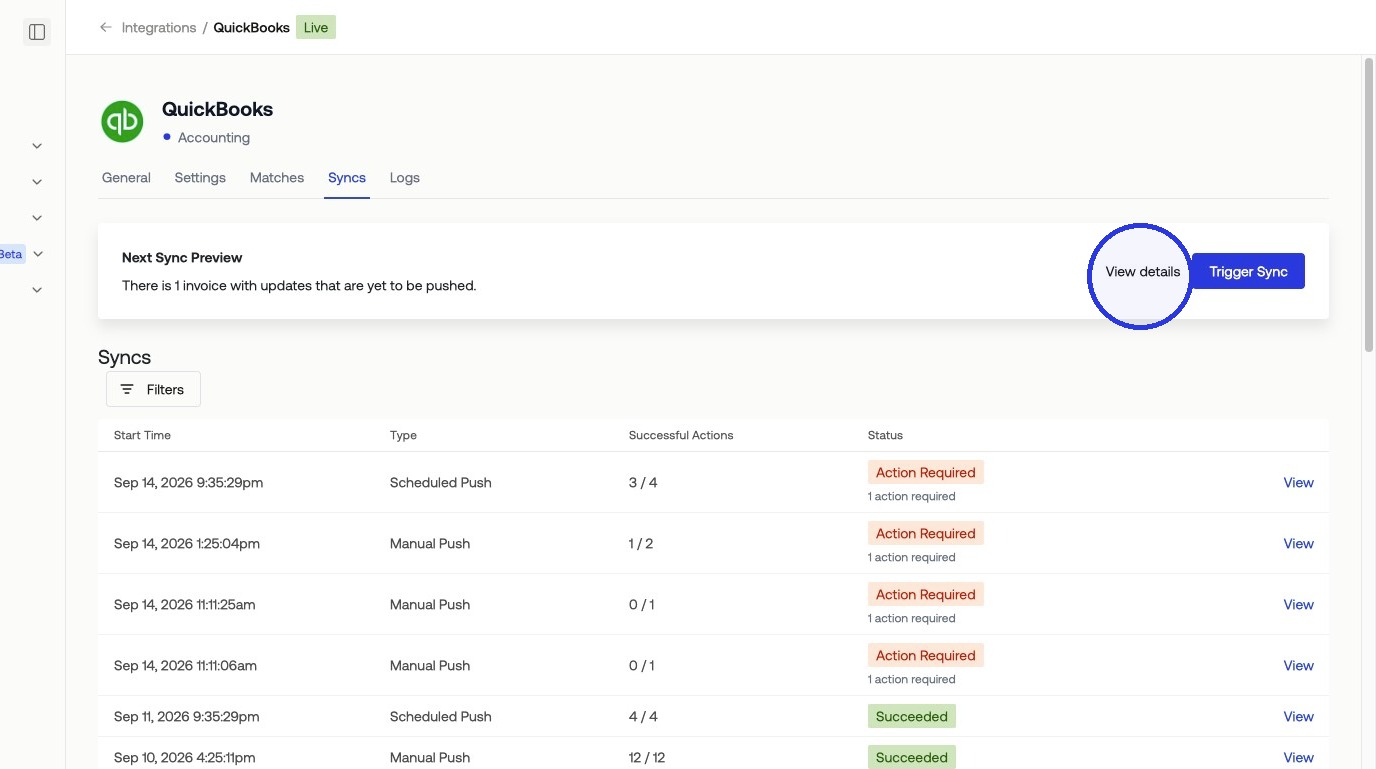
Syncs: See a summary of items pending a sync. Trigger a manual sync from this tab. The next scheduled automatic sync time is also shown here.
Logs: Review a detailed history of all sync activities and any errors that occurred.
Automatic Sync
Turn on and preview when your next automatic sync will occur under the Settings tab of your QBO integration.
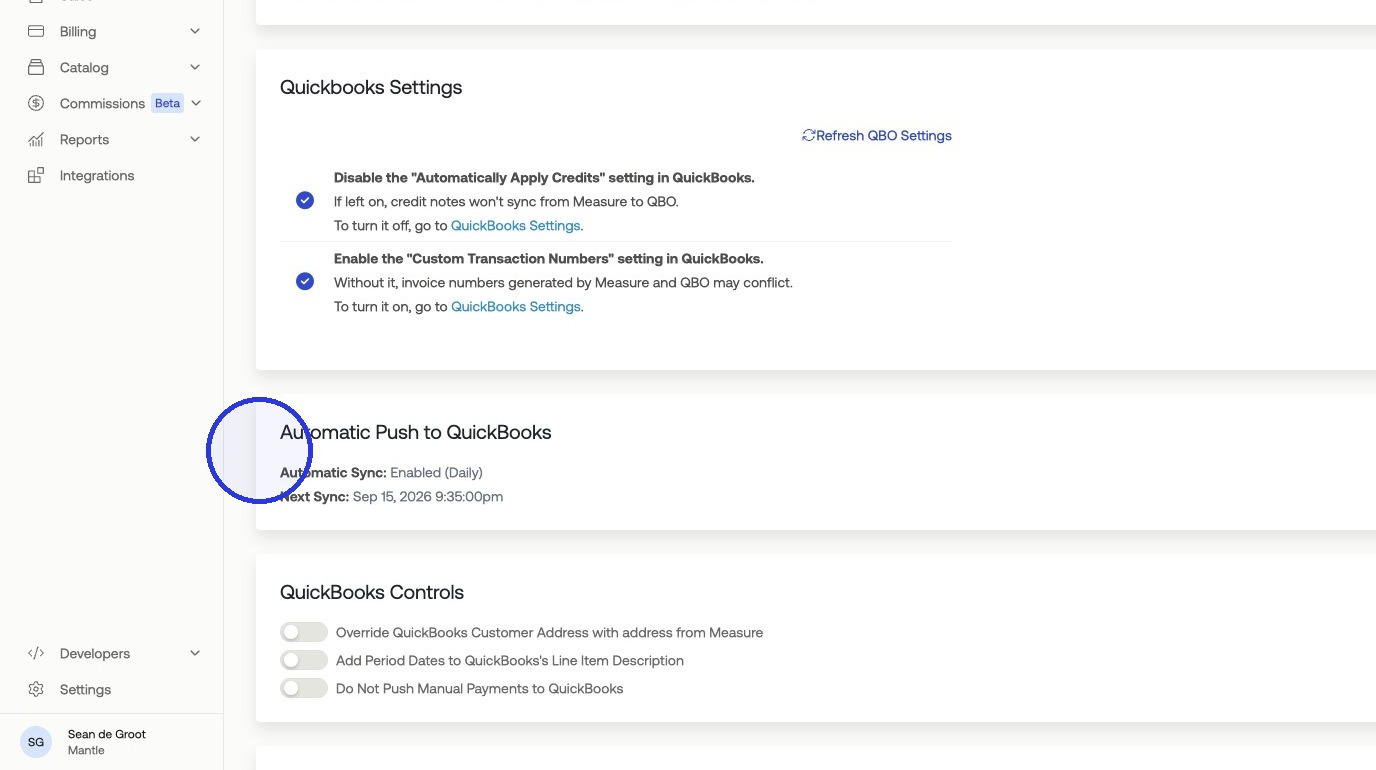
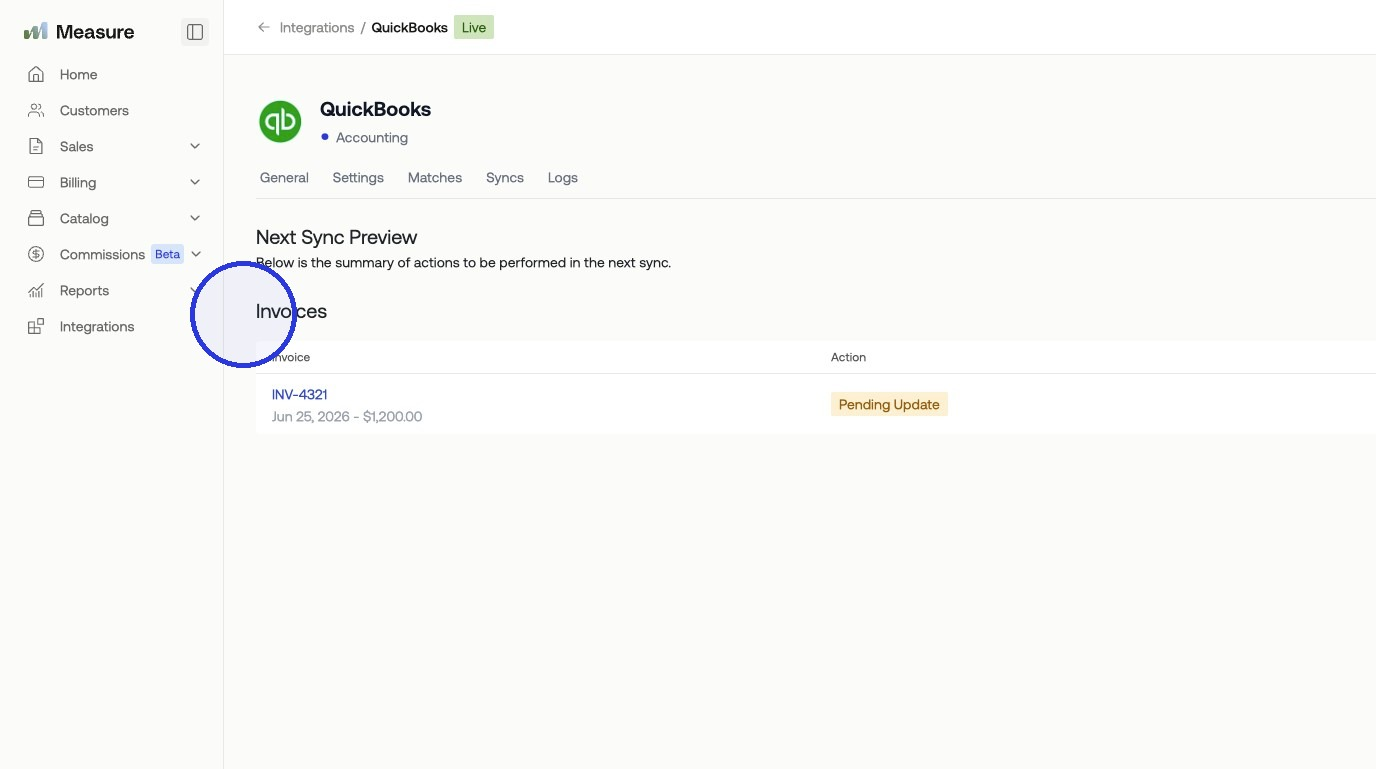
You can also preview a summary of records queued for the next sync.
Manual Sync
Push a manual sync from Syncs by going to your Matches and selecting the item you want to push.