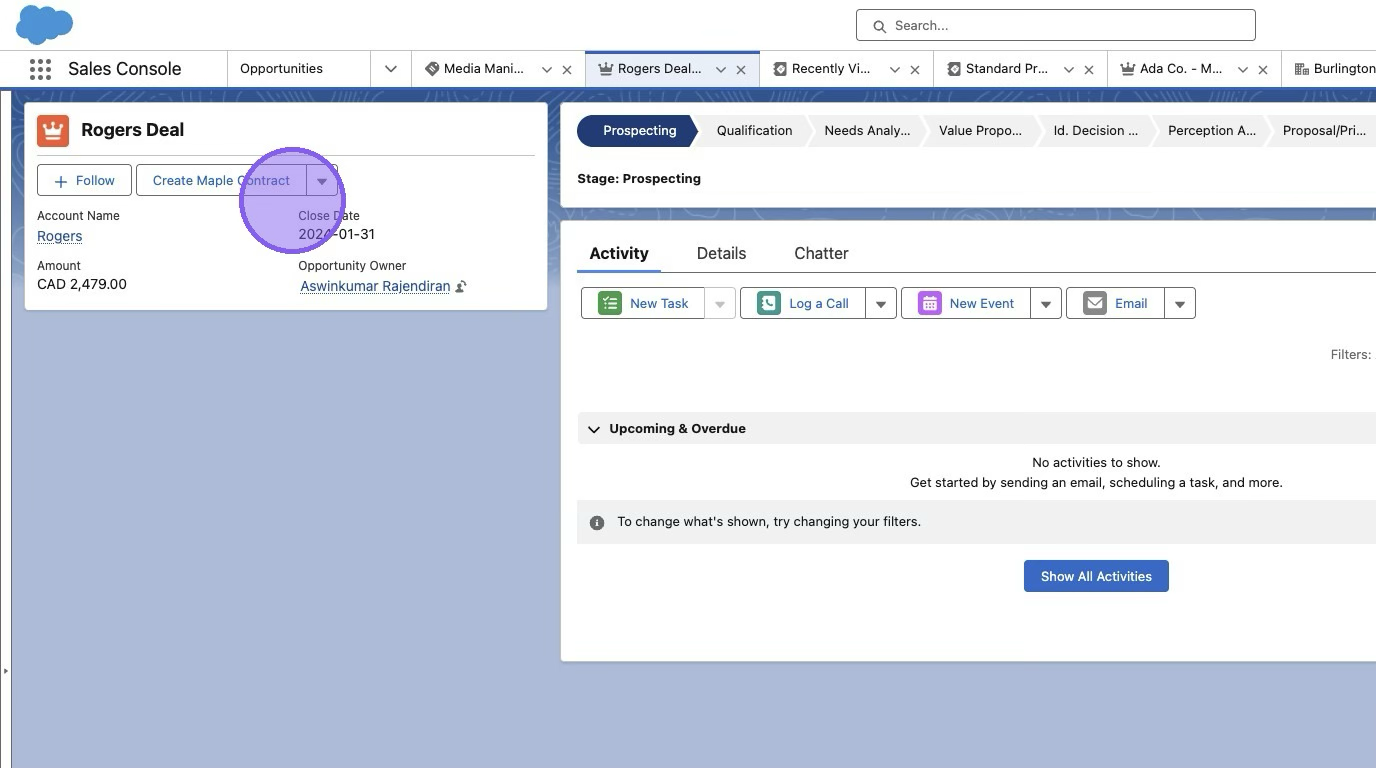
How to Set up the Salesforce button on the opportunity (Salesforce Classic)
Follow the steps below to configure a button in Salesforce to create Measure Contracts in Opportunities.
Using Lightning Experience? Refer to this article instead.
1. Set up the custom button in Salesforce
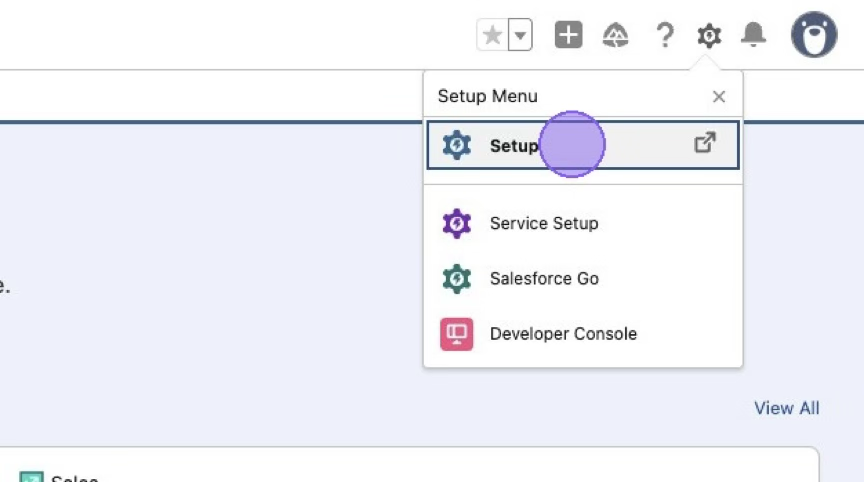
Navigate to Settings (gear icon on the top right) in Salesforce and click Setup.
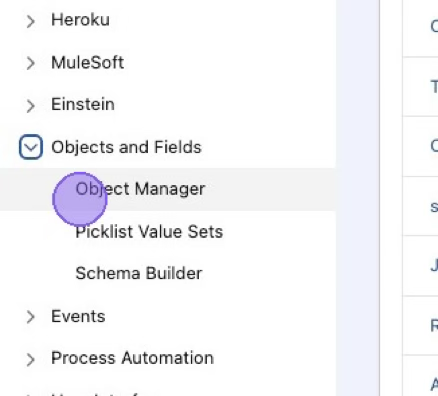
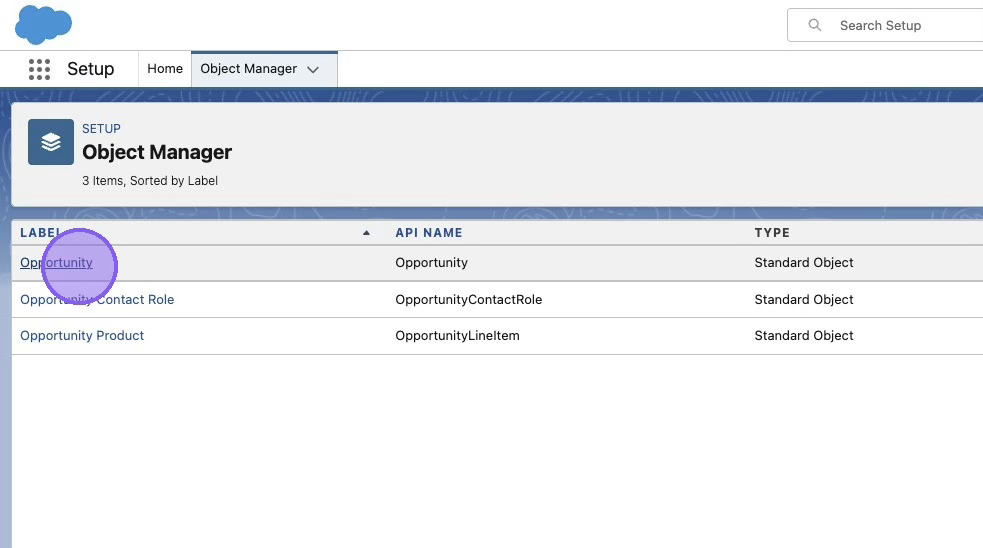
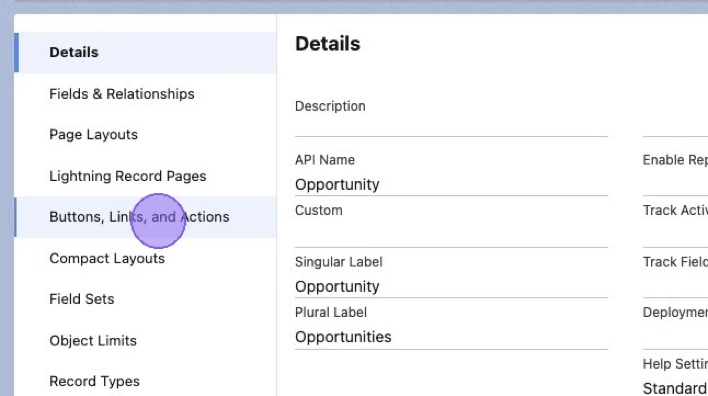
Find Objects and Fields > Object Manager > Opportunity.
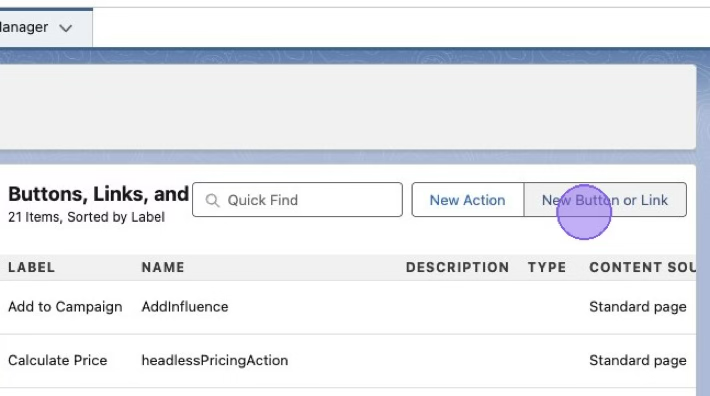
Click Buttons, Links, and Actions > New Button or Link.
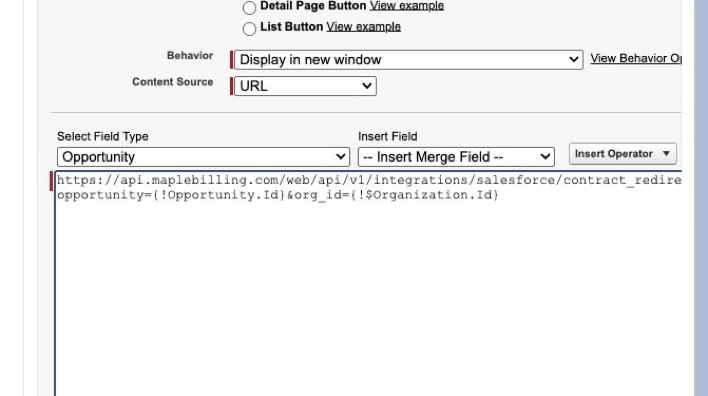
Pick a label.
For creating a Measure contract from the Opportunity, paste the text between the quotation marks in the text box:
"https://api.getmeasure.com/web/api/v1/integrations/salesforce/contract_redirect?opportunity={!Opportunity.Id}&org_id={!$Organization.Id}"
For creating a Measure subscription from the Opportunity, paste the text between the quotation marks in the text box:
"https://api.getmeasure.com/web/api/v1/integrations/salesforce/subscription_redirect?opportunity={!Opportunity.Id}&org_id={!$Organization.Id}"
Click Save.
2. Add the button to the Salesforce Opportunity page layout
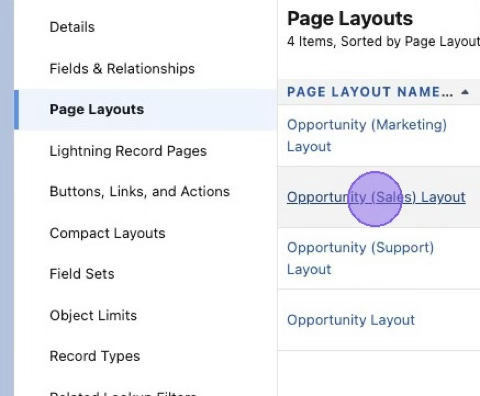
In the Opportunity Object Manager page, select Page Layouts.
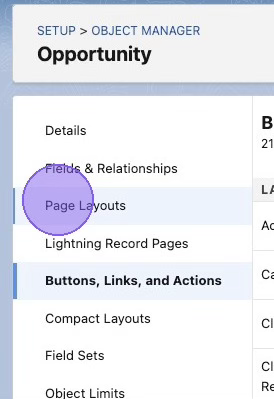
Select your preferred layout (ex. Opportunity (Sales) Layout).
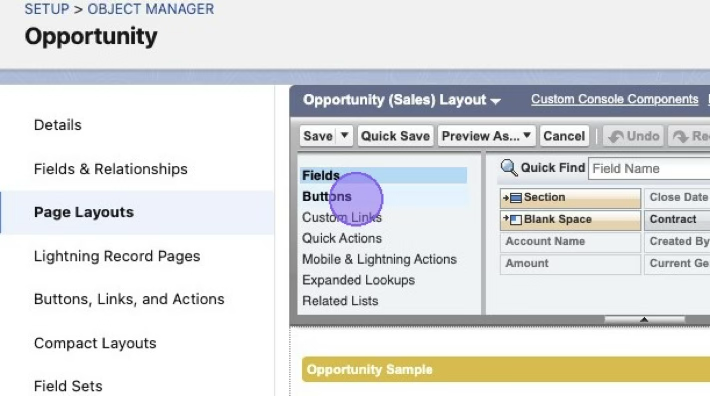
Click Buttons and drag the new button into the Opportunity Detail area. Click Save.
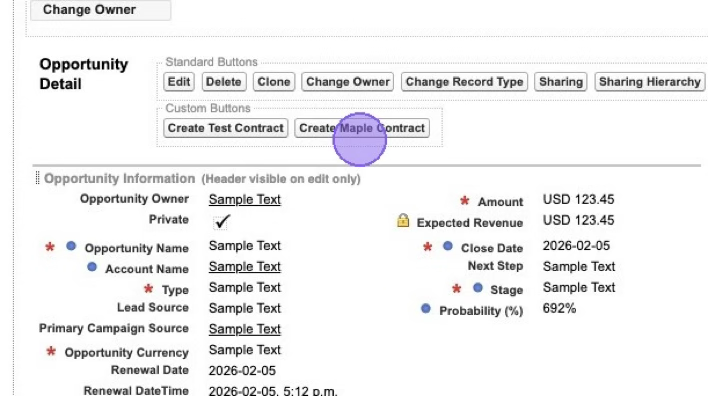
You will find the contract button on every Opportunity page.